General
Set up and configuration
- Assign required reading
- Manage app settings and notifications
- Home page image and document logo
- Manage categories
- Welcome text and news
- Hide items (archive content)
- Required reading reports
- Updating role name video
- Updating links to Strengthened Standards training video
- Onboarding kit
- Send email notifications
Manage users
Troubleshooting
Registers
Manage content
- Delete document
- Edit, review and approve process
- Edit, review and approve policy
- Create and publish new policy
- Create and publish new process
- Previous item version information
- Edit roles
- Edit release notes
- Hide items (archive content)
- Introduction to release management
- Manage document
- Manage regulations
- Publish multiple changes (in one release)
- Publish single item (manage changes)
- Download and print content
- Delete role
- Delete policy
- Delete process
- Delete or archive regulation
- Embed video
- Manage comments
- Send email notifications
- Show Remaining Articles (2) Collapse Articles
Audits
Training Resources
- Content updates training
- Process editing - editing the process sequence
- Upcoming training sessions
- Required reading training video
- Updating role name video
- Updating links to Strengthened Standards training video
- Scheduling updated audits video
- Work instructions training video
- Comments training video
Business units
Reports
Required Reading
Work Instructions
Mobile Phone App
Comments
Custom audits
Publish single item (manage changes)
There are three key steps in the release management workflow. You must complete all the steps to publish your item.
Start editing
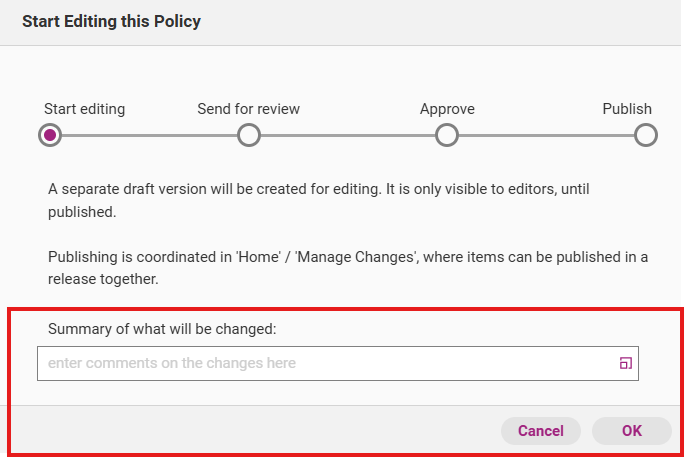
Once you start adding new content or updating existing content, you will automatically create a draft version of your selected policy/process/document/role. Before you start editing, you have the option to write a summary of what you intend to change.
Step 1
Once you start adding new content or updating existing content, you will automatically create a draft version of your selected policy/process/document/role. Before you start editing, you have the option to write a summary
Even if you are adding a new piece of content, it will be in a draft state until an administrator approves it. This could be you or a different administrator.
You can tell a piece of content is in a draft state when it is labelled ‘Draft’.
Content view

List view

Tip
To avoid confusion and speed up the approval process, make all your planned changes when you are in the draft stage.
If you start updating existing content, the system will automatically create a draft duplicate of the policy.

Important
The content will remain duplicated until you finalise publication, at which point the older version will disappear and will be replaced by the new version. Before this point, do not attempt manually delete the older published version.
Step 2
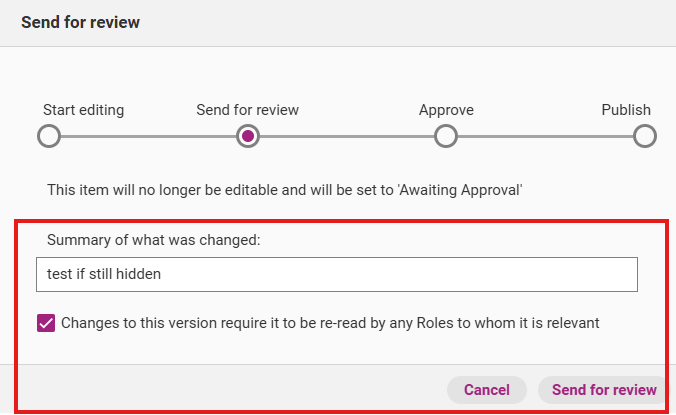
When you have finished making all required changes, click Send for review to move to the approval stage.

Step 3
Write a summary of your changes and click Send for review. You can edit this summary in each subsequent stage of the release management workflow.
Approve
The approval stage provides you (and all other administrators in your organisation) the opportunity to review the content before it is published.
An item that is in this stage will be labelled ‘Awaiting Approval’.
Content view

List view

Step 1
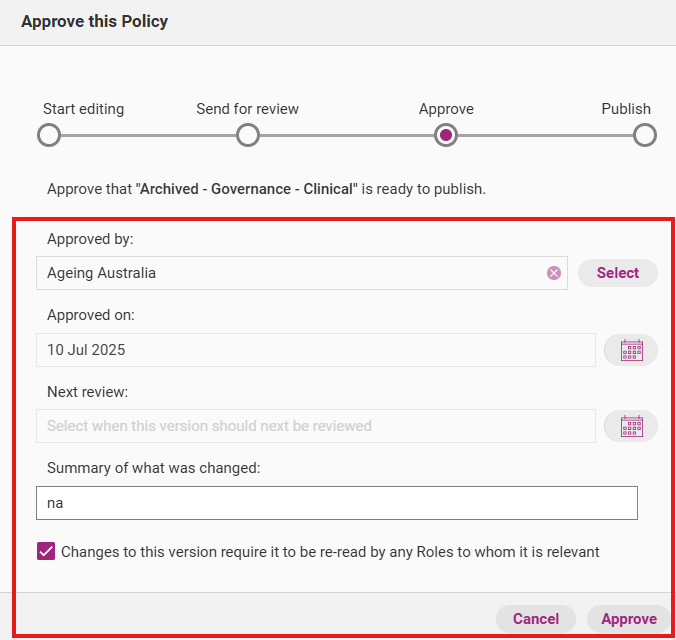
You will have the opportunity to revert the item to draft and continue editing. Click Approve when you are happy with all the changes.

Step 2
If you have made any additional changes, update the change summary before approving the policy. You also have the option to select version control information (i.e. who approved the item, the date on which it was approved as well as the next review date).
Publish
In this final stage, you (and any other administrators) have the opportunity to make final revisions before you publish your content.
An item that is in this stage will be labelled ‘Ready to Publish’.
Content view

List view

Step 1
Click Publishing to see your options. At this stage, you can still make changes by reverting the item to a draft. When you are happy with your changes click Publish Immediately.

Step 2
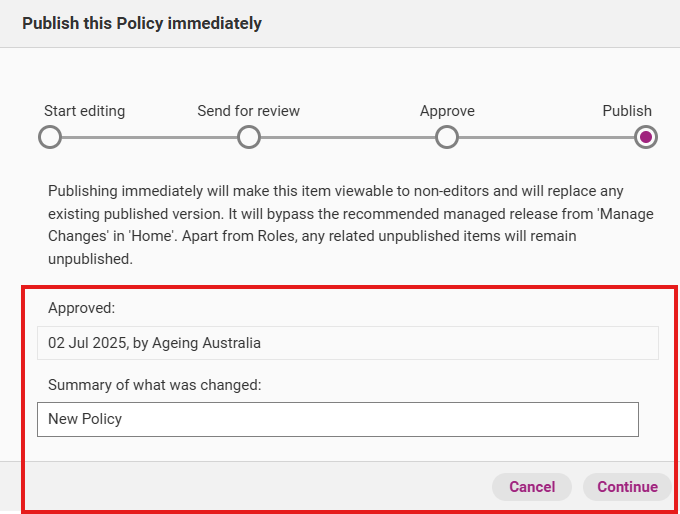
The records management workflow appears. You can edit the summary of what was changed. Click Continue when you are ready to proceed with publication.
Step 3
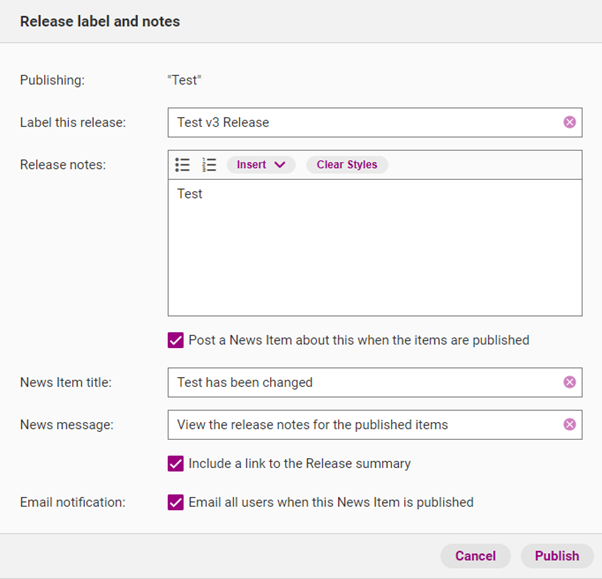
Write release notes for the new version of your content. Release notes are the official overview of all your changes and updates. You can edit the release notes later if required.
Field | Description |
|---|---|
Label this release | The official name of this release. |
Release notes | Details about what updates you have made. |
Post a news item about this when the items are published | If selected, you can post a news item on the Home tab to notify users about your content changes. |
News item title | Title of the news item that will appear in the Home tab. |
News message | The message that appears under the news item title. |
Include link in release summary | If selected, this option will allow you to include a link to the release notes for the item. |
Email all users when this News Item is published | If selected, all QMS users in your organisation (provided they have activated their account) will receive an email notification about the release at 5:30am AEDT/AEST the following day. |
Click Publish to officially release the item as the latest version. It will be marked as ‘Published’. All web app users in your organisation will now be able to see this new version.
Each new version is numbered consecutively depending on how many previous versions have been published. For example, if you have added and approved a policy for the first time, it will be labelled v.1 (version 1). If you update it again it will be v.2 and so on.
View all releases
Step 1
You can view all your content releases by accessing the Admin tab and clicking Publication History.

Step 2
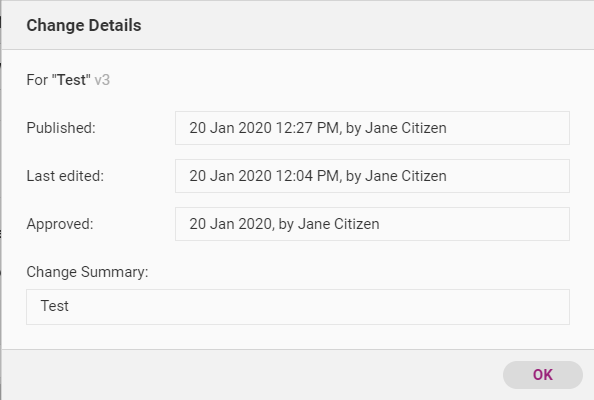
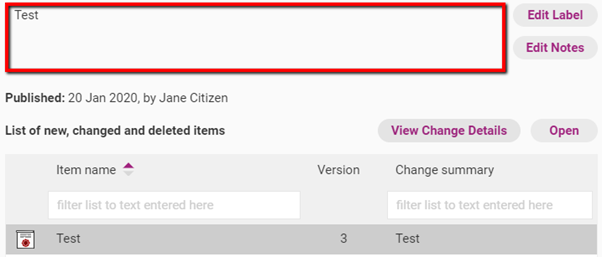
By clicking Open Release, you can access a page to view notes for the release. Click View Change Details to change details for each item.
Notes type | Description |
|---|---|
Release notes | The official overview of all changes and updates. If you have made multiple changes in one release (e.g. you published new versions of multiple policies) this will be an overview of the various changes you made to all items. |
Change details | A summary of the changes that you have made to the specific policy, process or document. |
Release notes
Change details