General
Set up and configuration
- Assign required reading
- Manage app settings and notifications
- Home page image and document logo
- Manage categories
- Welcome text and news
- Hide items (archive content)
- Required reading reports
- Updating role name video
- Updating links to Strengthened Standards training video
- Onboarding kit
- Send email notifications
Manage users
Troubleshooting
Registers
Manage content
- Delete document
- Edit, review and approve process
- Edit, review and approve policy
- Create and publish new policy
- Create and publish new process
- Previous item version information
- Edit roles
- Edit release notes
- Hide items (archive content)
- Introduction to release management
- Manage document
- Manage regulations
- Publish multiple changes (in one release)
- Publish single item (manage changes)
- Download and print content
- Delete role
- Delete policy
- Delete process
- Delete or archive regulation
- Embed video
- Manage comments
- Send email notifications
- Show Remaining Articles (2) Collapse Articles
Audits
Training Resources
- Content updates training
- Process editing - editing the process sequence
- Upcoming training sessions
- Required reading training video
- Updating role name video
- Updating links to Strengthened Standards training video
- Scheduling updated audits video
- Work instructions training video
- Comments training video
Business units
Reports
Required Reading
Work Instructions
Mobile Phone App
Comments
Custom audits
Create an audit schedule
To create an audit schedule, a user must have one of the following permissions in the Centro system:
- Audit Data Entry
- Audit Approval
- Model Administration
- Administration
Refer to Manage Users to change User access levels.
You can create a schedule of audits for each business unit by adding audit for that unit.
You can also refer to Scheduling updated audits video.
Add and assign a new audit
Step 1
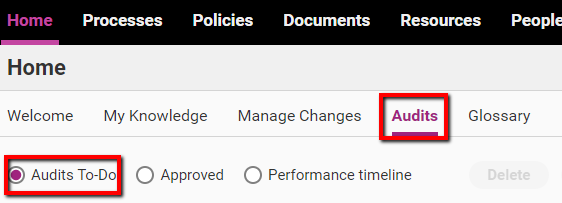
Access the Home tab and click the Audits subtab. You should be automatically viewing Audits To-Do.
Step 2
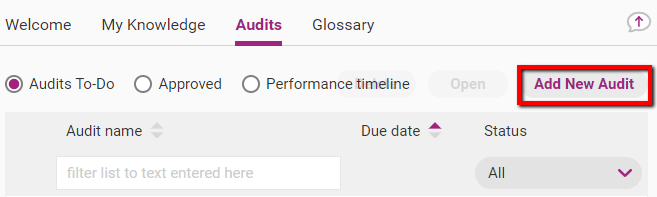
Click Add New Audit.
Step 3
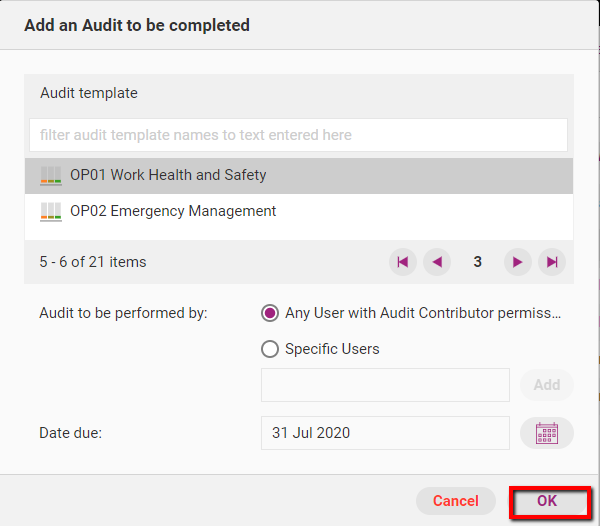
Enter all relevant information and click OK.
Field | Description |
|---|---|
Audit template | The audit you want to schedule. Each audit has a pre-existing template which includes sets of questions specific to the audit topic. |
Audit to be performed by | The people that will need to complete the audit. You can select all Audit Contributors in the web app or assign it only to specific Audit Contributors. |
Due date | The date by which designated people must complete the audit. |
Step 4
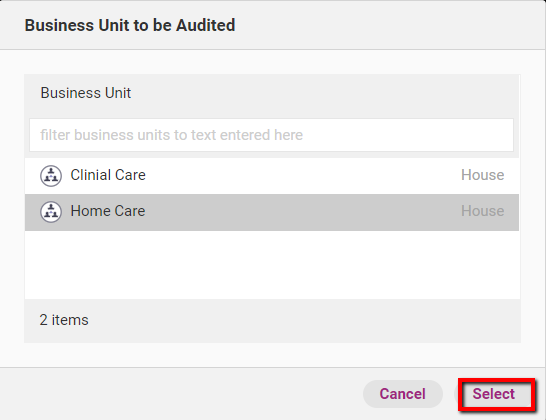
If you have created several business units, a window will come up and you can assign the audit to a business unit. Click on the relevant business unit and click Select.
View audit schedule
There are three ways to view your progress within the audit schedule.
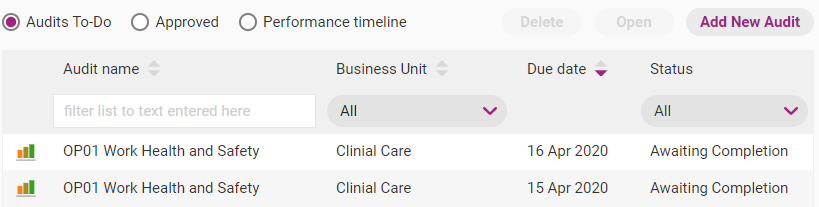
To-Do
This view shows information about the audits that you still need to complete. Use the ribbon above the list to filter the content.
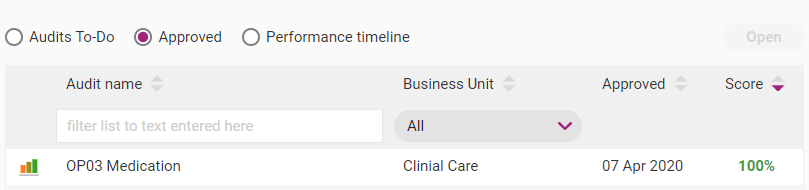
Approved
This view shows information about the audits that you have been completed and approved, including your score.
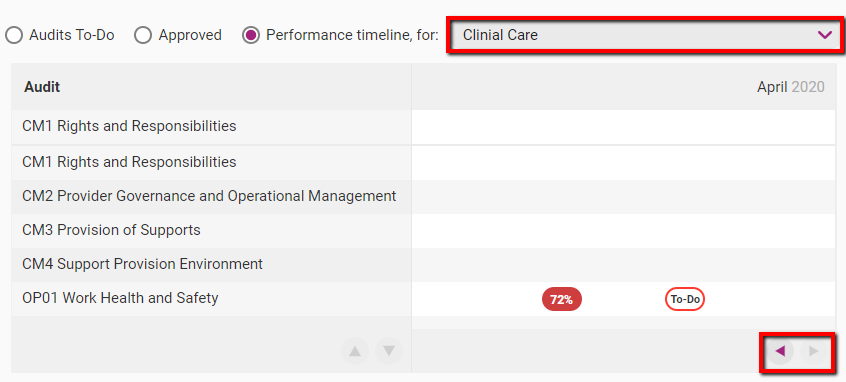
Performance timeline
The performance timeline is a calendar that displays completed and scheduled audits. Completed audits are displayed with your total score. Future audits are marked ‘To-Do’. Use the navigation arrows to view completed and planned audits.
Clicking on any item in the timeline will open the page for that audit.
You can view the performance timeline of several business units, by using the Business Unit dropdown menu.
Tip
You can use your browse print your audit timeline if required.