General
Set up and configuration
- Assign required reading
- Manage app settings and notifications
- Home page image and document logo
- Manage categories
- Welcome text and news
- Hide items (archive content)
- Required reading reports
- Updating role name video
- Updating links to Strengthened Standards training video
- Onboarding kit
- Send email notifications
Manage users
Troubleshooting
Registers
Manage content
- Delete document
- Edit, review and approve process
- Edit, review and approve policy
- Create and publish new policy
- Create and publish new process
- Previous item version information
- Edit roles
- Edit release notes
- Hide items (archive content)
- Introduction to release management
- Manage document
- Manage regulations
- Publish multiple changes (in one release)
- Publish single item (manage changes)
- Download and print content
- Delete role
- Delete policy
- Delete process
- Delete or archive regulation
- Embed video
- Manage comments
- Send email notifications
- Show Remaining Articles (2) Collapse Articles
Audits
Training Resources
- Content updates training
- Process editing - editing the process sequence
- Upcoming training sessions
- Required reading training video
- Updating role name video
- Updating links to Strengthened Standards training video
- Scheduling updated audits video
- Work instructions training video
- Comments training video
Business units
Reports
Required Reading
Work Instructions
Mobile Phone App
Comments
Custom audits
Home page image and document logo
In order to customise your QMS, the home page banner image and the document logo can be replaced by logos or images associated with your organisation.
User access level | Powers related to Home page image and document logo |
|---|---|
Administrator / Model Administrator | Can set home page image and document logo |
Specifications
To upload your organisation’s logo to the system, it is essential to have a high-quality image file of your organisation’s logo as well as a reverse logo, if available.
File types that are acceptable include:
– SVG file (most preferred)
– EPS or Illustrator file (preferred)
– High resolution JPEG, TIF or PNG file (least preferred)
For the Home page welcome banner the image should be scaled up/down to be at least 950px wide.
A smaller, reverse logo is required for use in the top-left corner of the QMS
Tip
Images keep their original file sizes, so a large image will impact the load times and responsiveness of the web app. The SVG file format will have the best performance.
Logo/Branding on QMS
Your organisation’s logo will show on various sections of your QMS including:
- Navigation logo
- Home page banner
- PDF report cover logo
- PDF report footer logo
Navigation logo
Navigation logo is at top of left of the QMS.

Home page banner
Home page banner is the welcome image of the QMS.
PDF report cover logo
Pdf report cover logo appears on the first page of the report.
PDF report footer logo
Pdf report footer logo appears on the footer of the report.
Important
The file format for Pdf logos should be SVG format. It will not show any other format.
Change Logo/Branding on QMS
Follow these steps to change the branding of your organisation’s QMS.
Important
Only users with Administration/Model Administration level access can change the logo on your QMS.
Step 1
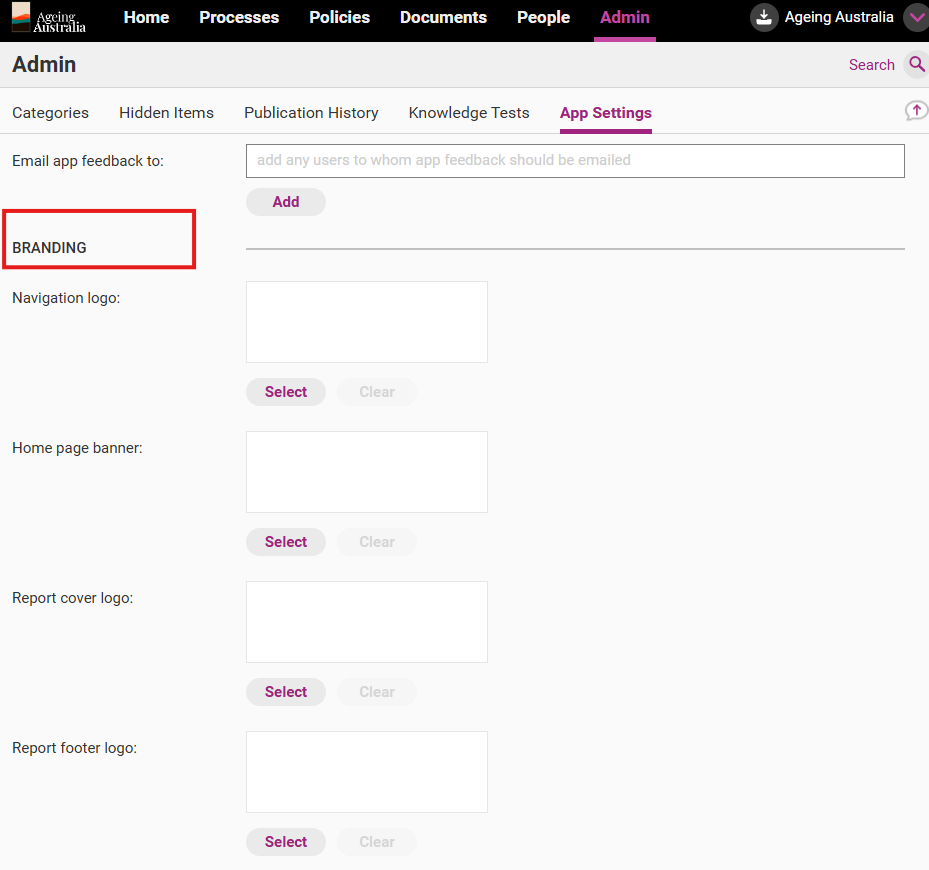
Click on Admin > App Settings.

Step 2
Scroll down to Branding and upload the images by clicking Select.
Step 3
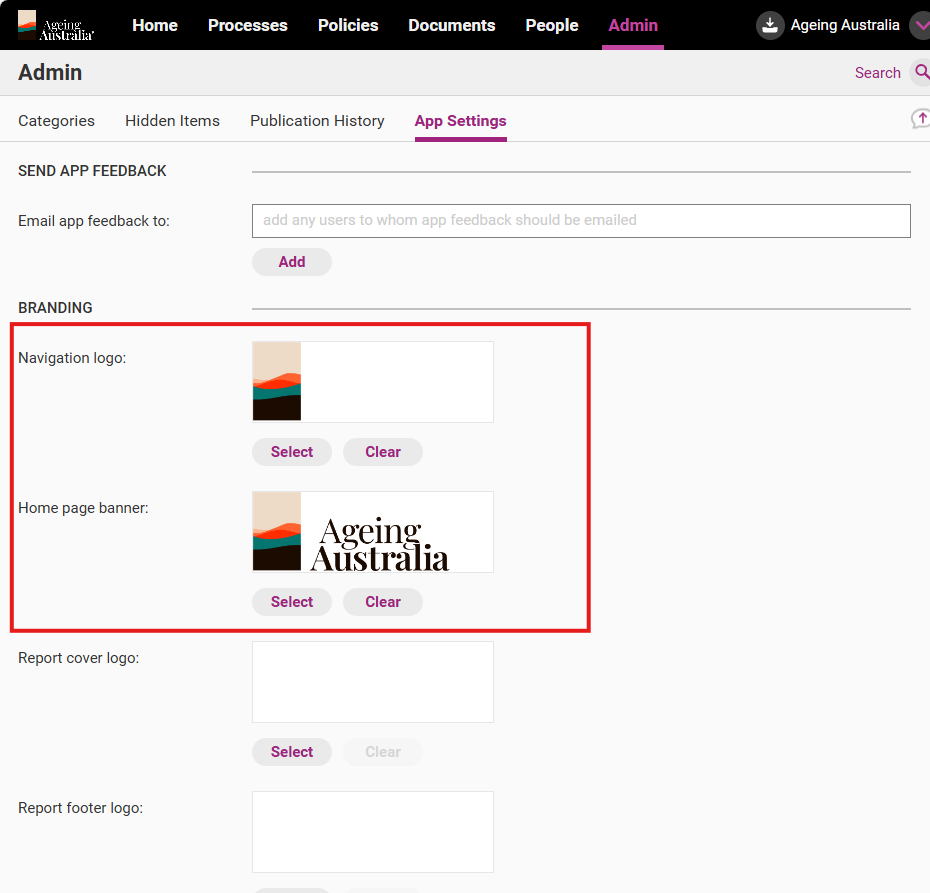
Once all logos are selected. The logos will show on all areas of your QMS.
Export file as an SVG
The following steps provide instructions for exporting a file as an SVG in Adobe Illustrator.
To begin, the logo must be a vector image in Adobe Illustrator (AI) or Encapsulated PostScript (EPS) format. It cannot be a bitmap image such as a JPG or a PNG.
Step 1
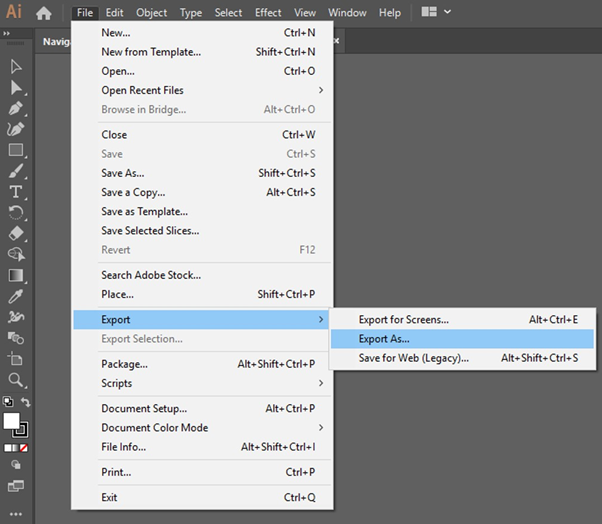
Click File and access Export > Export As
Step 2
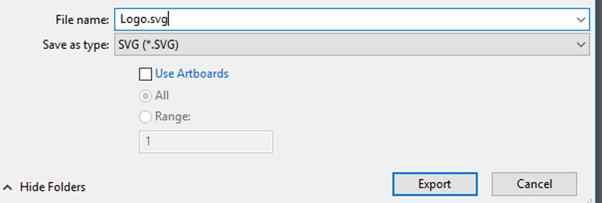
Untick Use Artboards and click Export
Step 3
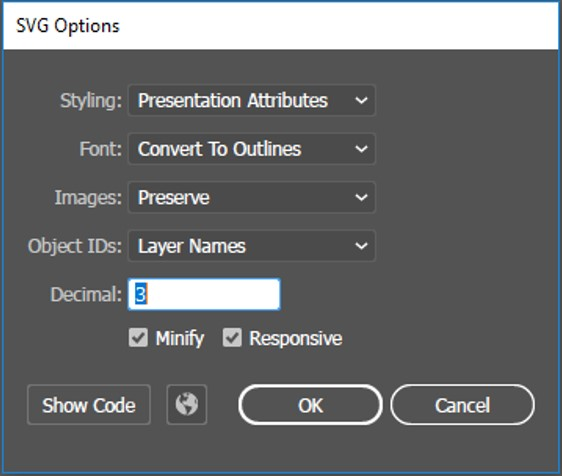
Choose the correct SVG options (check that Minify and Responsive are both ticked)