
General
Set up and configuration
- Assign required reading
- Manage app settings and notifications
- Home page image and document logo
- Manage categories
- Welcome text and news
- Hide items (archive content)
- Required reading reports
- Updating role name video
- Updating links to Strengthened Standards training video
- Onboarding kit
- Send email notifications
Manage users
Troubleshooting
Registers
Manage content
- Delete document
- Edit, review and approve process
- Edit, review and approve policy
- Create and publish new policy
- Create and publish new process
- Previous item version information
- Edit roles
- Edit release notes
- Hide items (archive content)
- Introduction to release management
- Manage document
- Manage regulations
- Publish multiple changes (in one release)
- Publish single item (manage changes)
- Download and print content
- Delete role
- Delete policy
- Delete process
- Delete or archive regulation
- Embed video
- Manage comments
- Send email notifications
- Show Remaining Articles (2) Collapse Articles
Audits
Training Resources
- Content updates training
- Process editing - editing the process sequence
- Upcoming training sessions
- Required reading training video
- Updating role name video
- Updating links to Strengthened Standards training video
- Scheduling updated audits video
- Work instructions training video
- Comments training video
Business units
Reports
Required Reading
Work Instructions
Mobile Phone App
Comments
Custom audits
Delete role
Step 1
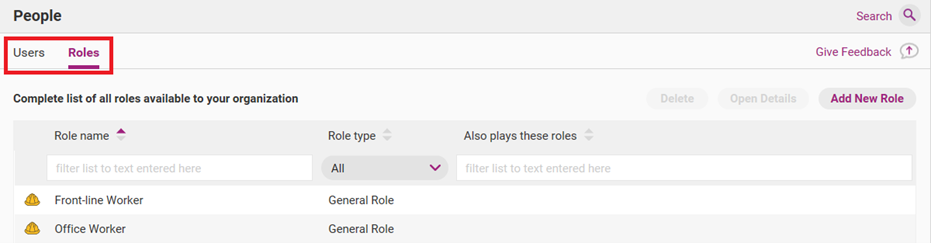
Go to the People tab and access the Roles subtab.
Step 2
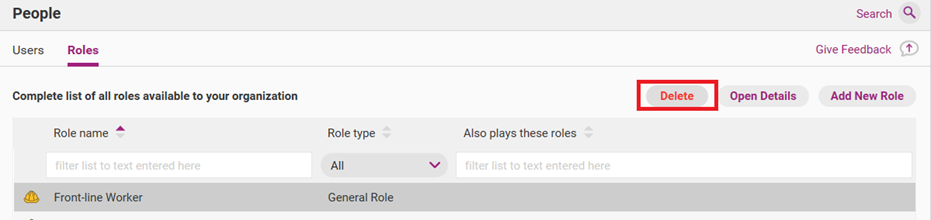
Click on the role you wish to delete, click Delete.
Tip
If the role is in a draft state (i.e. marked ‘Draft’, ‘Awaiting Approval’ or ‘Ready to Publish’), clicking Delete will remove it without activating the deletion workflow.
Step 3
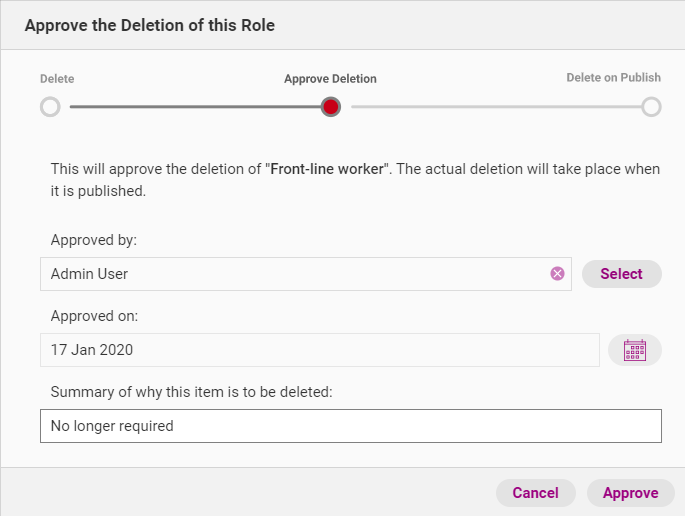
Your release management workflow will appear. Summarise why this item will be deleted and click OK.
Step 4
The role will now be in the ‘Awaiting Delete Approval’ state. Double click on the role to open and approve it.

Step 5
Once the role is open, click Approval. You will have the option to approve the deletion or revert it (so that it is not deleted). Click Approve Deletion to proceed.

Step 6
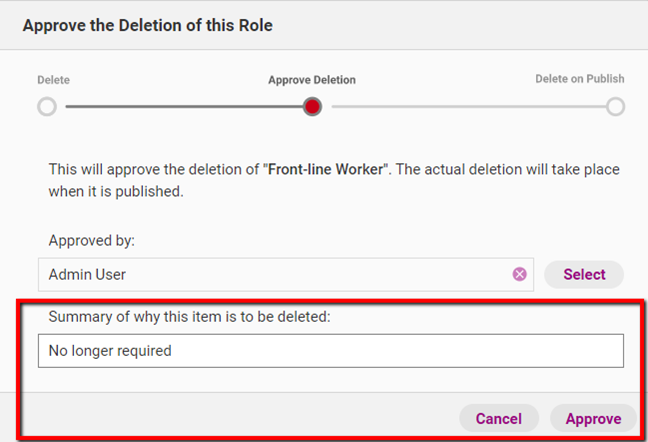
Your release management workflow will appear. If required, edit the summary of why the item is to be deleted and click Approve. The role will now be marked ‘Delete on Publish’.
Tip
If the deletion is part of a larger release (i.e. a release with multiple content updates), leave it marked ‘Delete on Publish’. When you are ready, you can publish it at the same time as your other content updates by accessing the Home tab and clicking Manage Changes. Please see the guide titled Publish Multiple Changes (in One Release) for more information.
Step 7
To finalise your deletion, click Publishing. You will have the option to delete immediately or to revert the deletion.
Important
You will not be able to recover a role once it has been deleted.

Step 8
Click Delete Immediately and your release management workflow will appear. If required, edit your summary of why the item should be deleted and click Continue.
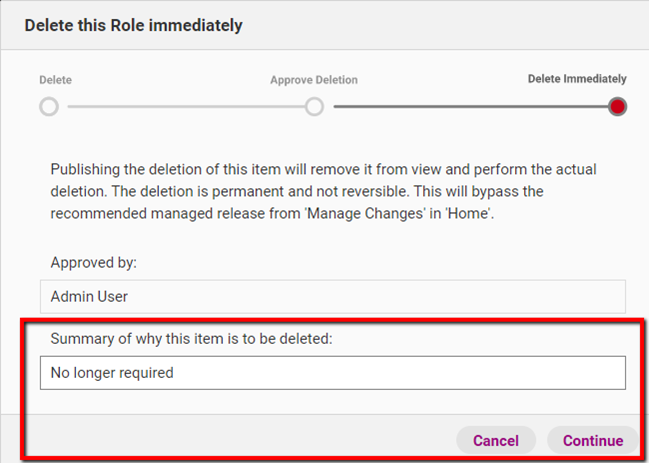
Step 9
A window will appear and you will have the option to write official release notes about the deletion
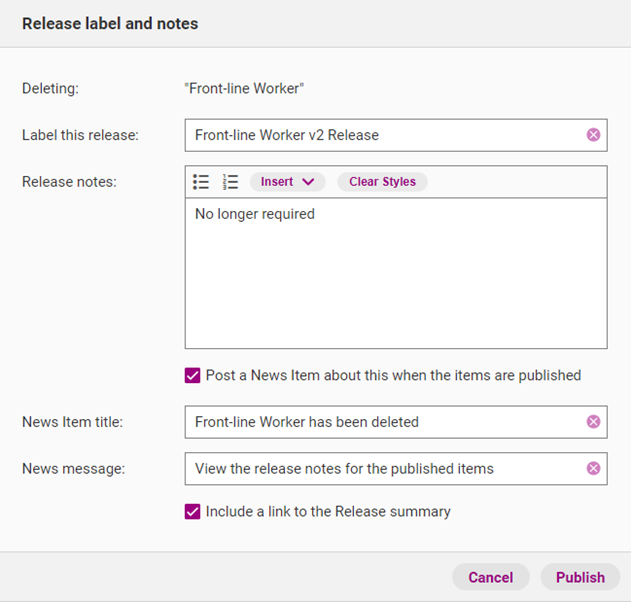
Field | Description |
|---|---|
Label this release | The official name of this deletion. |
Release notes | Details about why the role was deleted. |
Post a news item about this when the items are published | If selected, this option will allow you to post a news item on the Home tab to notify users about deletion. |
News item title | Title of the news item that will appear in the Home tab. |
News message | The message that appears under the news item title. |
Include link in release summary | If selected, this option will allow you to include a link to the release notes for the deletion. |
Step 10
Click Publish to confirm deletion.