
General
Set up and configuration
- Assign required reading
- Manage app settings and notifications
- Home page image and document logo
- Manage categories
- Welcome text and news
- Hide items (archive content)
- Required reading reports
- Updating role name video
- Updating links to Strengthened Standards training video
- Onboarding kit
- Send email notifications
Manage users
Troubleshooting
Registers
Manage content
- Delete document
- Edit, review and approve process
- Edit, review and approve policy
- Create and publish new policy
- Create and publish new process
- Previous item version information
- Edit roles
- Edit release notes
- Hide items (archive content)
- Introduction to release management
- Manage document
- Manage regulations
- Publish multiple changes (in one release)
- Publish single item (manage changes)
- Download and print content
- Delete role
- Delete policy
- Delete process
- Delete or archive regulation
- Embed video
- Manage comments
- Send email notifications
- Show Remaining Articles (2) Collapse Articles
Audits
Training Resources
- Content updates training
- Process editing - editing the process sequence
- Upcoming training sessions
- Required reading training video
- Updating role name video
- Updating links to Strengthened Standards training video
- Scheduling updated audits video
- Work instructions training video
- Comments training video
Business units
Reports
Required Reading
Work Instructions
Mobile Phone App
Comments
Custom audits
Give feedback
Users can send different types of feedback to various users, including the Centro ASSIST support team.
Step 1
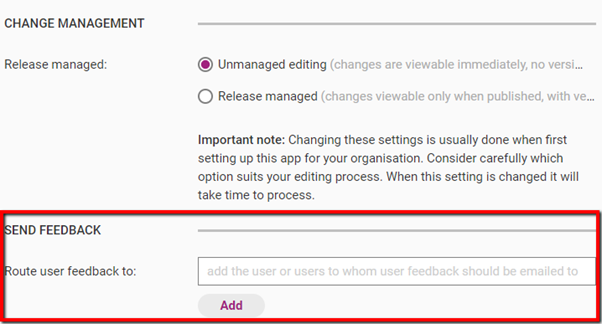
Go to Admin > App Settings and scroll down to Send Feedback.
Step 2
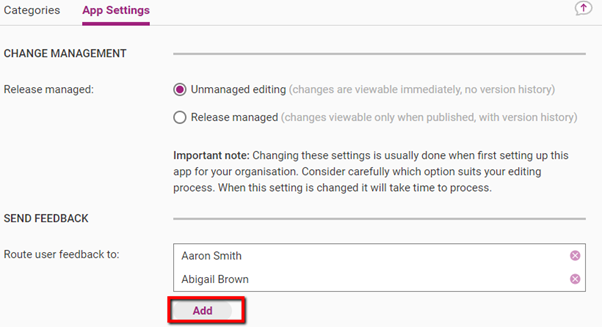
Click Add to select the users that you would like to receive your feedback. These users must have an existing activated account on the web app.
Step 3
You can send feedback from any page on the web app at any time by clicking the speech bubble.

Step 4
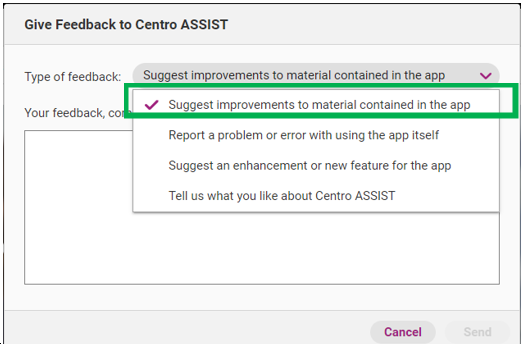
Select the type of feedback you want to send.
User type | Definition |
|---|---|
Feedback user | The user sending the feedback. |
Nominated user | The user/s selected in Step 2. |
Centro ASSIST support | The Centro support team. |
Feedback type | Sent to |
|---|---|
Suggest improvements to material contained in the app | Centro support (if no nominated user) + Feedback user OR Nominated user (if assigned) + Feedback user |
Report a problem of error with using the app itself | Centro support + Feedback user + Nominated user (if assigned). |
Suggest an enhancement or new feature for the app | Centro support + Feedback user + Nominated user (if assigned) |
Tell us what you like about Centro ASSIST | Centro support + Feedback user |
Step 5
Provide detailed feedback and click Send.