General
Set up and configuration
- Assign required reading
- Manage app settings and notifications
- Home page image and document logo
- Manage categories
- Welcome text and news
- Hide items (archive content)
- Required reading reports
- Updating role name video
- Updating links to Strengthened Standards training video
- Onboarding kit
- Send email notifications
Manage users
Troubleshooting
Registers
Manage content
- Delete document
- Edit, review and approve process
- Edit, review and approve policy
- Create and publish new policy
- Create and publish new process
- Previous item version information
- Edit roles
- Edit release notes
- Hide items (archive content)
- Introduction to release management
- Manage document
- Manage regulations
- Publish multiple changes (in one release)
- Publish single item (manage changes)
- Download and print content
- Delete role
- Delete policy
- Delete process
- Delete or archive regulation
- Embed video
- Manage comments
- Send email notifications
- Show Remaining Articles (2) Collapse Articles
Audits
Training Resources
- Content updates training
- Process editing - editing the process sequence
- Upcoming training sessions
- Required reading training video
- Updating role name video
- Updating links to Strengthened Standards training video
- Scheduling updated audits video
- Work instructions training video
- Comments training video
Business units
Reports
Required Reading
Work Instructions
Mobile Phone App
Comments
Custom audits
User detail reports
User access level | Powers related to User detail reports |
|---|---|
Administrator | Can download reports related to system Users |
Under the Users tab, there are three reports available:
- User details
- Required Reading
- Knowledge Tests (if enabled)
Tip
Administrators can also download reports from the Roles section under the People tab. This report is available as a spreadsheet summary only.
Downloading User Reports
Step 1
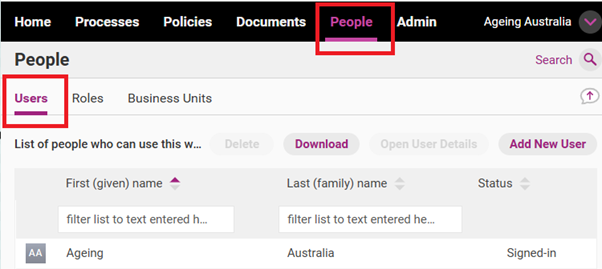
Click on the People tab and the Users sub tab.
Step 2
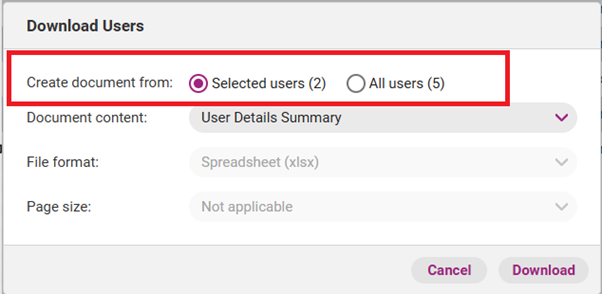
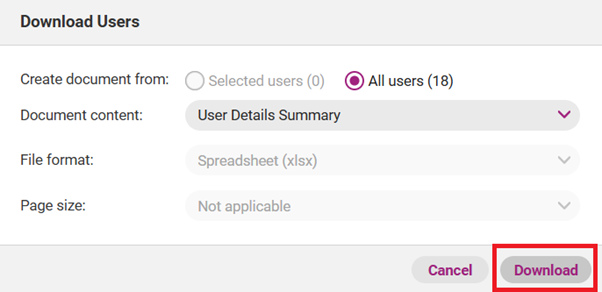
A pop-up Download Users box will emerge. Determine what Users you wish to include in the report by selecting the preferred option in the Create document from section.
Tip
You can select multiple Users from the list by holding the CTRL, including after you have filtered the list.
Step 3
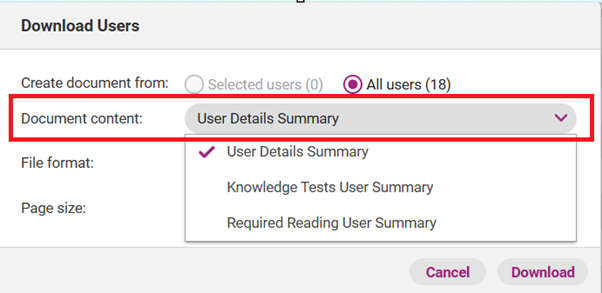
Select what Document content you want for the report by using the drop-down menu.
Document content selection | Report content |
|---|---|
User Details Summary | All User details including email, name, phone number, job title, department, affiliated business units, user permissions, roles, positions as well as whether the user is activated and their status. |
Knowledge Tests User Summary | Summary of:
|
Required Reading User Summary | Summary of:
|
Step 4
Click Download.
Step 5
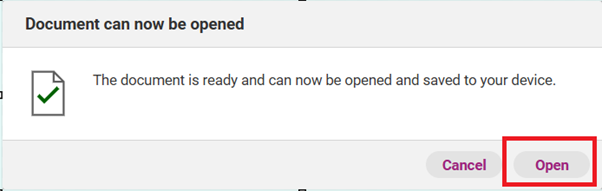
The report may take a few moments to process. When ready, click Open to view the report.