
General
Set up and configuration
- Assign required reading
- Manage app settings and notifications
- Home page image and document logo
- Manage categories
- Welcome text and news
- Hide items (archive content)
- Required reading reports
- Updating role name video
- Updating links to Strengthened Standards training video
- Onboarding kit
- Send email notifications
Manage users
Troubleshooting
Registers
Manage content
- Delete document
- Edit, review and approve process
- Edit, review and approve policy
- Create and publish new policy
- Create and publish new process
- Previous item version information
- Edit roles
- Edit release notes
- Hide items (archive content)
- Introduction to release management
- Manage document
- Manage regulations
- Publish multiple changes (in one release)
- Publish single item (manage changes)
- Download and print content
- Delete role
- Delete policy
- Delete process
- Delete or archive regulation
- Embed video
- Manage comments
- Send email notifications
- Show Remaining Articles (2) Collapse Articles
Audits
Training Resources
- Content updates training
- Process editing - editing the process sequence
- Upcoming training sessions
- Required reading training video
- Updating role name video
- Updating links to Strengthened Standards training video
- Scheduling updated audits video
- Work instructions training video
- Comments training video
Business units
Reports
Required Reading
Work Instructions
Mobile Phone App
Comments
Custom audits
Assign required reading
This article provides guidelines for assigning required reading to QMS users.
Refer to Required Reading Reports page for information on how to review required reading for Users and download reports of required reading.
User access level | Powers related to Required Reading |
|---|---|
Administrator / Model Administrator | Can set required reading to users. |
How required reading works
Required reading is a function of the QMS that allows an organisation to create specific reading lists for Users, based on their Role. Reading is not assigned to specific Users, rather it is assigned to the Role and then the User is given the Role. In this way, organisations can create assigned reading lists that are appropriate for all staff that perform the same Role.
We recommend that system Administrators who are planning to set up Required Reading first attend one of our Required Reading training sessions. Refer to Upcoming Training Sessions page for details of the training schedule.
Plan for Required Reading
Prior to assigning required reading, consider:
- What Roles you plan to assign reading to and whether you need to create new roles within your system (refer to Create Roles page)
- What content items (i.e. Policies, Processes and/or Documents) you plan to assign to the Roles
- What Users you plan to assign to the Roles. Refer to Manage Users page.
Administrators may wish to set up new Roles and assigning Users to those Roles prior to completing the following steps.
Tip
If possible, it is a good idea to have this plan ready before adding your Users onto the QMS. If you are adding more than 30 Users at a time, our team can help you to do this in bulk – including adding in their Roles! Email us at [email protected]
Tip
Please note: When an item is first created, this option will be ticked automatically. This also applies to all standard content loaded onto the Centro web app as part of our product offerings.
Assign an item as required reading
Only Users with Administrator level access can complete all the steps required to assign required reading. This is because only Administrators can make changes to User settings.
Learn more about how to change your QMS permissions please see Manage Users and/or attend our regular New User training – refer to Upcoming Training Sessions for details of scheduled training.
Important
In order to assign required reading the following must occur:
- Assign required reading to Roles (refer below for more information)
- Assign Roles to Users (refer to Manage Users page to do this)
Assign Required Reading Items to Roles
There are two ways to assign required reading items to Roles:
- Assign multiple Items as required reading directly from the Role (recommended)
- Assign an Item as required reading by editing the Item (recommended only when creating and/or editing new content)
Once you have assigned reading Items to Roles, when you assign those Roles to Users, those Users will then have those Items as their assigned reading list.
Assign multiple Items as Required Reading from the Role
Step 1
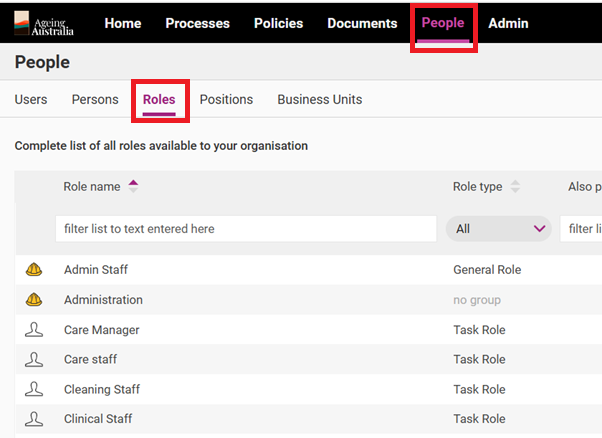
Open the Role you wish to assign reading to. Roles can be found under the People Tab.
You can either add a new Role from here or open an existing Role by double clicking on the Role.
Step 2
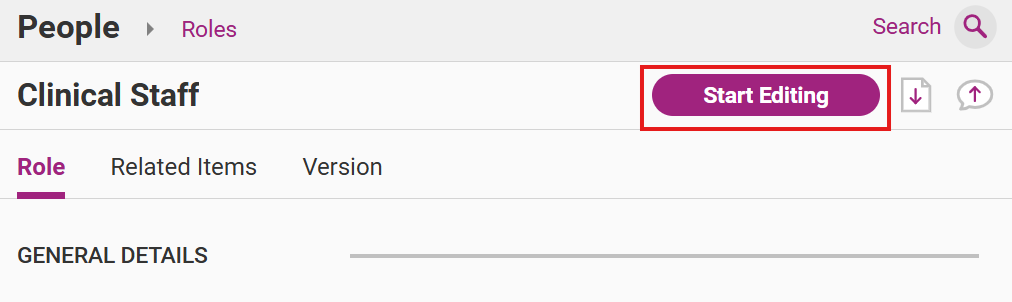
2. Click Start Editing to commence making changes to the Role.
This activates the Release Management workflow. Refer to Introduction to Release Management for more information.
Enter a summary of the change. For instance, “Assign Required Reading for this Role”
Step 3
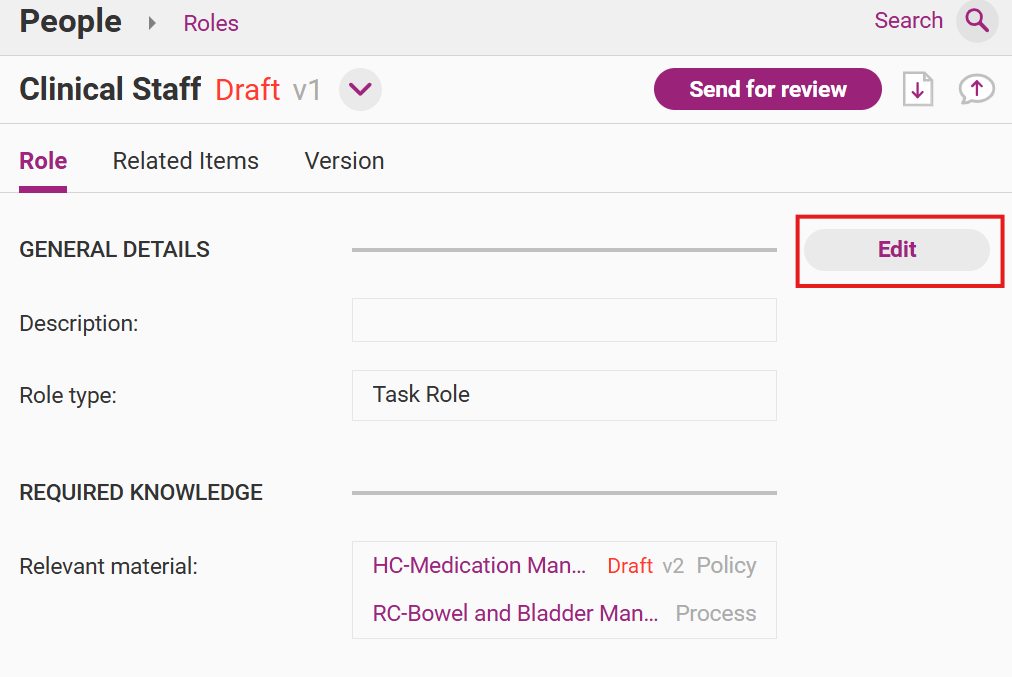
3. When the Role is in Draft mode, click Edit.
Step 4
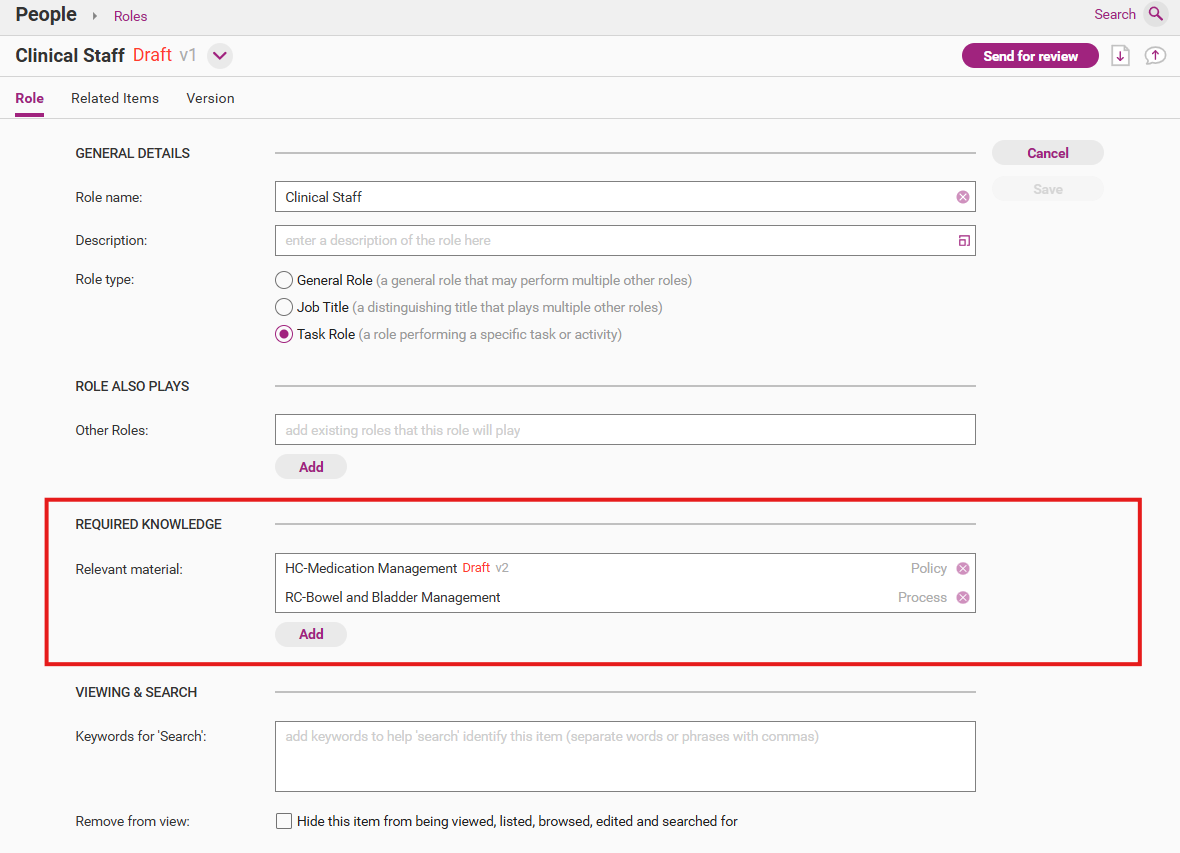
In the Required Knowledge section, add in Relevant Material by pressing Add.
Step 5
Add in relevant material.
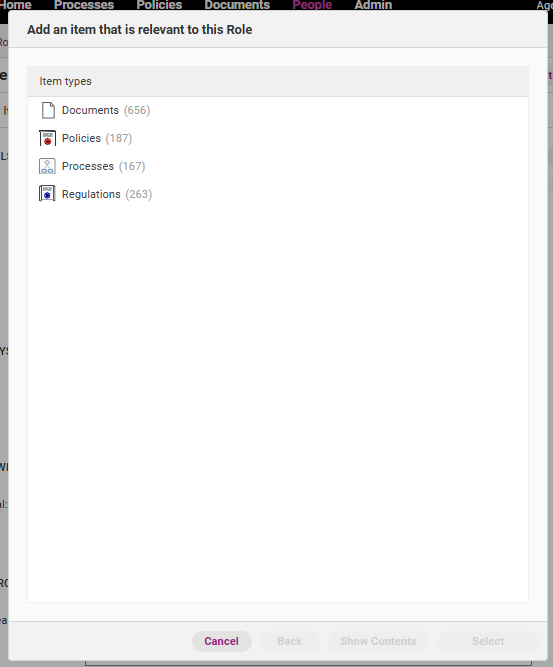
A pop-up box will open. Navigate to the Item type you are looking for, select it and press Select.
Tip
You can search using key words to find the Item you are after.
To select multiple Items at once, press CTRL key while selecting.
Step 6
You should now be able to see the selected items under Relevant material section. Press Save and continue through the Release Management workflow to approve and publish the changes to the Role.
Refer to Introduction to Release Management for more information.
Assign single Items as Required Reading by editing the Item
Step 1
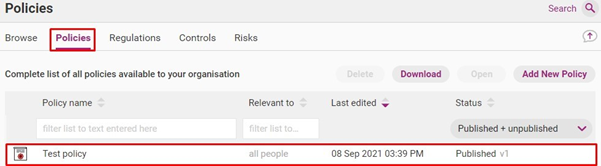
Access the item you want to assign as required reading and double click to open.
Step 2
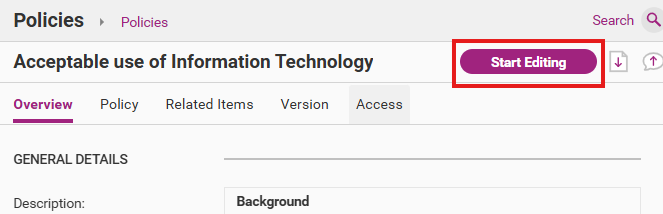
Click Start Editing.
Step 3
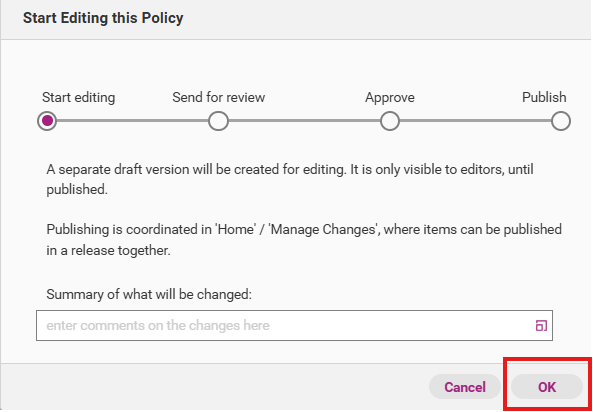
Write a summary of what will be changed and click OK. This activates the Release Management workflow. Refer to Introduction to Release Management for more information.
Step 4
Click Edit.
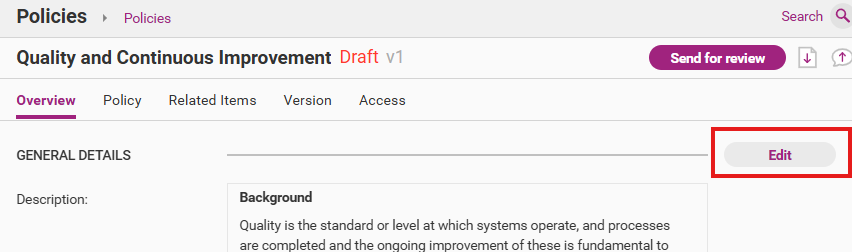
Step 5
Add in Roles that should be assigned the Item as reading under Roles this is relevant to.
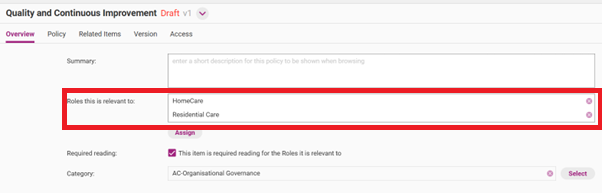
Tip
QMS content is pre-loaded with service-specific Roles already linked to every Policy, Process and Document. In the image above, you can see that the Policy is already relevant for Home Care and Residential Care Roles. This is to make filtering and searching for content easier. If you wish to assign all relevant content to a User, you can add that Role to the User.
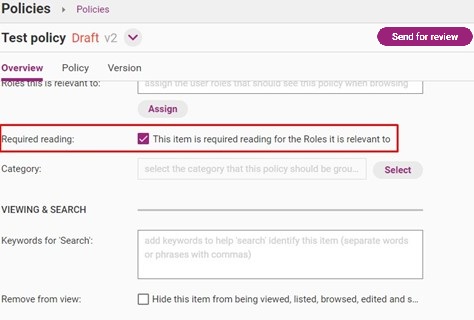
Step 6
Tick This item is required reading for the Roles it is relevant to.
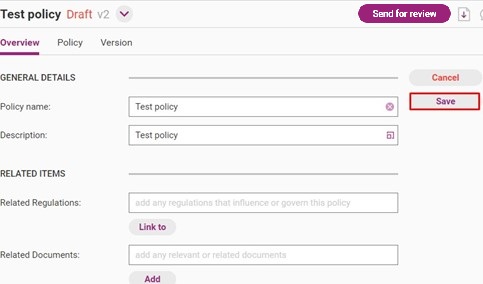
Step 7
Click Save.
Step 8
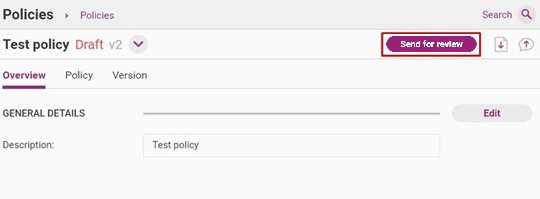
Click Send for review and publish the item by following the Release Management Workflow.
Refer to Introduction to Release Management for more information.
Important
The item will only be assigned when it has been fully published. Please see Publish Single Item (Manage Changes)
Tip
Please note, once an assigned item has been edited and published, it will be re-assigned as required reading to all the relevant roles. Users with that role will need to read and understand the updated version.
If you do not wish to re-assign the item, untick the box next to the message “This item is required reading for the Roles it is relevant to” when editing the item.