General
Set up and configuration
- Assign required reading
- Manage app settings and notifications
- Home page image and document logo
- Manage categories
- Welcome text and news
- Hide items (archive content)
- Required reading reports
- Updating role name video
- Updating links to Strengthened Standards training video
- Onboarding kit
- Send email notifications
Manage users
Troubleshooting
Registers
Manage content
- Delete document
- Edit, review and approve process
- Edit, review and approve policy
- Create and publish new policy
- Create and publish new process
- Previous item version information
- Edit roles
- Edit release notes
- Hide items (archive content)
- Introduction to release management
- Manage document
- Manage regulations
- Publish multiple changes (in one release)
- Publish single item (manage changes)
- Download and print content
- Delete role
- Delete policy
- Delete process
- Delete or archive regulation
- Embed video
- Manage comments
- Send email notifications
- Show Remaining Articles (2) Collapse Articles
Audits
Training Resources
- Content updates training
- Process editing - editing the process sequence
- Upcoming training sessions
- Required reading training video
- Updating role name video
- Updating links to Strengthened Standards training video
- Scheduling updated audits video
- Work instructions training video
- Comments training video
Business units
Reports
Required Reading
Work Instructions
Mobile Phone App
Comments
Custom audits
Manage comments
This guide provides basic instructions for using the comments feature and include basic instructions for how to:
- submit a comment
- reply to a comment
- close comment
- view comment dashboard
- view archived comments.
You can also view the Comments Training Video.
QMS users with the appropriate level of access can manage comments. The table below explains the powers of the different access levels in managing comments.
User access level | Powers related to managing comments |
|---|---|
Administrator Model Administrator Policy Editing and Process Editing | All comments across all items. |
Process Editor | Only comments made on policies. |
Process Editor | Only comments made on processes. |
Process Viewing (view only) | No comments can be viewed or managed. But comments can be submitted. |
Submit a comment
Any user in the organisation can submit a comment on the following QMS items:
- Processes
- Policies
- Documents
- Work instructions
- Regulations
- Obligations
- Risks and controls.
Step 1
Navigate to the relevant item. Read and review the content.
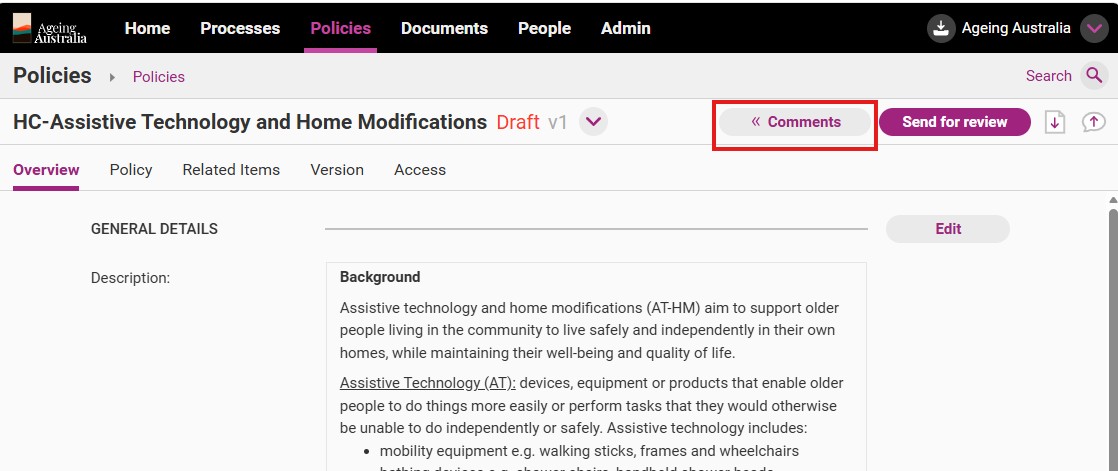
Step 2
Click Comments.
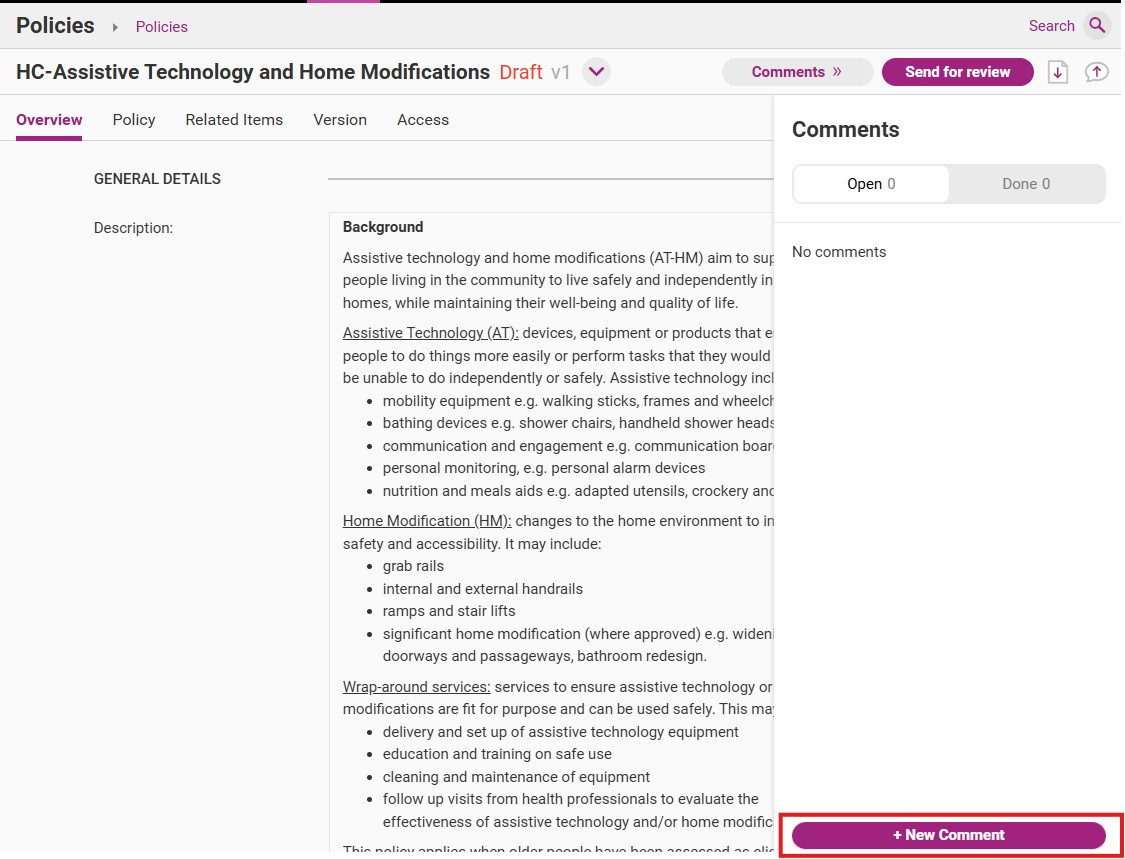
Step 3
Click New Comment.
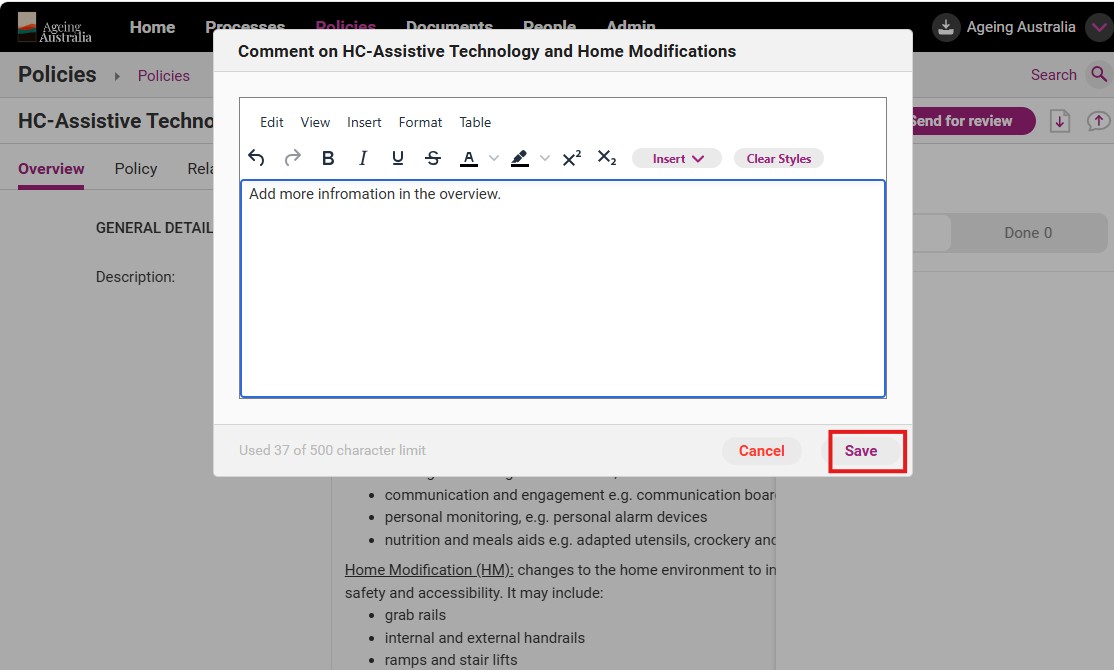
Step 4
Write your comment and click Save.
Step 5
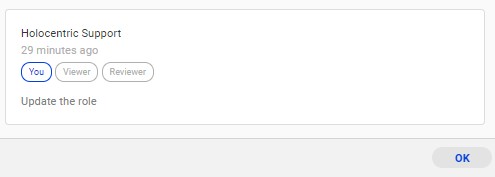
Once the confirmation window appears, click OK.
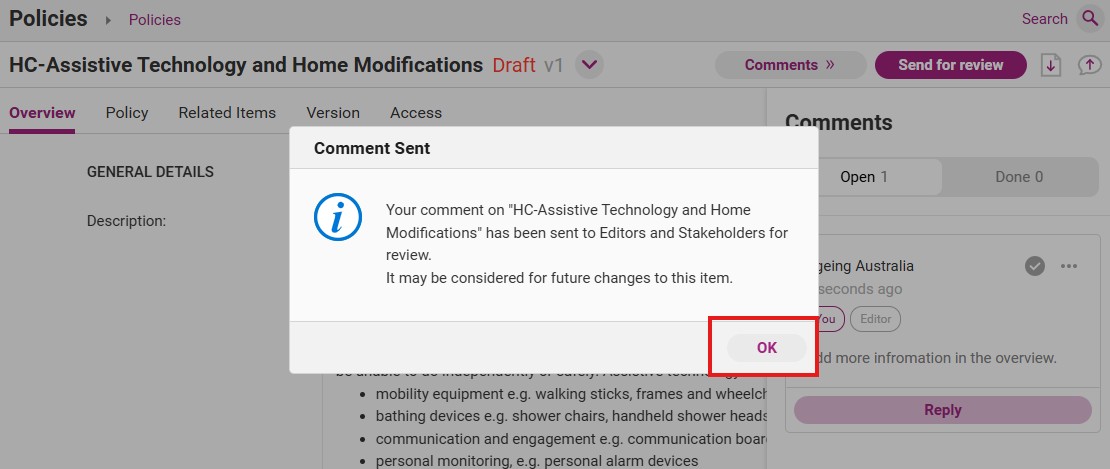
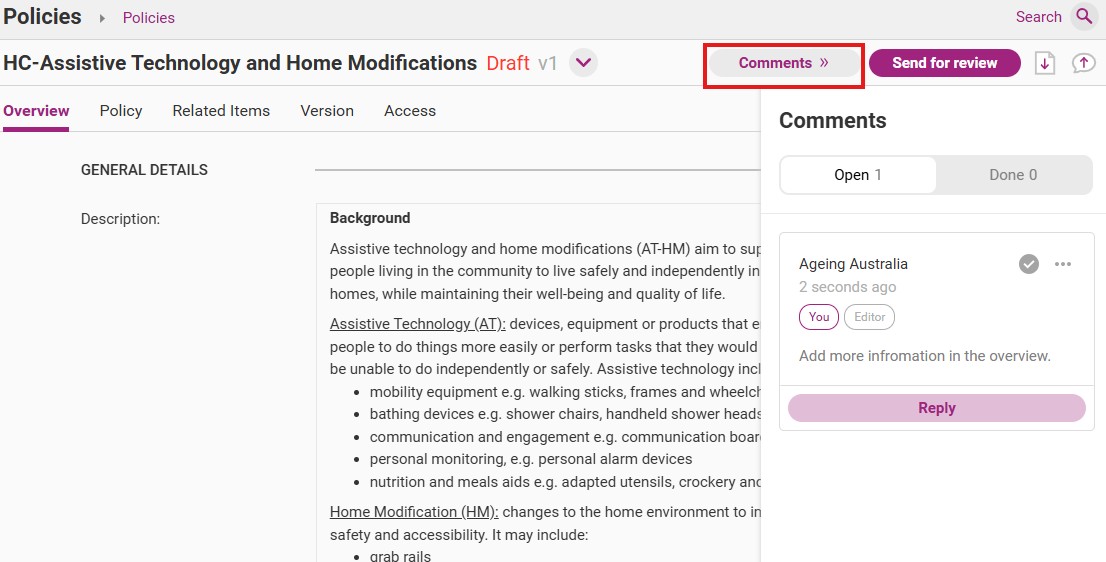
Step 6
Click Comments to close the window. Your comment is now saved and submitted.
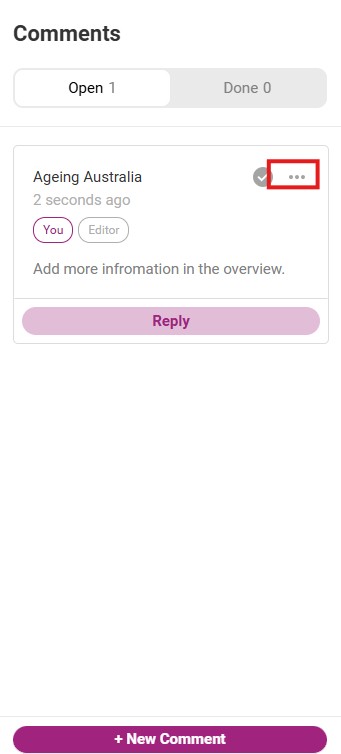
Tip
You can edit or delete a comment after posting it, by navigating to the comment and clicking … (3 dots)
Reply to a comment
A system Administrator and editors can reply to comments. When replying, you can:
- answer questions from other users
- provide additional context
- request clarification
- share relevant updates.
Step 1
Open the relevant item and click Comments.
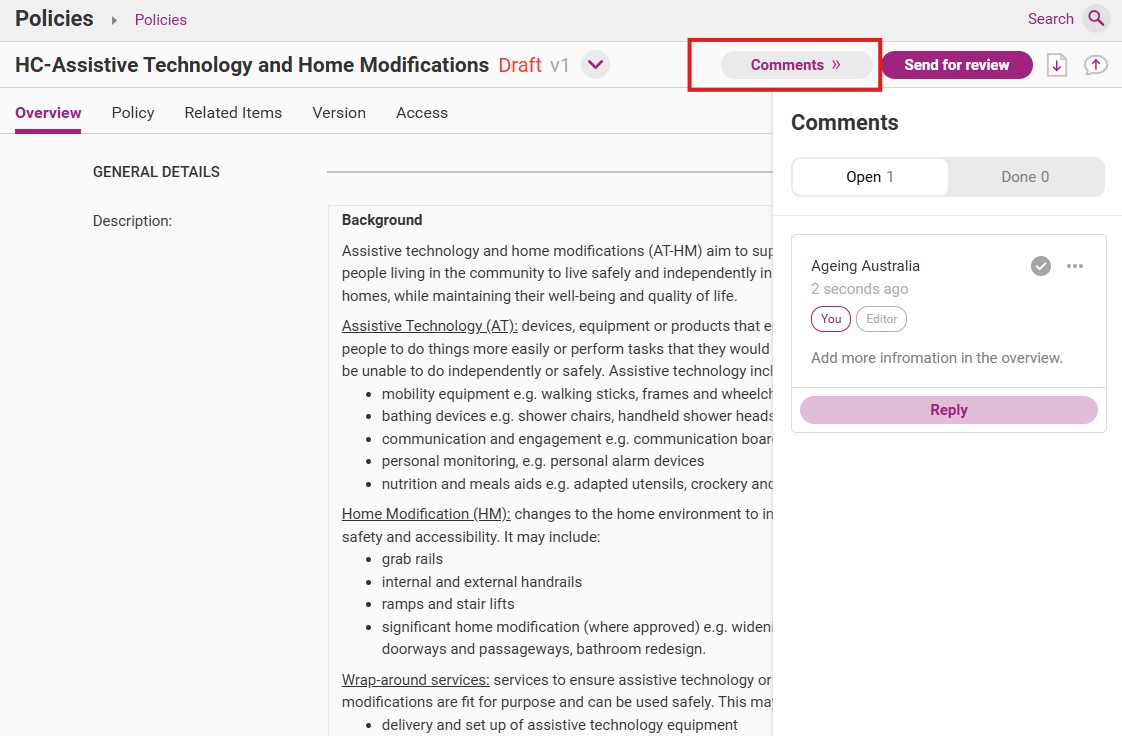
Step 2
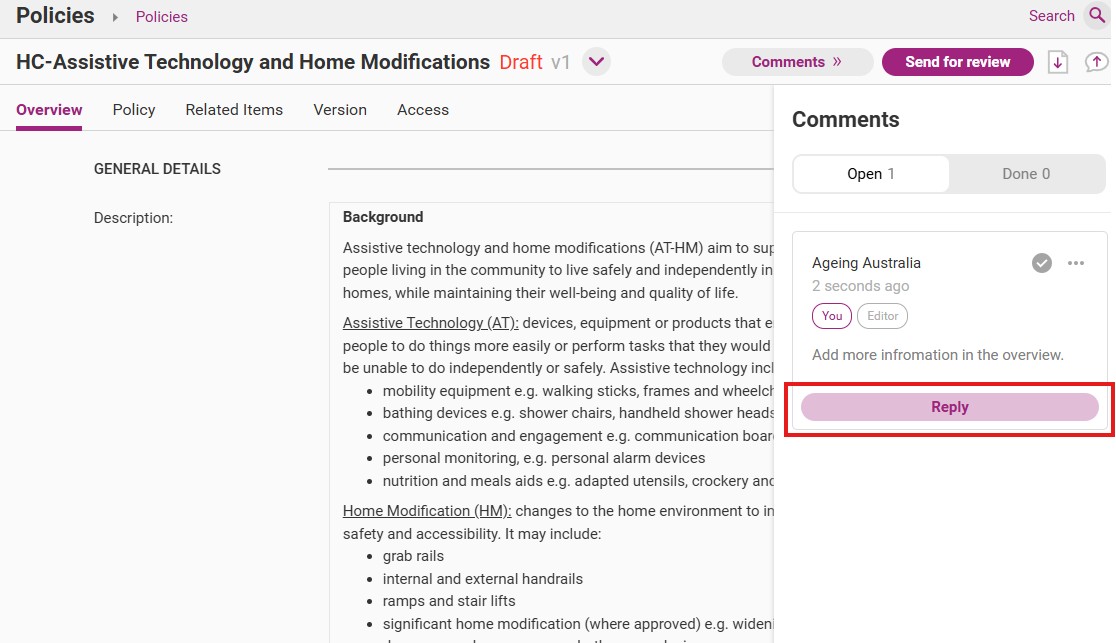
Click Reply.
Step 3
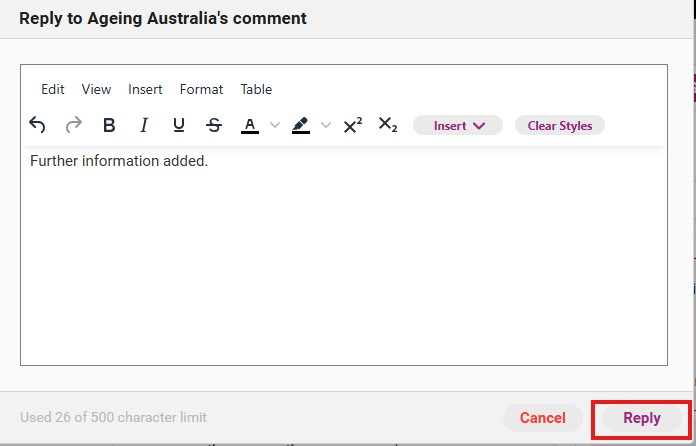
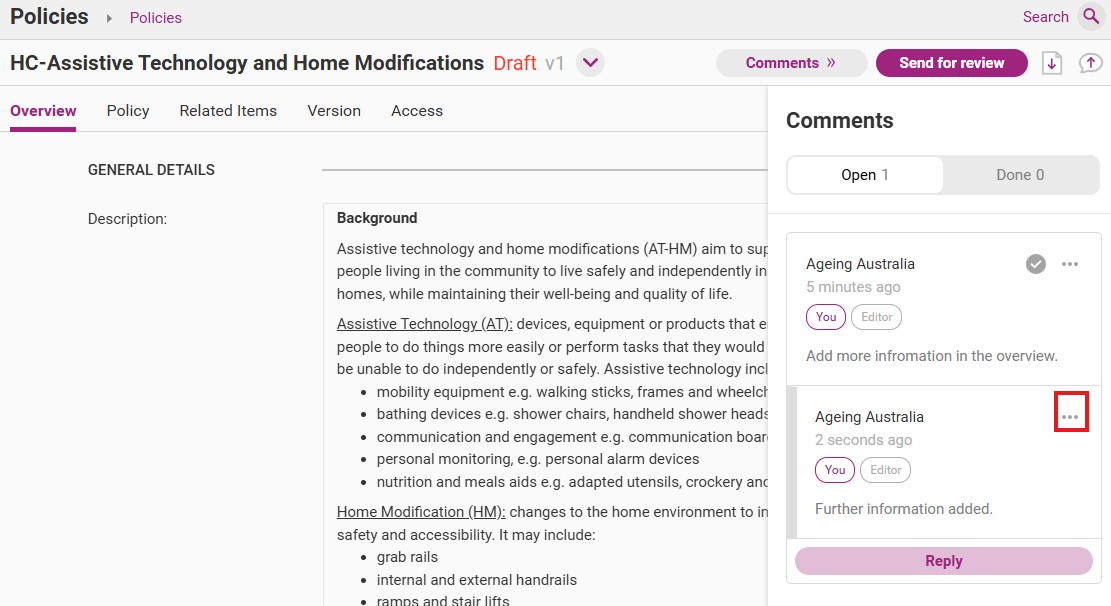
Write your reply and click Reply. Your reply will be visible under the original comment.
Tip
You can edit or delete a comment after posting it, by navigating to the comment and clicking … (3 dots)
Close a comment
System Administrators can close a comment. A comment may be closed, for example, if you have completed the actions recommended within the comment.
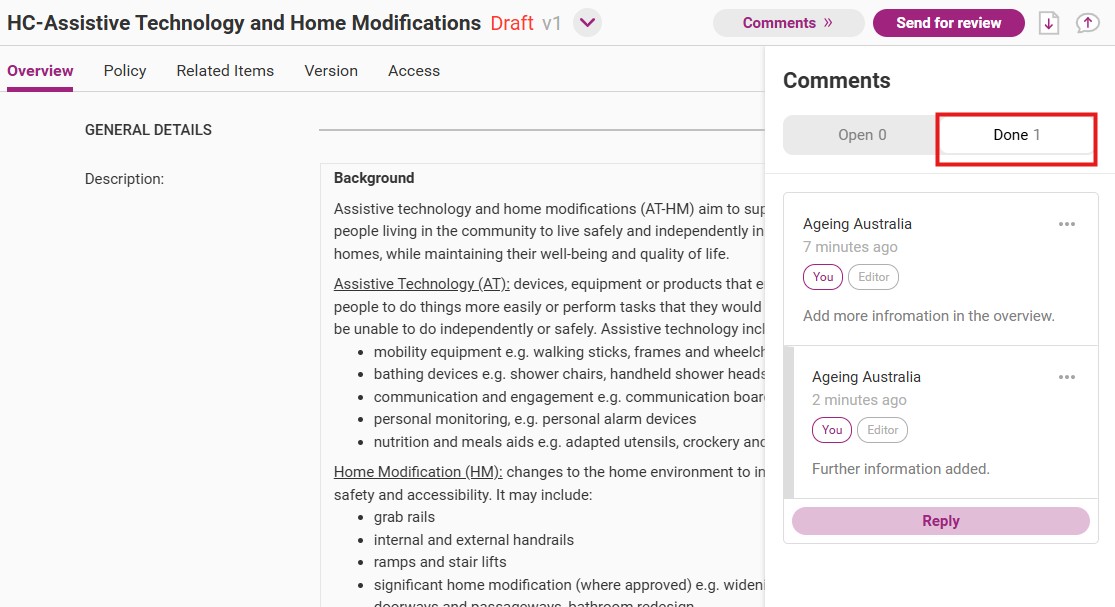
Once a comment is closed it will be marked as Done.
Step 1
Open the relevant item and click Comments.
Step 2
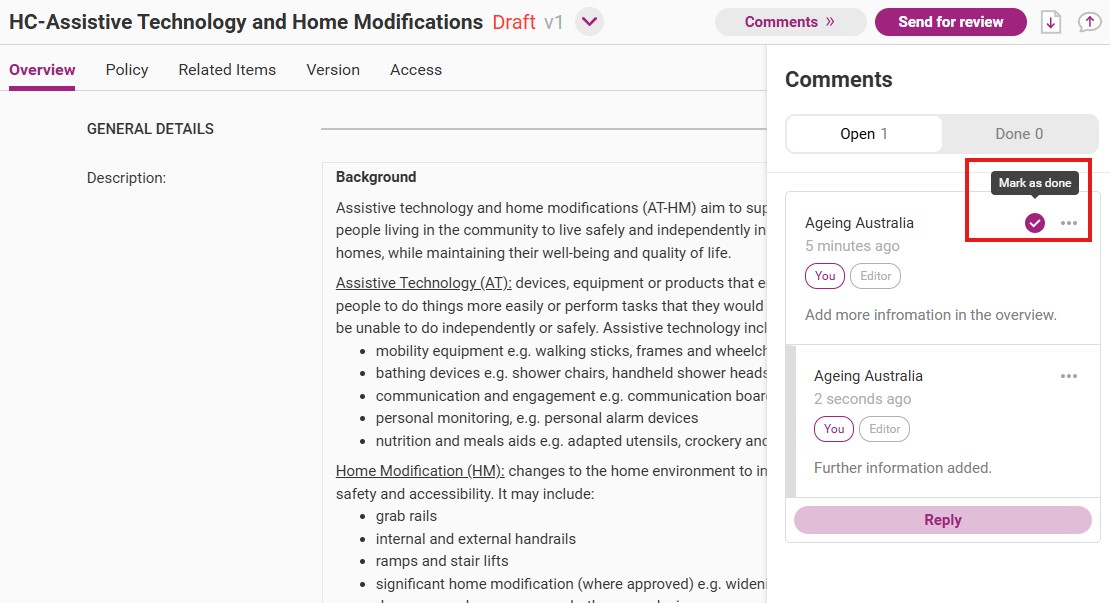
Click on the tick icon next on the relevant comment to mark it as Done.
Step 3
The comment will appear in the Done subtab.
Tip
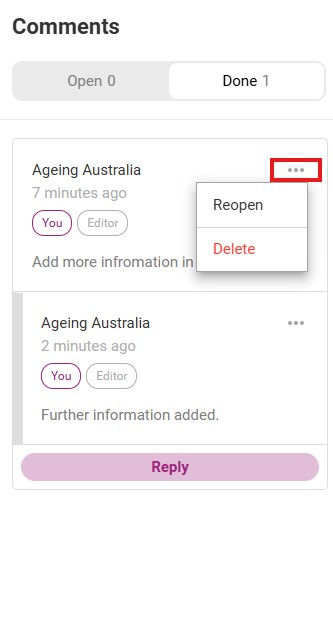
You can edit or delete a comment after posting it, by navigating to the comment and clicking … (3 dots)
View comment dashboard
Administrators can access and view comments in two ways:
- Direct item access: Clicking on an item will show comments for that item.
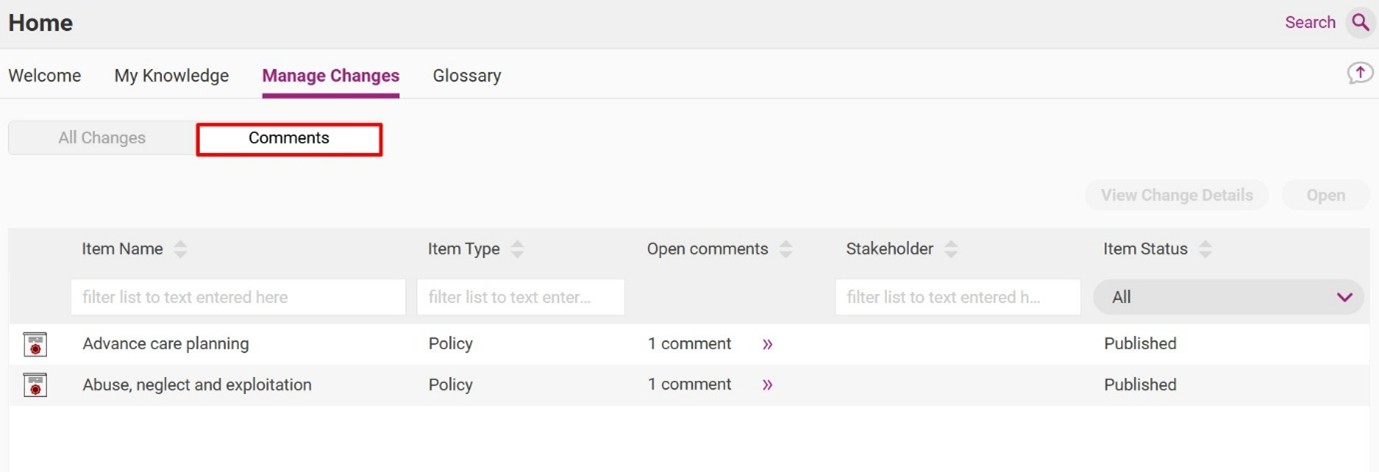
- Comments dashboard: To see all items with active comments:
- Go to Home > Manage Changes > Comments
- Double-click any item to open it and view the comments.
This dashboard provides a centralised way to track and respond to discussions across multiple items.
View archived comments
Users can view comments left on previous versions of a QMS content item.
Step 1
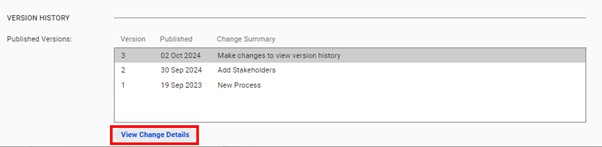
To view comments from previous publishing cycles, click on the Version tab of the item.

Step 2
Scroll to the version history and click View Change Details.
Step 3
The Change Details window shows a variety of information, including all resolved comments.