General
Set up and configuration
- Assign required reading
- Manage app settings and notifications
- Home page image and document logo
- Manage categories
- Welcome text and news
- Hide items (archive content)
- Required reading reports
- Updating role name video
- Updating links to Strengthened Standards training video
- Onboarding kit
- Send email notifications
Manage users
Troubleshooting
Registers
Manage content
- Delete document
- Edit, review and approve process
- Edit, review and approve policy
- Create and publish new policy
- Create and publish new process
- Previous item version information
- Edit roles
- Edit release notes
- Hide items (archive content)
- Introduction to release management
- Manage document
- Manage regulations
- Publish multiple changes (in one release)
- Publish single item (manage changes)
- Download and print content
- Delete role
- Delete policy
- Delete process
- Delete or archive regulation
- Embed video
- Manage comments
- Send email notifications
- Show Remaining Articles (2) Collapse Articles
Audits
Training Resources
- Content updates training
- Process editing - editing the process sequence
- Upcoming training sessions
- Required reading training video
- Updating role name video
- Updating links to Strengthened Standards training video
- Scheduling updated audits video
- Work instructions training video
- Comments training video
Business units
Reports
Required Reading
Work Instructions
Mobile Phone App
Comments
Custom audits
Report an incident, complaint or give feedback (QMS Mobile App)
All users can use the QMS Mobile App on their mobile devices to:
- Report an incident
- Lodge a complaint
- Submit feedback.
This guide will use an example of reporting an incident, but complaints and feedback follow a similar process.
Adding a new Register Item – Process Viewing Staff
Step 1
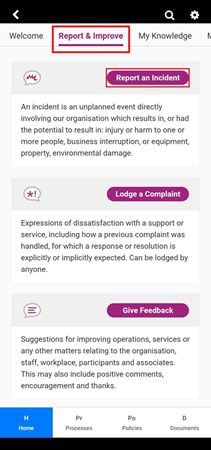
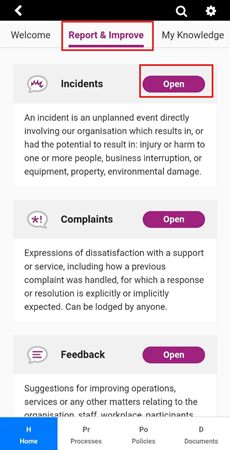
Access the QMS Mobile App and navigate to Report & Improve. Click on the relevant register.
Step 2
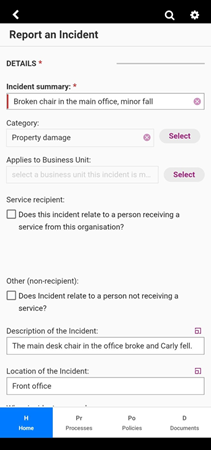
Complete the form. Provide as much information as possible. Mandatory fields are marked with a red (*) asterix, all other fields are optional however staff are encouraged to follow their organisation’s procedures with completing Register forms
Step 3
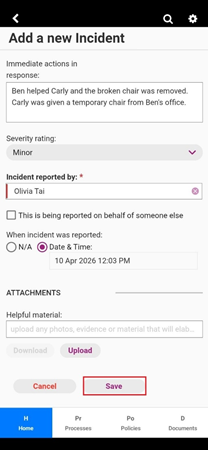
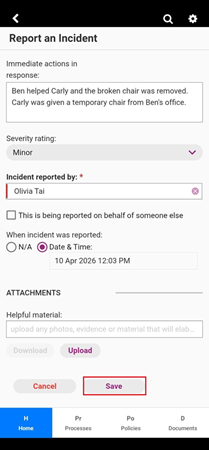
Click Save. The incident/complaint/feedback will be submitted into the system automatically and you will be redirected back to the Report & Improve page.
Adding a new Register Item – Administrators and Incident and Improvement Managers
Step 1
Access the QMS Mobile App and navigate to Report & Improve. Click on the relevant register.
Step 2
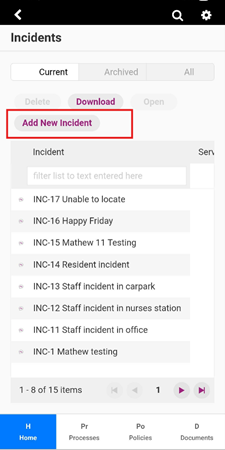
Click Add new Incident.
Step 3
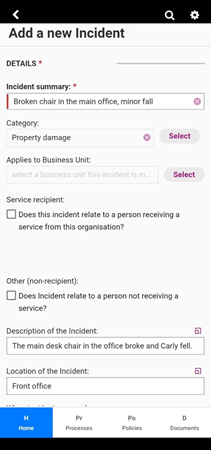
Complete the form. Provide as much information as possible. Mandatory fields are marked with a red (*) asterix, all other fields are optional however staff are encouraged to follow their organisation’s procedures with completing Register forms
Step 4
Click Save. The incident/complaint/feedback will be submitted into the system automatically and you will be redirected back to the Incident page.