
General
Set up and configuration
- Assign required reading
- Manage app settings and notifications
- Home page image and document logo
- Manage categories
- Welcome text and news
- Hide items (archive content)
- Required reading reports
- Updating role name video
- Updating links to Strengthened Standards training video
- Onboarding kit
- Send email notifications
Manage users
Troubleshooting
Registers
Manage content
- Delete document
- Edit, review and approve process
- Edit, review and approve policy
- Create and publish new policy
- Create and publish new process
- Previous item version information
- Edit roles
- Edit release notes
- Hide items (archive content)
- Introduction to release management
- Manage document
- Manage regulations
- Publish multiple changes (in one release)
- Publish single item (manage changes)
- Download and print content
- Delete role
- Delete policy
- Delete process
- Delete or archive regulation
- Embed video
- Manage comments
- Send email notifications
- Show Remaining Articles (2) Collapse Articles
Audits
Training Resources
- Content updates training
- Process editing - editing the process sequence
- Upcoming training sessions
- Required reading training video
- Updating role name video
- Updating links to Strengthened Standards training video
- Scheduling updated audits video
- Work instructions training video
- Comments training video
Business units
Reports
Required Reading
Work Instructions
Mobile Phone App
Comments
Custom audits
Create and manage work instructions
Work Instructions can be created and linked to Processes as part of the personalisation of your content. A template example Work Instruction has been loaded into the QMS for guidance and suggestions of what to include in Work Instructions. You can also access a word version of this template here.
You can also view the Work Instructions Training Video.
User access level | Powers related to process editing |
|---|---|
Administrator Model Administrator | Can edit all aspects of work instructions as well as approve and publish changes |
Process Editor | Can edit all aspects of work instructions |
Process Step Editor | Can edit all aspects of work instructions |
Create a new work instruction
Step 1
Access the Processes tab and click Work Instructions.

Tip
If your organisation wishes to use Work Instructions and you are unable to see the ‘Work Instructions’ tab as per the above image, email our team at [email protected] to request that the Work Instructions function be turned on for your system (at no additional cost).
Step 2
Click Add New Work Instruction.

Step 3
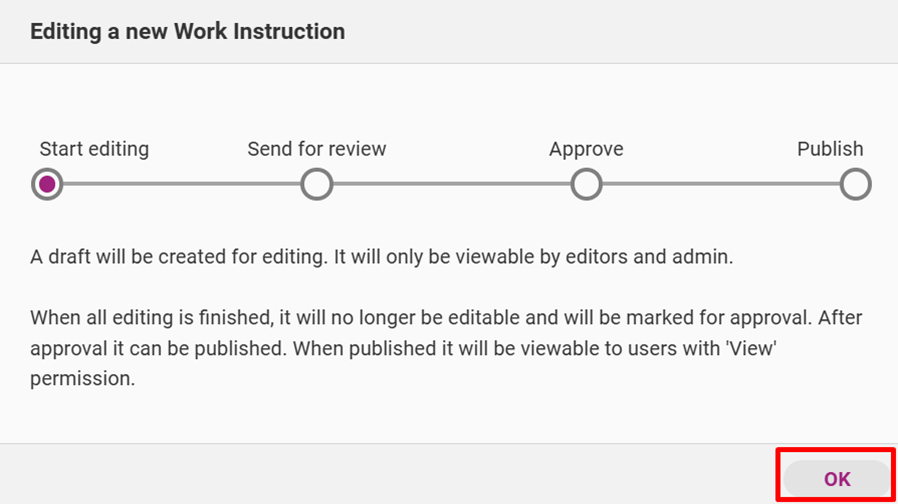
A release management workflow appears. Click OK to start editing.
Fill out all relevant sections in the work instruction overview. Click Save to commit changes.
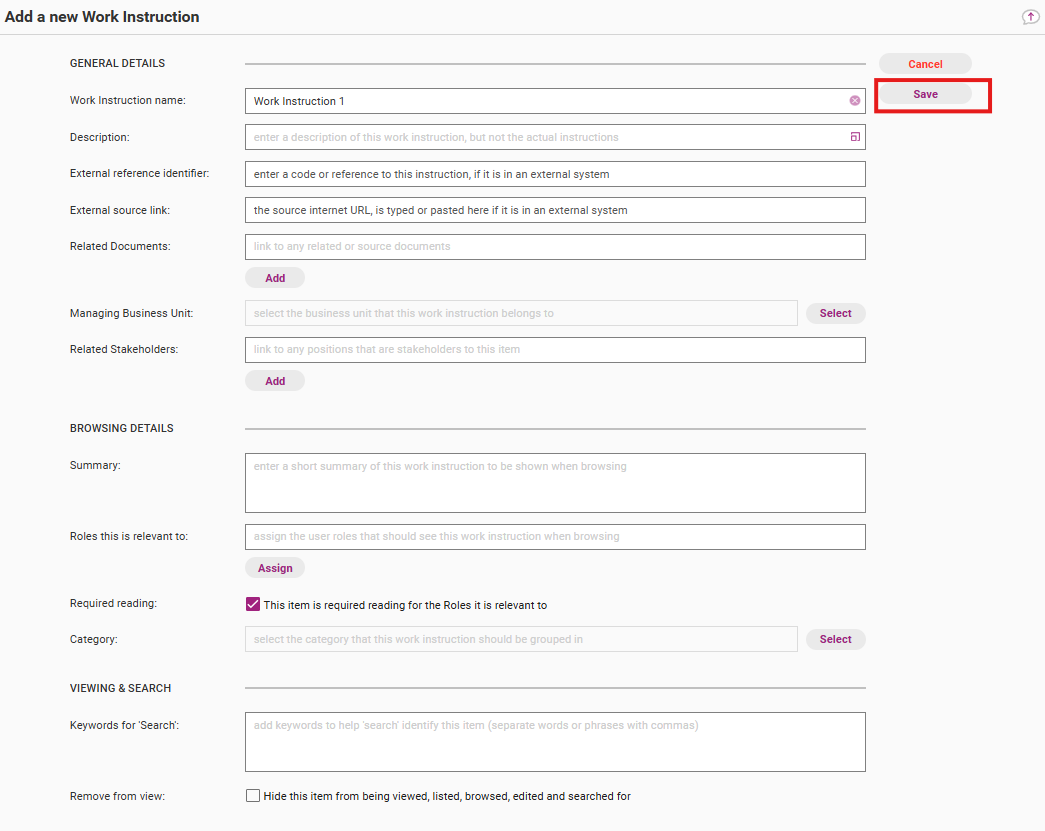
Field | Description |
|---|---|
Work Instruction name | The title of the work instruction. |
Description | The content of the work instruction. |
External reference identifier | An identification code/number for the item. This can be used if the item is being migrated from a different system or if a system of identifiers is required. This field is optional. |
External source link | A hyperlink to other work instructions stored outside the web app (e.g. on a webpage or shared drive, or intranet) |
Related documents | Documents and legislation related to the work instructions. Note – these will need to exist within your QMS already. Refer to Manage Documents page. |
Managing Business Unit | The Business Unit that needs access to this piece of content (applies only if you have Business Units implemented, see Business Unit Basics for more information). |
Summary | A short overview of the work instructions. |
Roles this is relevant to | Roles to which this work instruction applies. |
Category | The category to which the work instruction belongs. |
Required reading | Tick this box to make this item required reading for all roles to which the item is relevant. |
Keywords for 'Search' | Keywords that, when searched in the Centro web app, will make the item come up in search results. |
Remove from view | Tick the box to hide the item. This will make the item only visible to users with Administrator permissions. Hidden items will:
Refer to the Hide Items page for more information. |
Step 4
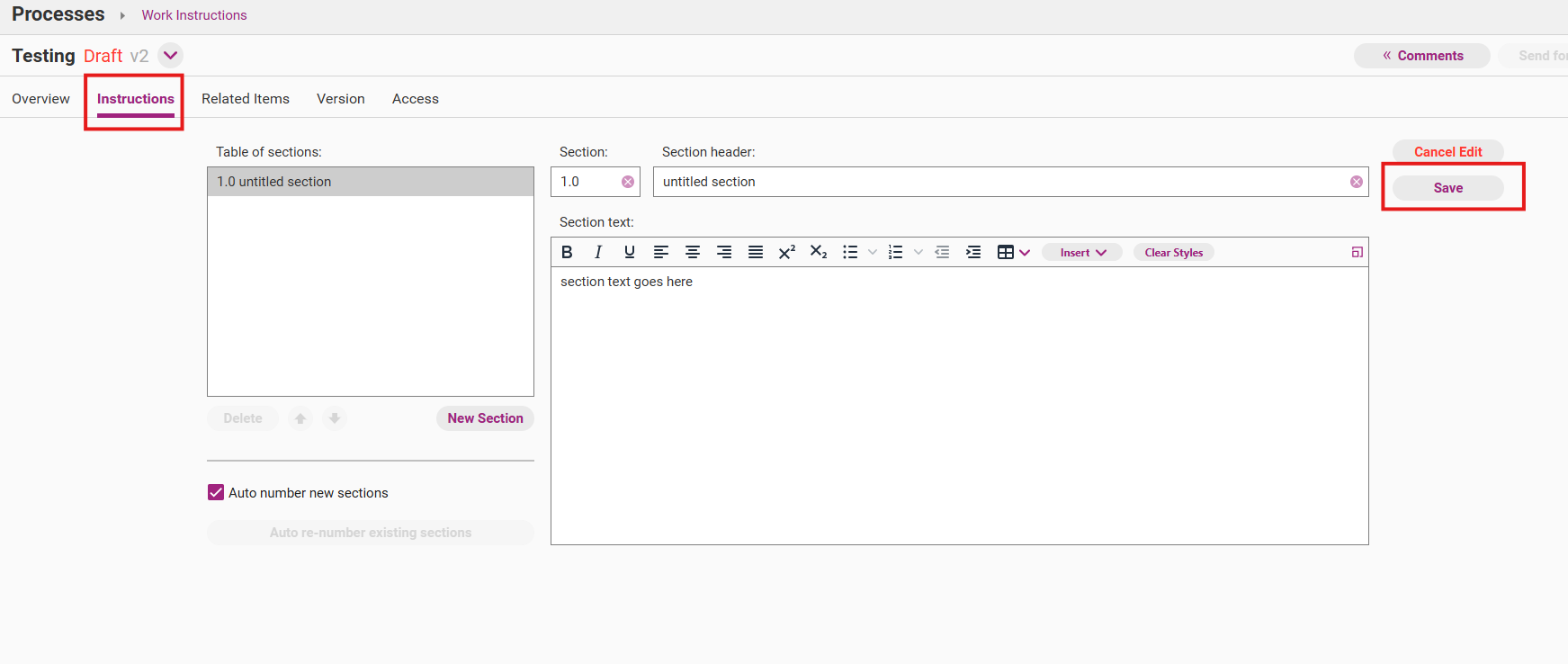
Click on Instructions and add content to the work instruction. You can add a section as well as edit the section number, title and order. Write content in each section. Click Save to commit changes.
Step 5
If ready, approve and publish the Work Instruction as per the below steps in ‘Approve Work Instruction’.
Note, the Work Instruction can be kept in Draft until ready to be Published. It will not be visible to users until it is published.
Edit existing work instruction
Step 1
Click on the work instruction you wish to edit to open it.
Important
If the work instruction already has a draft version (or a version that is awaiting approval/publication), please open this version to edit and not the older published version.

Step 2
When open, click Start Editing to activate edit mode. If the work instruction is already marked 'Awaiting Approval' or 'Ready to Publish', open it and revert it to a draft. Once the work instruction is marked 'Draft' you can make your changes.

Step 3
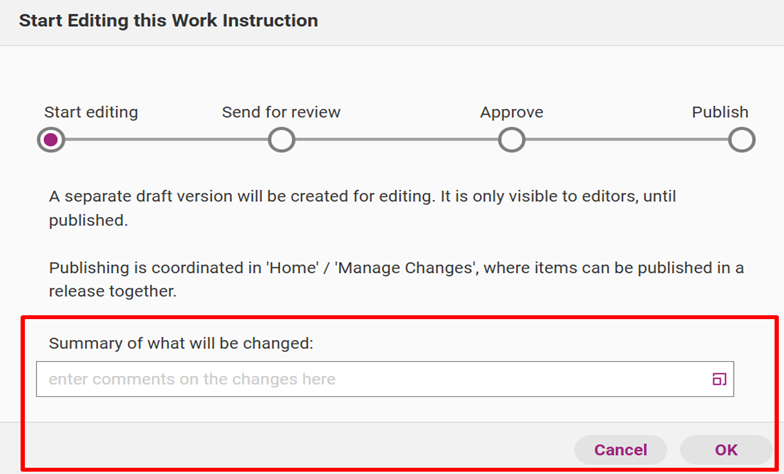
Your release management workflow appears. Write a summary of what you intend to change (you can edit this summary later) and click OK to start editing the work instruction.
Step 4
Click Edit and make your required changes. You can edit the section number, title and order. Write content in each section.

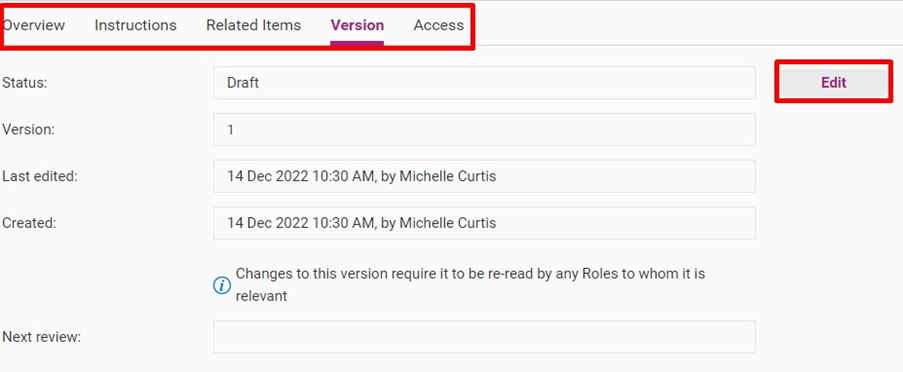
If required, you can also edit version control information. Access the Version subtab and click Edit. When editing Version you can add/edit:
- which user approved the work instruction
- the date on which the work instruction was approved
- summary of previous content changes
- the date of next review.
Step 5
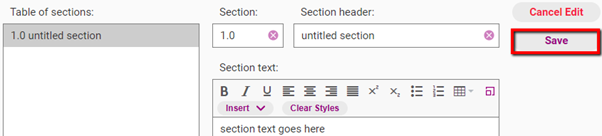
Click Save to commit all changes. Your work instructions are saved as a draft. We recommend that you make all your changes when the work instruction is in a draft state. You can move to the approval stage after you have made all intended changes.
Approve work instruction
Step 1
When you are ready to approve and publish a work instruction, open it and click Send for review.

Step 2
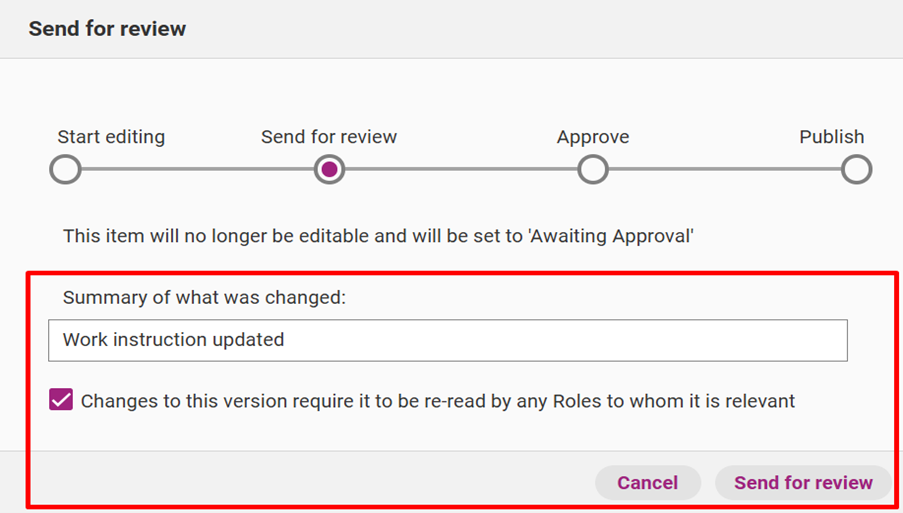
Your release management workflow appears. Write a summary about your work instructions (e.g. reasons for adding the work instructions) and click Send for review.
Step 3
Your work instruction is now marked ‘Awaiting Approval’. Click Approval to view your options. You can revert the work instruction to a draft if you want to make further changes. Click Approve when you are ready to publish your changes.

Step 4
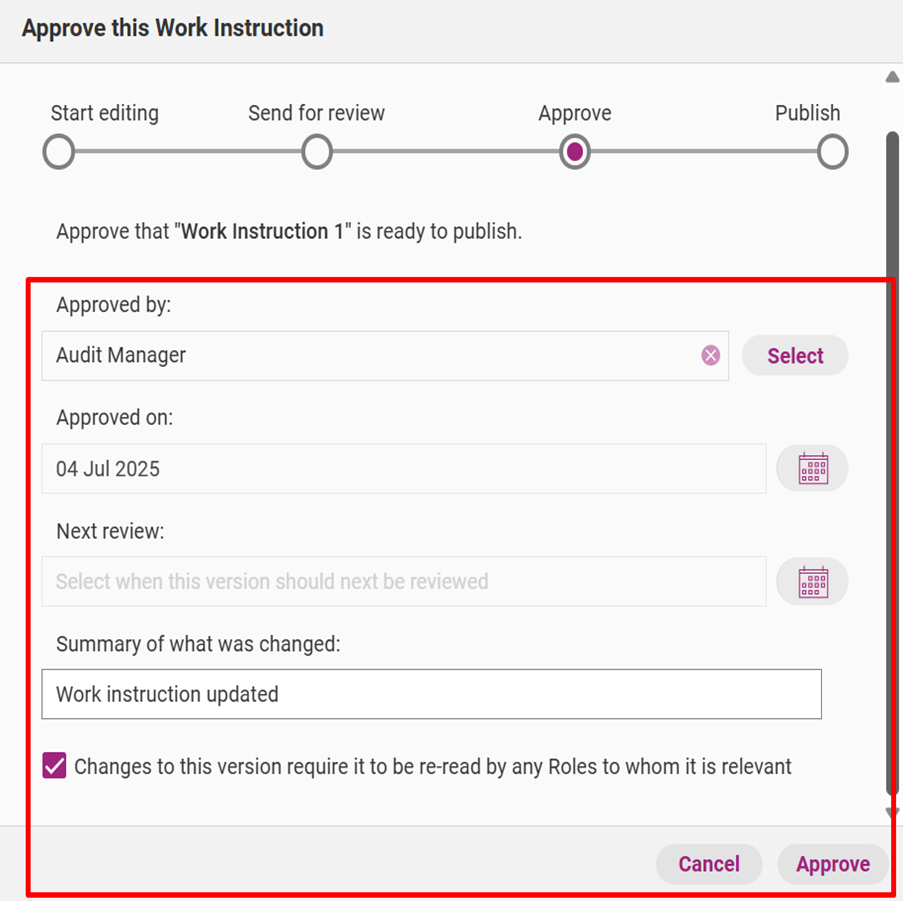
Your release management workflow appears. If required, edit your summary. You also have the option to select who approved the item, the date on which it was approved as well as the next review date. Click Approve to move to the publishing stage.
Step 5
Your work instruction is now marked ‘Ready to Publish’.

Tip
If the work instruction is part of a larger release (i.e. a release with multiple content updates), leave it marked ‘Ready to Publish’.
When you are ready, you can publish it at the same time as your other content updates by accessing the Home tab and clicking Manage Changes.
Please see the guide titled Publish Multiple Changes (in One Release) for more information.
Step 6
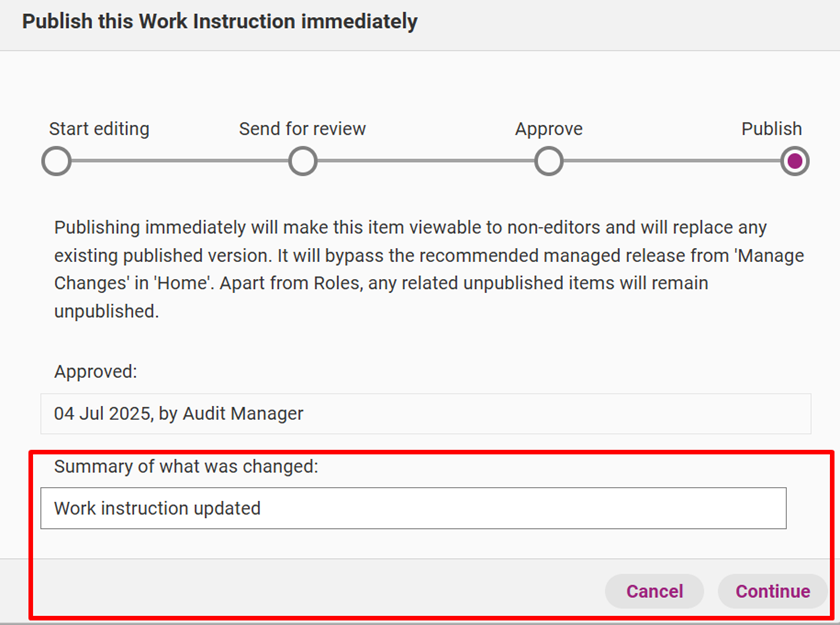
Click Publishing to view your options. You can revert the work instruction to a draft if you want to make further changes. Click Publish Immediately when you are ready to publish your changes.

Step 7
Your release management workflow appears. If required, edit your summary and click Continue to move to the next stage.
Step 8
The release notes window appears. Write official release notes about the new work instruction or work instruction update. You can edit the release notes later if required.
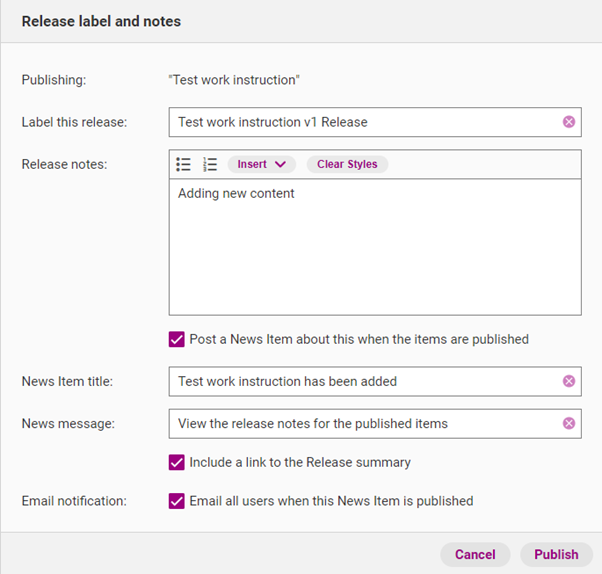
Field | Description |
|---|---|
Label this release | The official name of this release. |
Release notes | Details about what updates were made. |
Post a news item about this when the items are published | You can post a news item on the Home tab to notify users about the new role. |
News item title | Title of the news item that will appear in the Home tab. |
News message | The message that appears under the news item title. |
Include link in release summary | If selected, this option will allow you to include a link to the release notes for the item. |
Step 9
Click Publish to officially release the work instruction. You will receive confirmation when the item is published on the system.
Link Work Instruction
The published Work Instruction is now ready to be linked into other content within your QMS. Refer to the Link Work Instruction page for more details.