General
Set up and configuration
- Assign required reading
- Manage app settings and notifications
- Home page image and document logo
- Manage categories
- Welcome text and news
- Hide items (archive content)
- Required reading reports
- Updating role name video
- Updating links to Strengthened Standards training video
- Onboarding kit
- Send email notifications
Manage users
Troubleshooting
Registers
Manage content
- Delete document
- Edit, review and approve process
- Edit, review and approve policy
- Create and publish new policy
- Create and publish new process
- Previous item version information
- Edit roles
- Edit release notes
- Hide items (archive content)
- Introduction to release management
- Manage document
- Manage regulations
- Publish multiple changes (in one release)
- Publish single item (manage changes)
- Download and print content
- Delete role
- Delete policy
- Delete process
- Delete or archive regulation
- Embed video
- Manage comments
- Send email notifications
- Show Remaining Articles (2) Collapse Articles
Audits
Training Resources
- Content updates training
- Process editing - editing the process sequence
- Upcoming training sessions
- Required reading training video
- Updating role name video
- Updating links to Strengthened Standards training video
- Scheduling updated audits video
- Work instructions training video
- Comments training video
Business units
Reports
Required Reading
Work Instructions
Mobile Phone App
Comments
Custom audits
Registers: Set up and Configuration
This help article provides guidelines for setting up Registers including users, positions and business units in your system to ensure:
- the right users have access to view the Registers
- you can attach incidents, complaints, feedback or improvements to business units
- you can attach incidents, complaints, feedback or improvements to positions
- the right users receive email notifications when users add new incidents, complaints, feedback or improvements into the system.
Tip
The Ageing Australia Quality and Governance Team run regular group training sessions on the Registers. Administrators are invited to attend by viewing the schedule at Upcoming Training Sessions page.
Important
Only users that are allocated Administrator permissions can manage business units and user permissions.
Permissions can be changed by going to People > Users. For more information, please see Manage Users.
Assign permissions
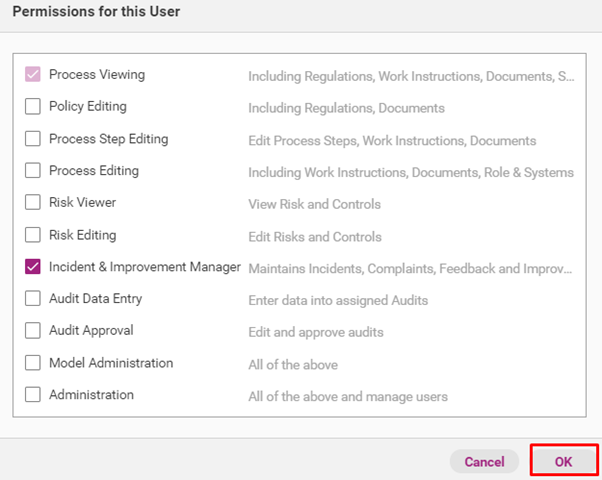
Incident & Improvement Manager is a permission level within the system that allows users to:
- add improvements
- view the registers
- edit register items
- download reports from the registers.
Administrators and Model Administrator automatically have the Incident and Improvement Manager functions.
Administrators can assign any permissions to any user in the system. See steps below for instructions for how to do this.
Step 1
Click People > Users.

Step 2
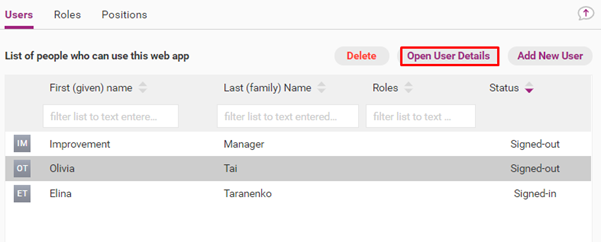
Click once on the relevant user and click Open User Details.
Step 3
Scroll down to Permissions & Roles and click Change.

Step 4
Tick the relevant permission and click OK.
Step 5
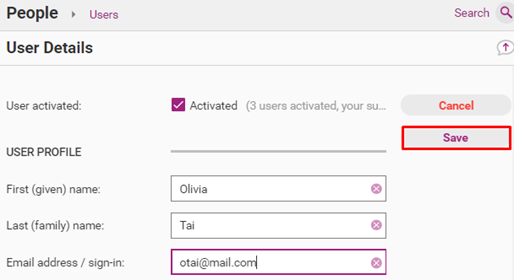
Click Save to commit changes.
Set up email notifications
There are two types of email notifications for Registers:
- New items raised
- Items allocated
Tip
Ensure the user who needs to receive notification has already been added to the system. For more information about adding users into the system, please see Manage Users.
New items raised
When an employee submits an incident/complaint/piece of feedback, assigned users will receive a notification. See the steps below for selecting which users are notified.
Step 1
Click Admin > App Settings.

Step 2
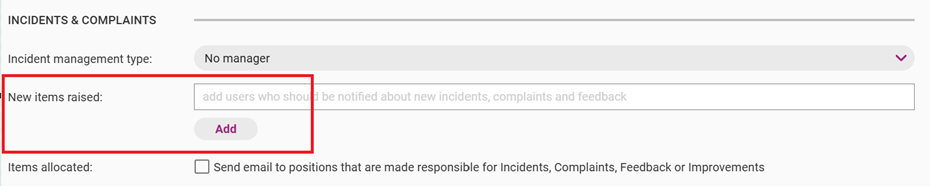
In the section titled Incidents & Complaints, next to Email a notification to, click Add.
Step 3
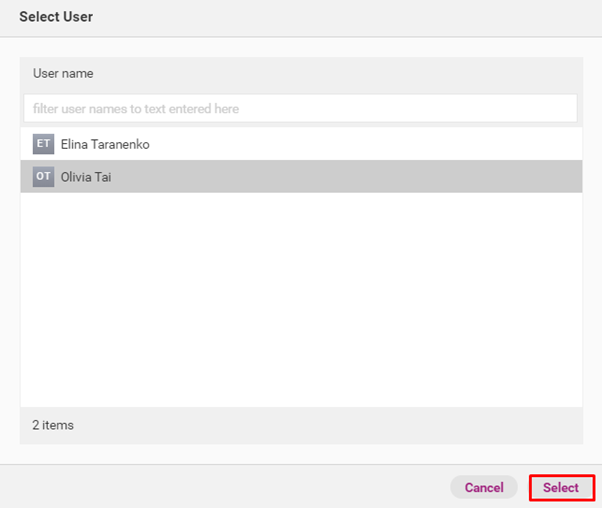
Click on the relevant user one time and click Select. The user will now receive email notifications about every incident, complaint and piece of feedback that is submitted into the system as it is submitted.
Items allocated
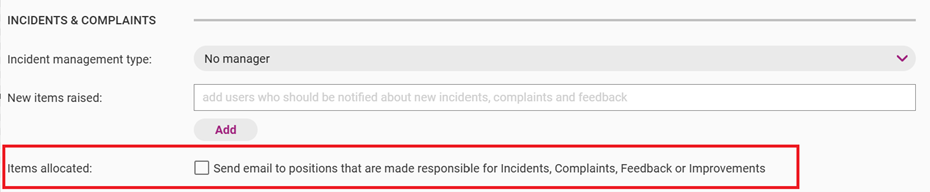
The Items allocated tick box directs the QMS to email Users who are assigned specific Positions when those positions are made responsible for Register Items. Note, the email notification will arrive after a few hours delay.
To turn on this feature, open App Settings and tick the box under Items allocated.
Manage Business Units for Registers
Add a Business Unit
A business unit refers to a department or other distinctive subsection of on organisation (e.g. a facility, site or team).
Any incident, complaint, piece of feedback or improvement can be linked to a business unit.
Tip
The Ageing Australia Quality and Governance Team run regular group training sessions on the Registers. Administrators are invited to attend by viewing the schedule at Upcoming Training Sessions page.
Step 1
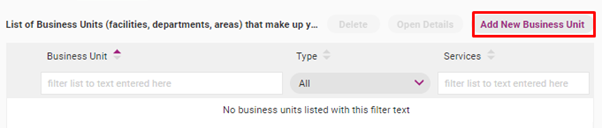
Access People > Business Units.

Step 2
Click Add a Business Unit.
Step 3
Fill out all relevant information and click Save. The Business Unit name field is mandatory, all other fields are optional.
Note – the default setting for the Managed Item Permissions will be no restrictions to visibility or editing. Refer to Guide new Business Units set up for more information.
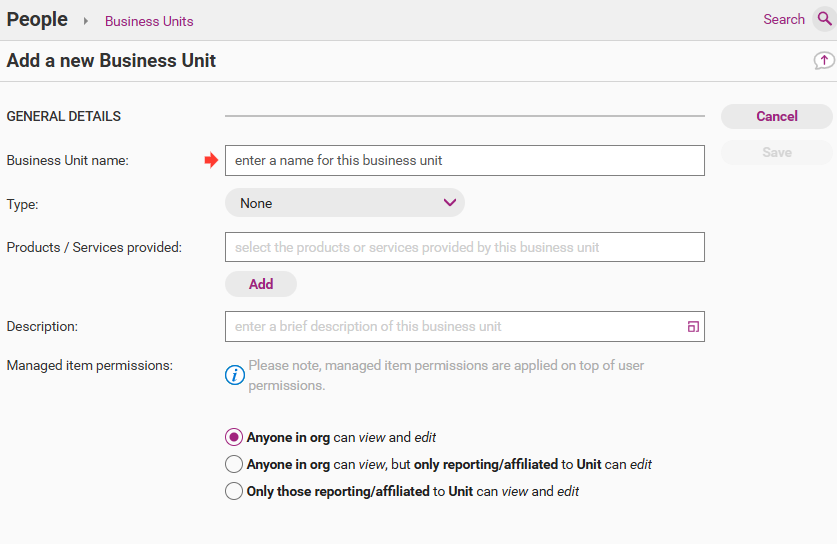
Field | Description |
|---|---|
Business Unit name | The name of the distinctive subsection of your organisation. |
Type | The nature of the business unit. A business unit can be a:
|
Services Provided | The types of services that the business unit provides. |
Description | Further details about the business unit. |
Managed item permissions | The level of visibility and editing restrictions applied through the Business Units. These restrictions will apply to Register items that are Managed By the business unit (i.e. not those Register items that Apply to the business unit) |
Edit a Business Unit
Step 1
Access People > Business Units.

Step 2
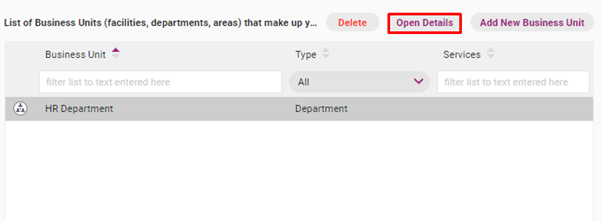
Click once on the business unit you want to edit and click Open Details.
Step 3
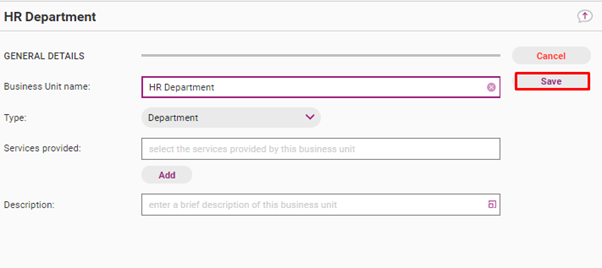
Make the necessary edits and click Save.
Delete a Business Unit
Important
it is not recommended to delete business units if they have already been used for Register items. This is because it will retroactively edit/change the Register data (i.e. an incident applied to a specific business unit will no longer be linked to that business unit). We recommend to instead rename the business unit to show that it is archived.
If a business unit has been made in error and not yet been used for register items, it can deleted as follows.
Step 1
Access People > Business Units.

Step 2
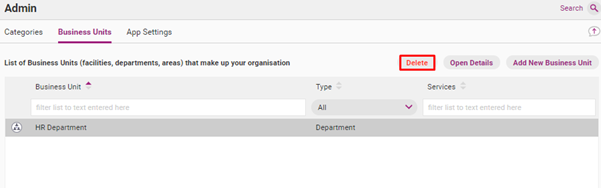
Click once on the business unit you want to delete and click Delete.
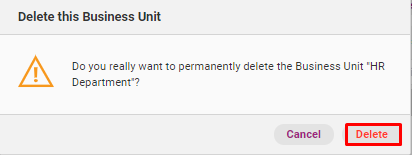
Step 3
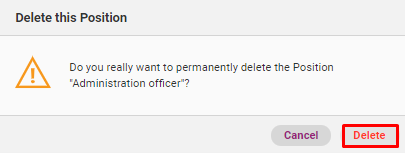
Confirm the deletion.
Manage Positions
Create a new position
Positions are used to assign certain Users who hold the Position as responsible for Register Items. Positions can be created for specific job titles, e.g. Chief Executive Officer, General Manager of Quality, Team Leader South Team, etc.
Step 1
1. Click People > Positions.

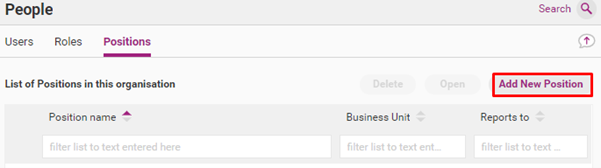
Step 2
Click Add New Position.
Step 3
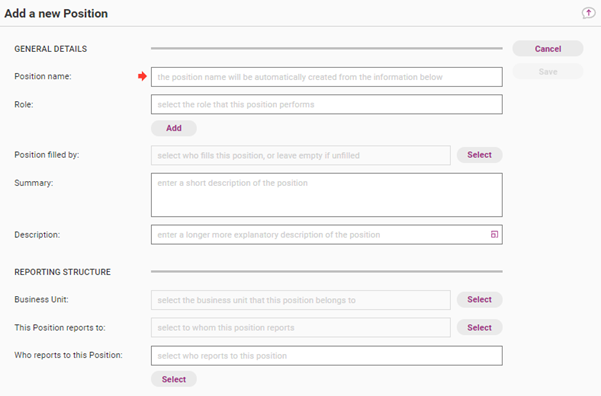
Fill out the form. Position name is a required field. All other fields are optional.
Important
The current functions of the QMS only make use of the Position name and Position filled by sections. As such, we do not recommend entering any additional data into the Position.
Field | Description |
|---|---|
Position name | The name of the position. |
Role | The role that performs this position. The role must already be in the system. For more information see Create new role. |
Position filled by | The user that fulfils the position. The user must already be in the system. For more information see Manage users. |
Summary | A short description of the position. |
Description | A more detailed description of the position. |
Business Unit | The business unit to which the position belongs. |
This position reports to | The superior position to which the position reports. |
Who reports to this position | The people (web app users) that report to this position. |
Edit position
Step 1
Click People > Positions.
Step 2
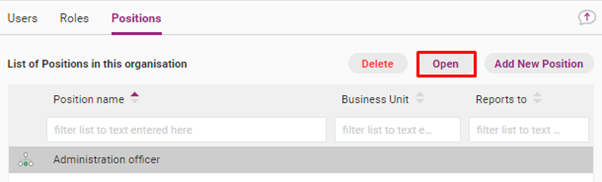
Click once on the business unit you want to edit and click Open.
Step 3
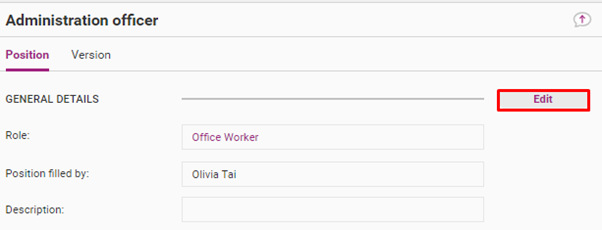
Click Edit and make all required changes.
Step 4
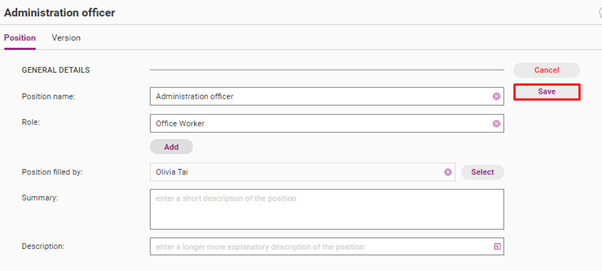
Click Save.
Delete position
Important
Deleting a position will retroactively edit the register items which are linked to that position. For this reason we recommend renaming the Position instead to show it is archived.
Step 1
Click People > Positions.
Step 2
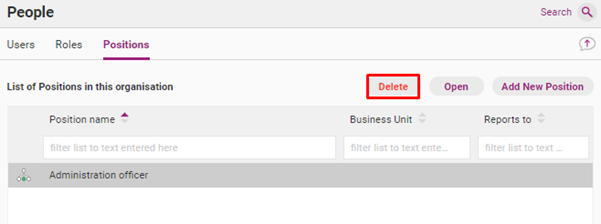
Click once on the item you want to delete and click Delete.
Step 3
Confirm the deletion.