General
Set up and configuration
- Assign required reading
- Manage app settings and notifications
- Home page image and document logo
- Manage categories
- Welcome text and news
- Hide items (archive content)
- Required reading reports
- Updating role name video
- Updating links to Strengthened Standards training video
- Onboarding kit
- Send email notifications
Manage users
Troubleshooting
Registers
Manage content
- Delete document
- Edit, review and approve process
- Edit, review and approve policy
- Create and publish new policy
- Create and publish new process
- Previous item version information
- Edit roles
- Edit release notes
- Hide items (archive content)
- Introduction to release management
- Manage document
- Manage regulations
- Publish multiple changes (in one release)
- Publish single item (manage changes)
- Download and print content
- Delete role
- Delete policy
- Delete process
- Delete or archive regulation
- Embed video
- Manage comments
- Send email notifications
- Show Remaining Articles (2) Collapse Articles
Audits
Training Resources
- Content updates training
- Process editing - editing the process sequence
- Upcoming training sessions
- Required reading training video
- Updating role name video
- Updating links to Strengthened Standards training video
- Scheduling updated audits video
- Work instructions training video
- Comments training video
Business units
Reports
Required Reading
Work Instructions
Mobile Phone App
Comments
Custom audits
Record and update improvements
Using the Report & Improve feature, users can record, update and view information about different types of improvements within their organisation.
Important
Only users that are allocated Incident and Improvement Manager OR Administrator/Model Administrator permissions can create, edit and delete improvements in the system. Permissions can be changed by going to People > Users. For more information, please see Manage Users.
The steps built into improvement reporting and management are as follows:
- Users will report an improvement using a standard improvement report form.
- Users can then open the improvement within the improvement register and review or update the details provided.
- Users then update the appropriate fields in the Actions section of the form to track the progress of the improvement and close the improvement.
- If required, improvement register data is exported to Microsoft Excel for further analysis and reporting.
Each step is described in more detail below.
Record improvements
Step 1
Access Home > Report & Improve.

Step 2
Click Open.

Step 3
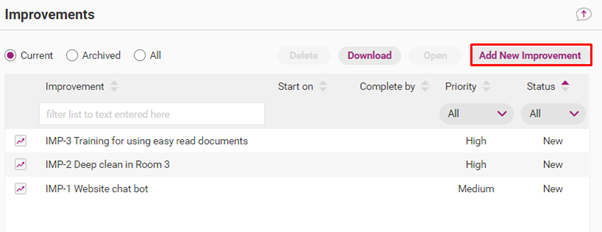
Click Add New Improvement.
Step 4
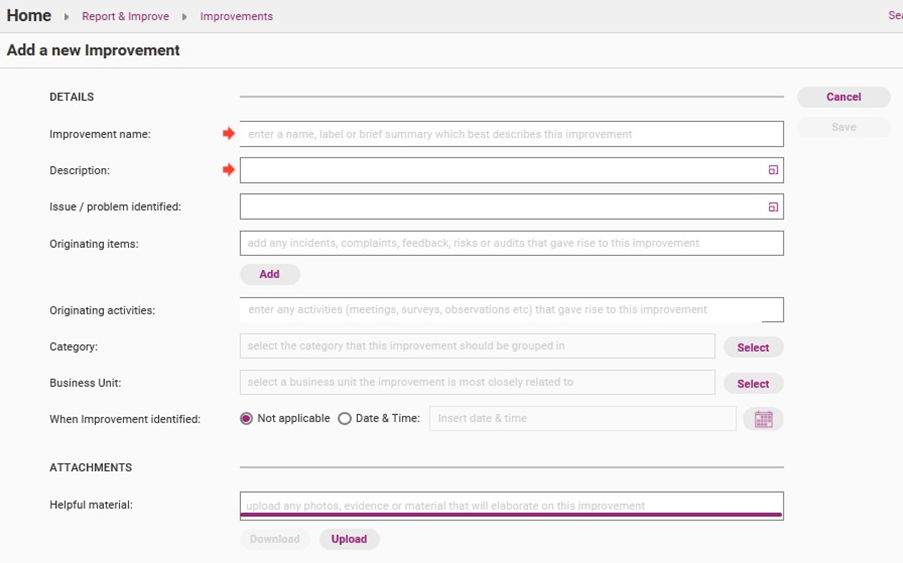
Complete the improvement form. Fields marked with a red arrow are required. All other fields are optional.
Field | Description |
|---|---|
Improvement name | The name of the improvement. |
Description | Description of the improvement. |
Issue/problem identified | The core problems identified that have resulted in the need for an improvement. |
Originating activities | Any incidents, complaints, feedback, risks or audits that prompted the improvement. |
Category | The type of improvement. |
Business Unit | The area of the organisation to which the improvement relates (e.g. Sydney Office). |
When improvement identified | The date and time on which the improvement was identified. |
Helpful material | Any photos, evidence or material that will provide additional information about the improvement. |
Step 5
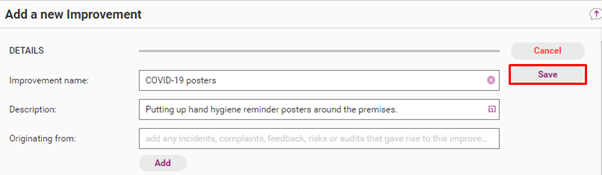
Click Save.
Update improvement information
Step 1
Access Home > Report & Improve.

Step 2
Click Open.

Step 3
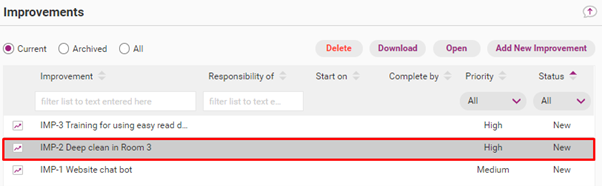
Double click the improvement you want to update.
Step 4
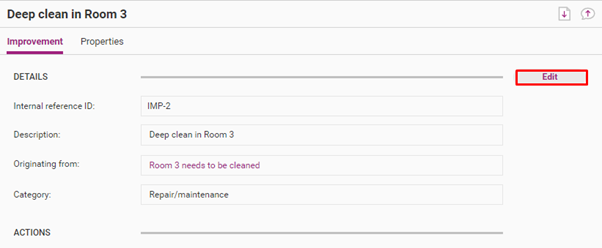
Click Edit and make all required changes.
Step 5
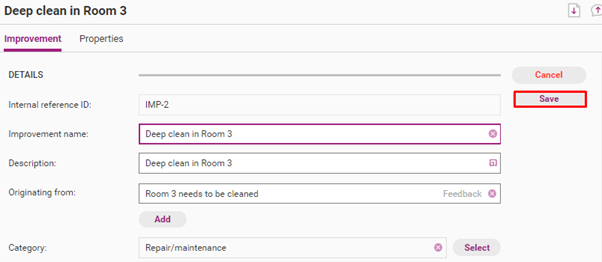
Click Save.
Update improvement progress
Once the initial details of the improvement have been reviewed and updated, the manager can complete the Actions section in the improvement report form.
Some of the fields in the Actions section appear as columns of data within the improvement register, which allows the manager to track and close the improvement.
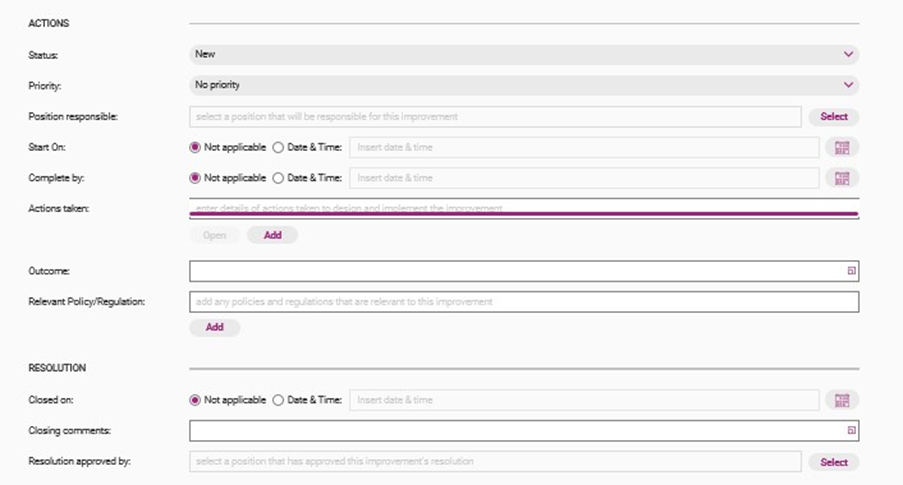
Field | Description |
|---|---|
Status | The progress status of the improvement. |
Priority | The priority status of the improvement. |
Position responsible | The position holder that is responsible for managing the improvement. Refer to Manage Positions. |
Start on | The date on which improvement management is to begin. |
Complete by | The date by which the improvement must be actioned. |
Actions taken | Any actions taken to design and implement the improvement. |
Outcome | The results, achievements and impacts associated with the improvement. |
Comments | Any additional comments, details and explanations. |
Relevant Policy/Regulation | Policies or regulations related to the improvement |
Closed on | Date and time on which the improvement activities were completed. |
Closing comments | Any final comments. |
Resolution approved by | For users with positions in the system, the position that approved the resolution. |
View and use improvement register
The improvement register is an important tool for managers to track and close improvements. Selected improvements can be exported to Excel for further analysis and reporting as described below.
View improvement register
Use the filtering options on the top ribbon to view and search improvements.

Filter | Description |
|---|---|
Improvement | Improvement title. |
Category | Improvement category. |
Business Unit | Business Unit responsible for the improvement. |
Responsibility of | Position responsible for this improvement. |
Identified on | The date on which the improvement was identified. |
Closed on | The date on which the improvement was closed. |
Priority | Priority of the improvement. |
Status | Status of the improvement. |
In addition, you can use the options above the search ribbon to view current and archived improvements.
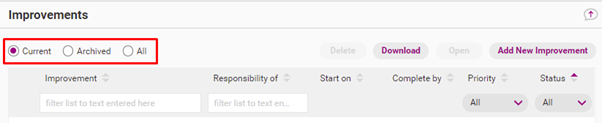
- Current view shows the improvements that are currently being managed.
- Archive view shows improvements that have a status of Completed or Cancelled.
- All shows both current and archived items.
Download improvement Register
Step 1
Access Home > Report & Improve.

Step 2
Click Open.

Step 3
If required, filter and select the content you want to download.
Tip
To download multiple (but not all) items, hold down Ctrl, click once on each relevant item and click Download.
For example, if you want to download improvements from a specific category, write the name of the category in the Category search bar, hold down Ctrl and select the relevant improvements.
Step 4
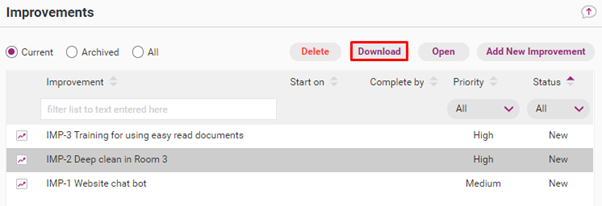
Click Download.
Step 5
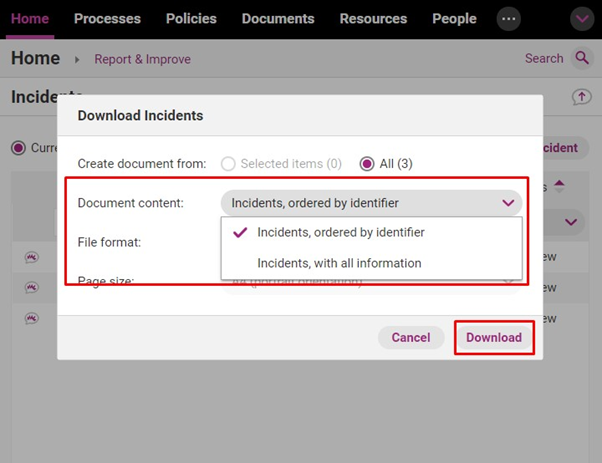
Choose your download options. The following options are available.
- Whether you want to download all improvements or only selected improvements.
- Improvements ordered by identifier (PDF feedback report).
- Improvements with all information (Excel feedback report).
Click Download.
Step 6
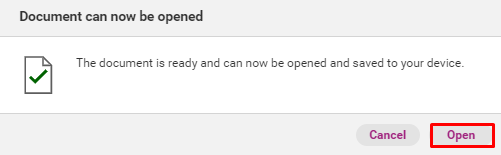
When the data is loaded, click Open. The improvement data will open in Microsoft Excel.
Delete improvement
Step 1
Access Home > Report & Improve.

Step 2
Click Open.

Step 3
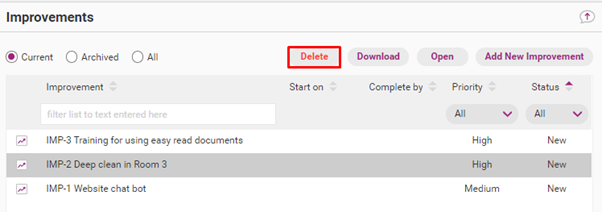
Click once on the improvement you want to delete and click Delete.
Step 4
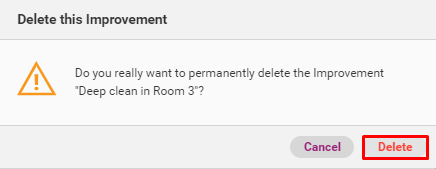
Confirm the deletion.