
General
Set up and configuration
- Assign required reading
- Manage app settings and notifications
- Home page image and document logo
- Manage categories
- Welcome text and news
- Hide items (archive content)
- Required reading reports
- Updating role name video
- Updating links to Strengthened Standards training video
- Onboarding kit
- Send email notifications
Manage users
Troubleshooting
Registers
Manage content
- Delete document
- Edit, review and approve process
- Edit, review and approve policy
- Create and publish new policy
- Create and publish new process
- Previous item version information
- Edit roles
- Edit release notes
- Hide items (archive content)
- Introduction to release management
- Manage document
- Manage regulations
- Publish multiple changes (in one release)
- Publish single item (manage changes)
- Download and print content
- Delete role
- Delete policy
- Delete process
- Delete or archive regulation
- Embed video
- Manage comments
- Send email notifications
- Show Remaining Articles (2) Collapse Articles
Audits
Training Resources
- Content updates training
- Process editing - editing the process sequence
- Upcoming training sessions
- Required reading training video
- Updating role name video
- Updating links to Strengthened Standards training video
- Scheduling updated audits video
- Work instructions training video
- Comments training video
Business units
Reports
Required Reading
Work Instructions
Mobile Phone App
Comments
Custom audits
Introduction to release management
Release management features provide you with a version control system that is integrated into your web app. This tool is designed to assist you with your version control requirements and create a structured release management workflow for your organisation.
Release management is a set of features for administrators (users in your organisation that have administrator access in the web app) that includes:
- A workflow to publish an item (e.g. a policy or process), including draft, review, approve and publish states.
- A workflow to delete an item (e.g. a policy or process), including approve deletion and delete on publish states.
- A workflow to publish one item or multiple items at the same time, and automatically create a news item on the Welcome subtab.
- Version control information/history for each item—this includes changes to both the web-app interface and the PDF documents.
In release management, customers retain access to all previous web app editing options.
Workflow overview
Release management workflow refers to the steps that you need to take to finalise and record information about content changes. Content changes include:
- Updates to an existing policy, process, document or role.
- Creation of a new policy, process, document or role.
- Deletion of a policy, process, document or role.
Create, edit and publish item
There are four key phases in the release management workflow when you are creating, editing and publishing any content. When you enter a new phase by working on a single item you will always see a timeline representing the workflow. This timeline indicates where you are in the workflow. At each stage, you can write and edit the summary of what was/will be changed.
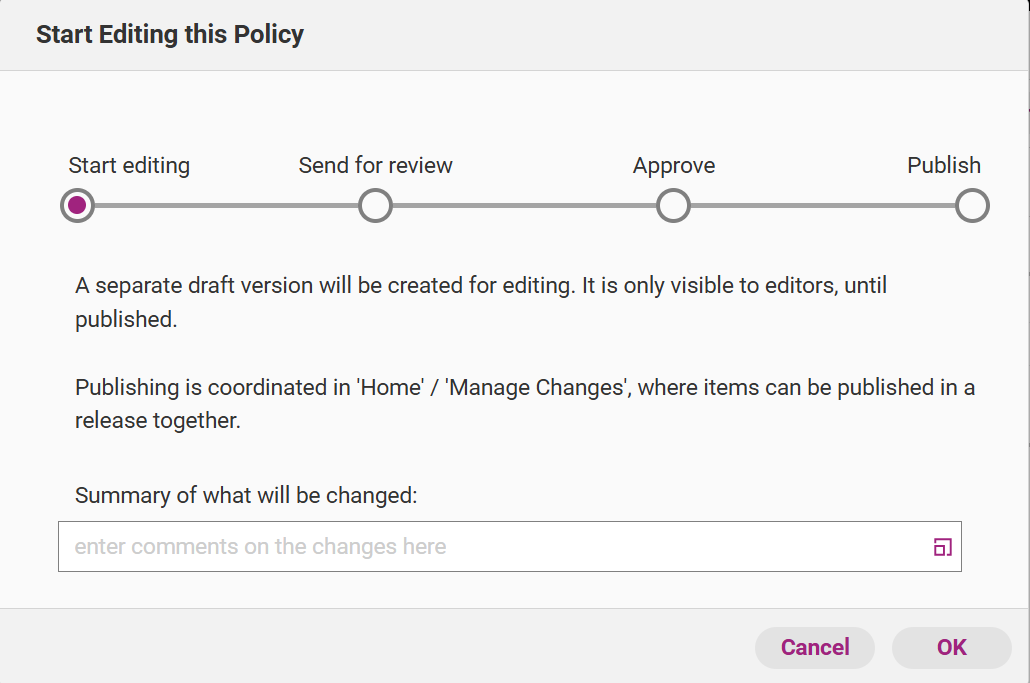
Workflow step | Description |
|---|---|
Start Editing | An item in this stage is marked ‘Draft’. At this stage you can edit content by making all required changes and/or additions. |
Send for review | An item in this stage is marked ‘Awaiting approval’. You can either approve the document (if you agree with all changes) or revert it back to the ‘Draft’ state to make further changes. |
Approve | An item in this stage is marked ‘Ready to Publish’. You can either publish the document (if you agree with all changes) or revert it back to the ‘Daft’ state to make further changes. |
Publish | An item this stage is marked ‘Published’. It is online and available for non-administrators to view. If you have assigned the content to a specific role, only people that have that role within the system can view the content. |
Important
Review your content carefully at every stage. Once you have reached the end of the workflow and published your content, you cannot revert the item to an earlier version (e.g. if you have fully published version 3 of a policy, you will not be able to view or revert to version 2 within the web app).
Delete content
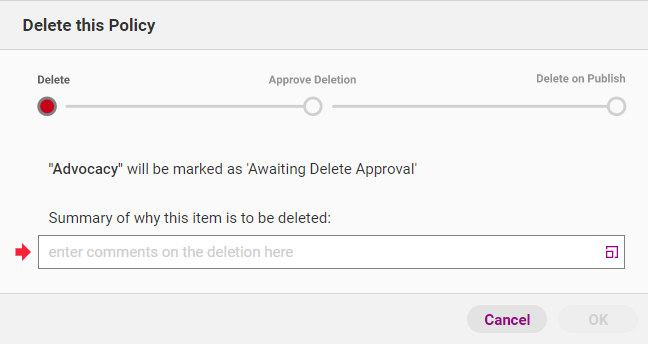
Document deletion within release management is subject to a workflow similar to that which determines content editing and creation. It is comprised of three key steps.
Important
Once approved and confirmed, all deletions are permanent.
Workflow step | Description |
|---|---|
Delete | Content in this stage is marked ‘Awaiting Delete Approval’. You can either approve it for deletion or reverse the deletion. |
Approve deletion | Content in this stage is marked ‘Delete on Publish. If you agree that the item should be deleted, you can finalise the deletion. At this stage, you still have the option to revert the deletion if required. |
Delete on publish | Content in this stage is permanently removed from the system. It will not be visible to any users. |
Publish multiple items in one release
While you can publish each update/deletion individually, you can also make multiple changes at the same time. If all the changes are published at the same time, they are part of the same release.
Access the Home tab and click Manage Changes to view all items within the system that are pending deletion/publication. Use the top bar to manage item changes.
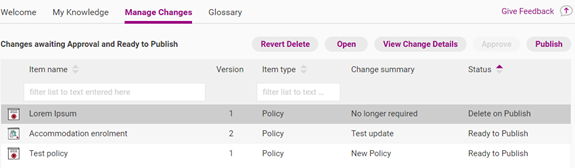
Button | Description |
|---|---|
Revert Delete/Revert to Draft | If the item on which you have clicked is marked ‘Delete on Publish’ you can reverse the deletion. If the item is marked ‘Ready to Publish’ you can revert it to a draft. |
Open | Open the item and view content. |
View Change Details | View the summary of what was changed (for each individual item). |
Approve | The option to approve single items for publication. |
Publish | Publish all items in one release, write release notes and create a news item about the release. |
Release notes and news items
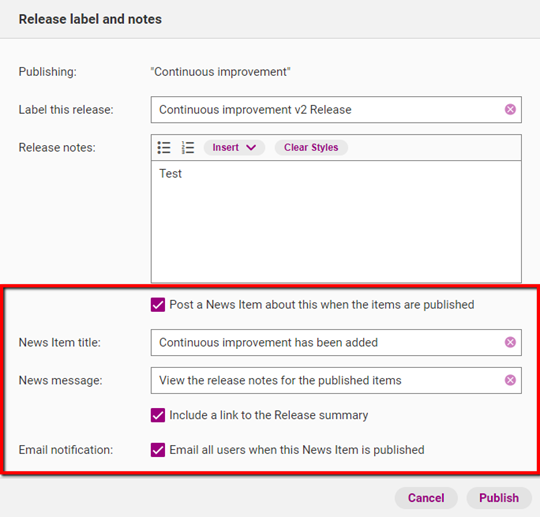
When you are about to publish an item (or several items), you are asked to write Release notes. Release notes are a record of all the content changes you have made (e.g. added a new policy, deleted a document, updated a process) as well as reasons for the changes.
Tip
You can edit your release notes later if required. For more information on this please see the guide titled Edit Release Notes.
To notify users about the release tick Post a News Item about this when the items are published. If this is selected, a news item appears in the Home tab of your web app. Tick Include a link to the Release Summary to link the release notes to the news item.
You can also send an email notification to all activated web app users in your organisation by ticking Email all users when this News Item is Published.
View version control information
As part of release management, you have access to version control information about each item in your web app. This information is automatically generated when you edit, approve and publish items.
Version control information can be viewed in different ways.
The version number is available in the list view.

When you open any item, click on the Version sub tab. This shows you all version control information for that item.
Tip
As with other aspects of web app content, you can edit version control information for policies, processes and documents using the Version subtab. See the Edit, Review and Approve Policy for more information.
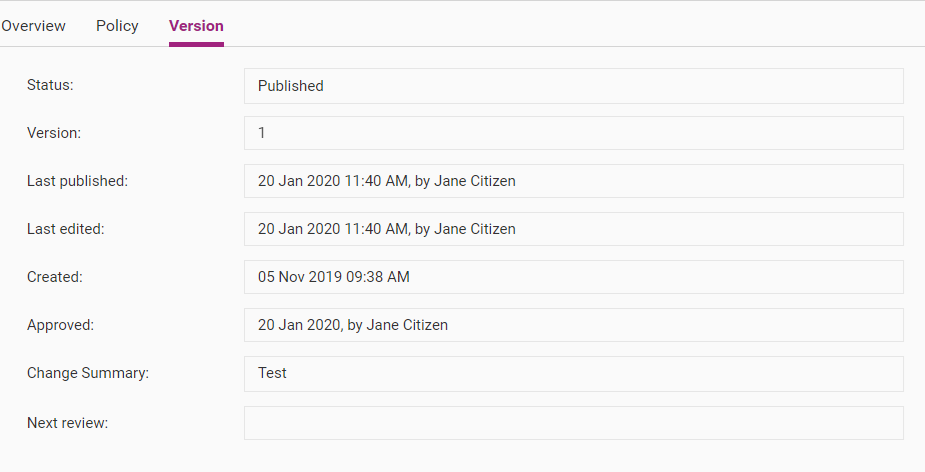
When you download your content as a PDF, the version control information for each item is available under the heading for that item.
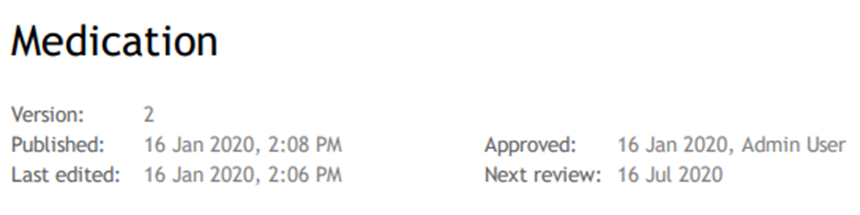
Important
Full control information for our standard content will not appear in the PDF until each item has been edited, approved and published by you.
Disable release management
When you disable release management, all other features will still be available.
Important
You cannot disable release management until all unpublished versions (including content that is awaiting approval and publication) are either published or deleted.
Overall, we strongly recommend that you carefully consider which option is best suited to your document management practices. Version control is vital for recording content management information and ensuring compliance.
If you change content while working without release management, your version number will not be automatically updated and there will be be no official release notes for your changes.
To disable release management, refer to the steps below.
Step 1
Access the Admin tab and click App Settings.

Step 2
Select Unmanaged editing.
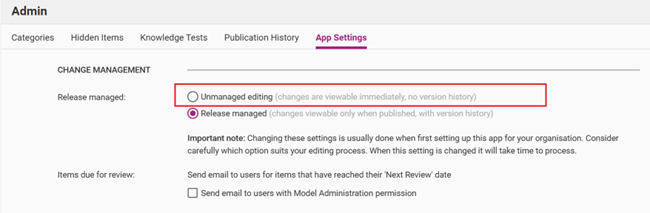
Step 3
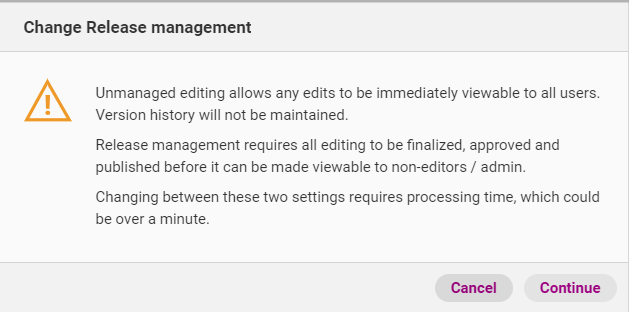
A warning message appears. Click Continue to disable release management. This may take over a minute. To re-enable release management, return to App settings and select Release management.
For more information about release management and all other features, please visit the Manage Content (Release Management) group in the Support Portal.