
General
Set up and configuration
- Assign required reading
- Manage app settings and notifications
- Home page image and document logo
- Manage categories
- Welcome text and news
- Hide items (archive content)
- Required reading reports
- Updating role name video
- Updating links to Strengthened Standards training video
- Onboarding kit
- Send email notifications
Manage users
Troubleshooting
Registers
Manage content
- Delete document
- Edit, review and approve process
- Edit, review and approve policy
- Create and publish new policy
- Create and publish new process
- Previous item version information
- Edit roles
- Edit release notes
- Hide items (archive content)
- Introduction to release management
- Manage document
- Manage regulations
- Publish multiple changes (in one release)
- Publish single item (manage changes)
- Download and print content
- Delete role
- Delete policy
- Delete process
- Delete or archive regulation
- Embed video
- Manage comments
- Send email notifications
- Show Remaining Articles (2) Collapse Articles
Audits
Training Resources
- Content updates training
- Process editing - editing the process sequence
- Upcoming training sessions
- Required reading training video
- Updating role name video
- Updating links to Strengthened Standards training video
- Scheduling updated audits video
- Work instructions training video
- Comments training video
Business units
Reports
Required Reading
Work Instructions
Mobile Phone App
Comments
Custom audits
Embed video
Videos can be embedded into any content overview or section within QMS.
- Policy overviews and sections
- Process overviews and steps
- Work Instructions overview and sections
- Descriptions (e.g. Document descriptions)
Most video hosting platforms are supported, including YouTube and Dailymotion.
Step 1
Navigate to the video you would like to embed and copy the video link.

Step 2
Open the content item you want to edit and ensure it is in draft. Navigate to the section where you want to embed the video and click Edit.

Step 3
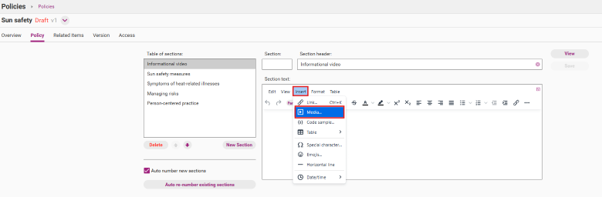
In the Rich Text Editor toolbar, click Insert, then select Media.
Step 4
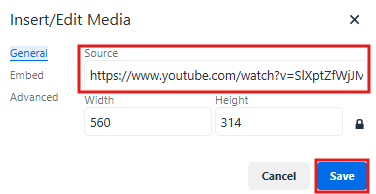
In the Source field, paste the link to your video clip and click Save to embed the video.
Step 5
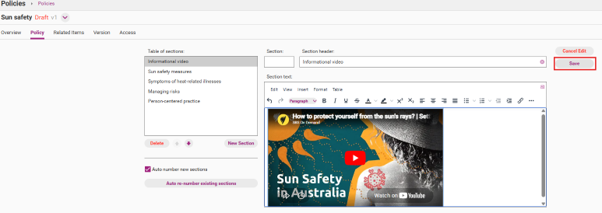
Click Save again to commit the changes. Confirm the video has been added correctly.
Step 6
Once embedded, proceed through the release management cycle and publish your content so that users can view and play the clip directly within the content item.