
General
Set up and configuration
- Assign required reading
- Manage app settings and notifications
- Home page image and document logo
- Manage categories
- Welcome text and news
- Hide items (archive content)
- Required reading reports
- Updating role name video
- Updating links to Strengthened Standards training video
- Onboarding kit
- Send email notifications
Manage users
Troubleshooting
Registers
Manage content
- Delete document
- Edit, review and approve process
- Edit, review and approve policy
- Create and publish new policy
- Create and publish new process
- Previous item version information
- Edit roles
- Edit release notes
- Hide items (archive content)
- Introduction to release management
- Manage document
- Manage regulations
- Publish multiple changes (in one release)
- Publish single item (manage changes)
- Download and print content
- Delete role
- Delete policy
- Delete process
- Delete or archive regulation
- Embed video
- Manage comments
- Send email notifications
- Show Remaining Articles (2) Collapse Articles
Audits
Training Resources
- Content updates training
- Process editing - editing the process sequence
- Upcoming training sessions
- Required reading training video
- Updating role name video
- Updating links to Strengthened Standards training video
- Scheduling updated audits video
- Work instructions training video
- Comments training video
Business units
Reports
Required Reading
Work Instructions
Mobile Phone App
Comments
Custom audits
Navigation basics
QMS provides ready-made material that service providers can implement directly or customise to meet specific safety and quality obligations.
Content should be personalised to meet your organisation’s needs and structure.
Portal tabs
Home tab
This will be the landing page when you first sign in to the web app. The Home tab displays basic system details and information.
The subheadings and tabs visible on your system will be different, depending on:
- Which system settings and modules are subscribed to
- The access level of the User who is logged in

Home page
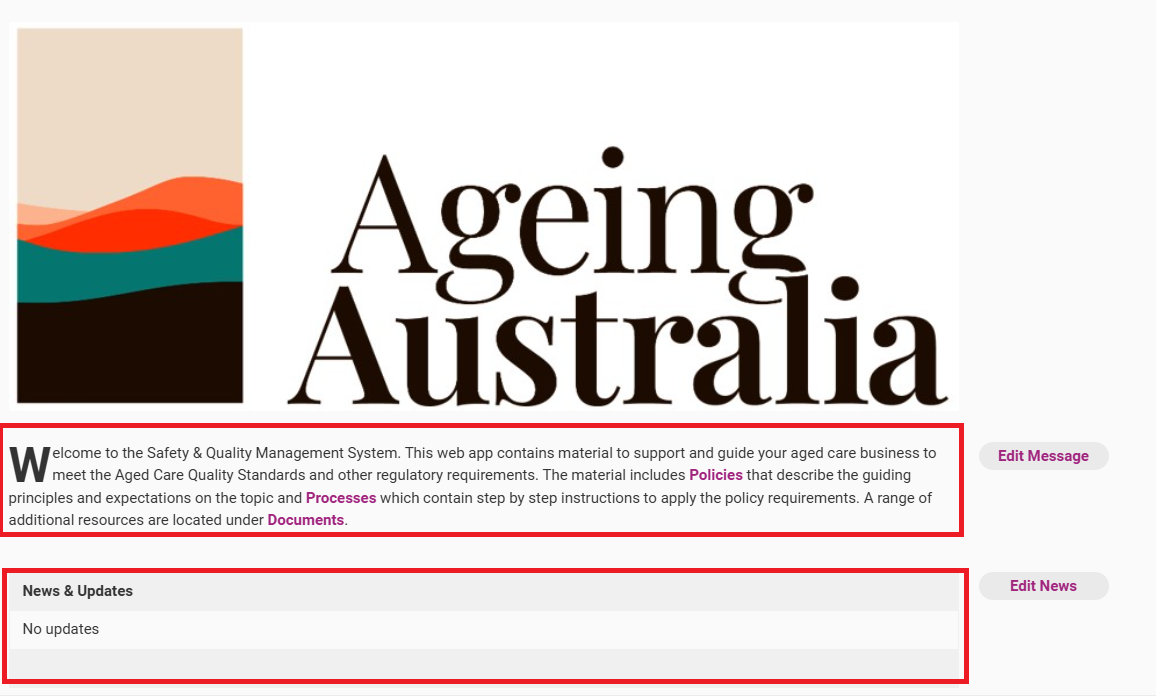
This is the home page for your web app. Here, you will be able to access the welcome message and news items.
Global Search
The most effective way to find content within the QMS is to use the Global Search tool from the Home page of the system.
Entering a key term in the search bar will search all published content within the system, including the Item names and the body of the text of Policies and Processes.

More details on how to search through the QMS can be found on the Search the Web App page.
Process tab
Use the Processes tab to access your organisation's business procedures.

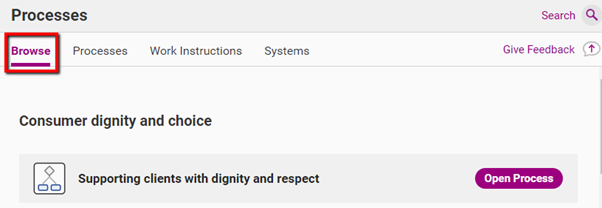
Processes tab - Browse View
There is the option to toggle between the browse view and the list view (located in the Processes subtab). The browse view will show the processes that are relevant to the user role assigned to you.
Important
If a User is unable to see content under the Browse view this means that no content has been assigned to that User as Required Reading. We recommend the User view content through the list view as shown below. Refer to the page Assign Required Reading or our Upcoming Training Sessions for more information on Required Reading.
Processes tab - List View
The list view will show you a complete list of all processes available to your organisation. You can sort the process list view by: process name, category, business unit, relevant to (Role) and editing information.

Policies tab
Use the Policy tab to access your organisation's policies.

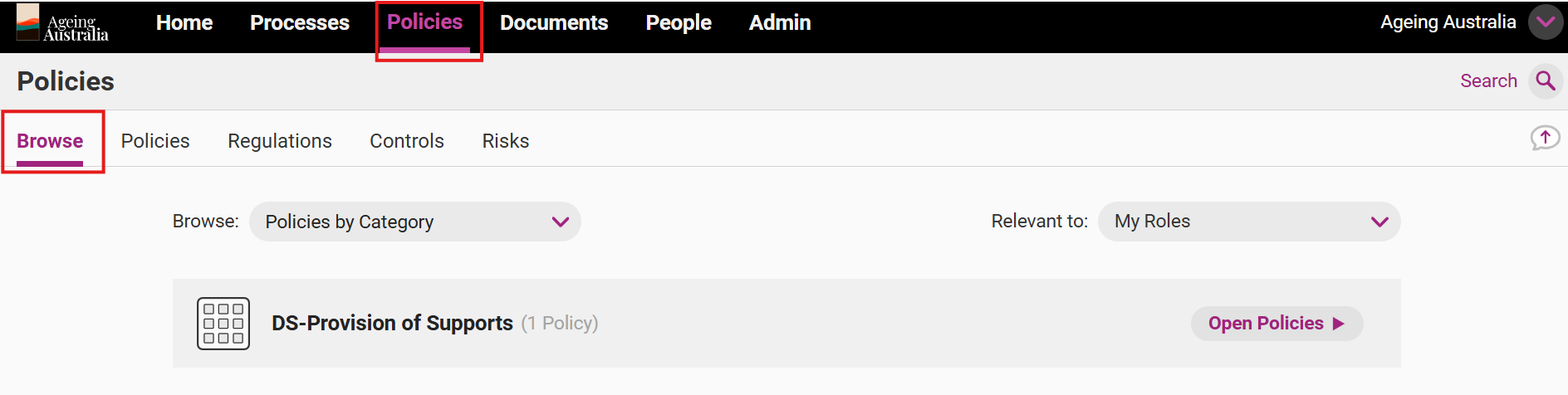
Policies tab - Browse View
There is the option to toggle between the Browse view and the list view (located in the Policies subtab). The Browse view will show the policies that are relevant to the user role assigned to you.
Important
If a User is unable to see content under the Browse view this means that no content has been assigned to that User as Required Reading. We recommend the User view content through the list view as shown below. Refer to the page Assign Required Reading or our Upcoming Training Sessions for more information on Required Reading.
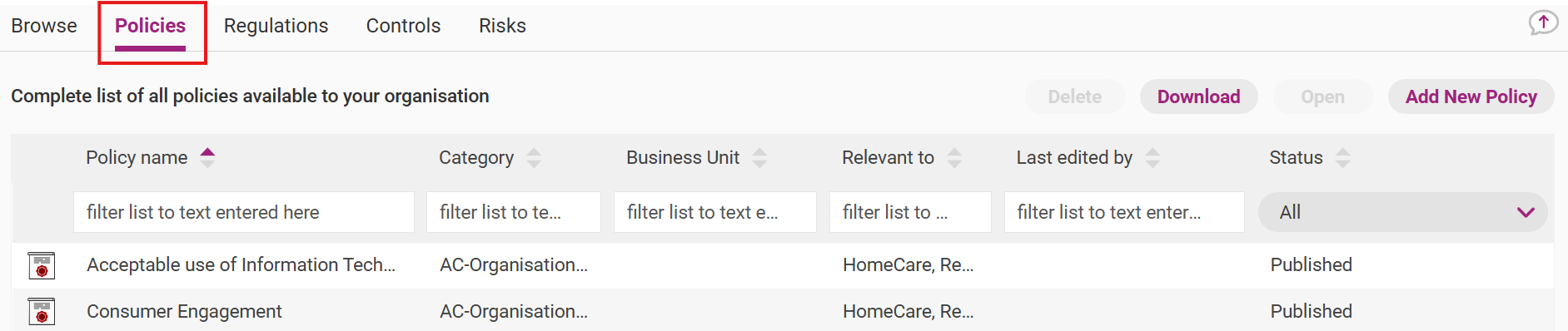
Policies tab - List View
The list view will show you a complete list of all policies available to your organisation. You can sort the policy list view by: policy name, category, managing business unit, relevant to (Role) and editing information.
Policies - subtabs
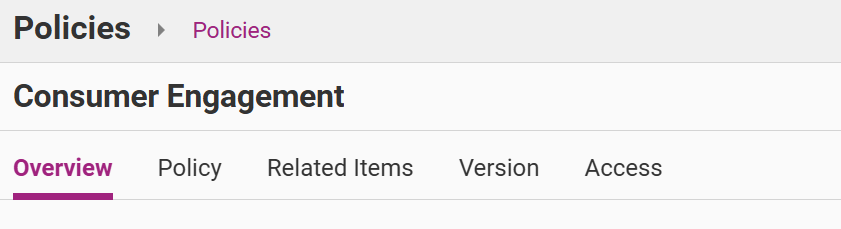
Each individual policy has subtabs that provide different information about the policy.
Subtab | Description |
|---|---|
Overview | The introduction to the policy. This section will include information of related content, the overarching Aged Care Quality Standard as well as other Governing Regulations. |
Policy | All the content of the policy. In addition to the body of the policy, this section may include the Roles and Responsibilities, Suggested Evidence and References and resource documents. |
Related Items | A summary of other content Items and/or Regulations within the system that are linked to this Policy. |
Version | Information about the dates the policy was created and modified. Previous versions can be downloaded in PDF from this section. |
Access | Information regarding the access levels applied for the Policy including whether there are visibility and/or editing restrictions applied. Refer to Guide New Business Unit Set Up for more information. |
Documents tab
Use the Documents tab to access your organisation's documents.

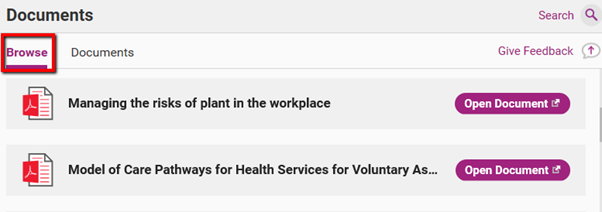
Documents tab– Browse View
There is the option to toggle between the browse view and the list view (located in the Documents tab). The browse view will show you those documents that are relevant to the user role assigned to you.
Important
If a User is unable to see content under the Browse view this means that no content has been assigned to that User as Required Reading. We recommend the User view content through the list view as shown below. Refer to the page Assign Required Reading or our Upcoming Training Sessions for more information on Required Reading.
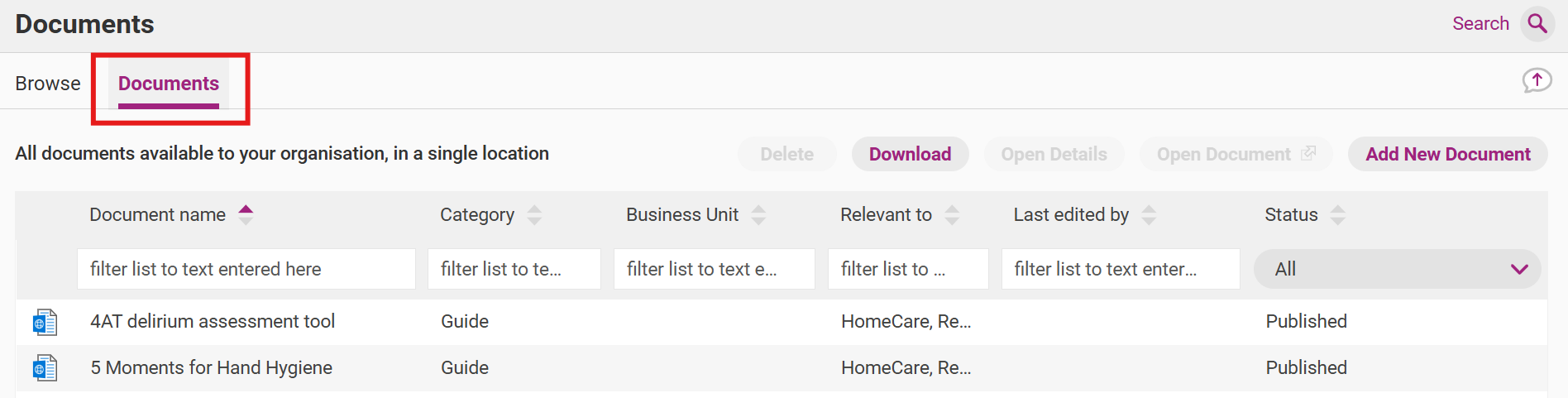
Documents tab – list view
The list view will show you a complete list of all documents available to your organisation. You can sort the document list view by: document name, category, business unit, relevant to (Role) and editing information.
Additional functions
Give feedback
Click the Feedback button to send us feedback. You can select the type of feedback you wish to submit and add a comment before sending.

Refer to Give Feedback page for more information.
User options
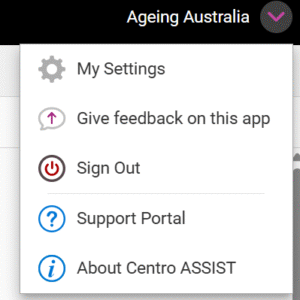
Click on your username to access a drop-down list of options for your account.

The options include:
Field | Description |
|---|---|
My Settings | Use this to view your User permissions, Roles, Business Units and Positions and/or change your password or user login details. |
Give Feedback on this app | Refer to the Give Feedback page for more information. |
Sign out | Use this to log out of the QMS. |
Support Portal | Use this to access the QMS Support Portal and search through user guides. |
About Centro Assist | Use this to access additional information about Centro Assist including version information, Frequently Asked Questions, the Centro Privacy Policy, Terms and Conditions and the Centro Assist Website. |