
General
Set up and configuration
- Assign required reading
- Manage app settings and notifications
- Home page image and document logo
- Manage categories
- Welcome text and news
- Hide items (archive content)
- Required reading reports
- Updating role name video
- Updating links to Strengthened Standards training video
- Onboarding kit
- Send email notifications
Manage users
Troubleshooting
Registers
Manage content
- Delete document
- Edit, review and approve process
- Edit, review and approve policy
- Create and publish new policy
- Create and publish new process
- Previous item version information
- Edit roles
- Edit release notes
- Hide items (archive content)
- Introduction to release management
- Manage document
- Manage regulations
- Publish multiple changes (in one release)
- Publish single item (manage changes)
- Download and print content
- Delete role
- Delete policy
- Delete process
- Delete or archive regulation
- Embed video
- Manage comments
- Send email notifications
- Show Remaining Articles (2) Collapse Articles
Audits
Training Resources
- Content updates training
- Process editing - editing the process sequence
- Upcoming training sessions
- Required reading training video
- Updating role name video
- Updating links to Strengthened Standards training video
- Scheduling updated audits video
- Work instructions training video
- Comments training video
Business units
Reports
Required Reading
Work Instructions
Mobile Phone App
Comments
Custom audits
Welcome text and news
User access level | Powers related to Welcome text and news |
|---|---|
Administrator / Model Administrator | Can edit the welcome message and news items on their QMS home page |
The welcome message can be customised to introduce the system to your staff Users.
News items can be added directly to the Home page. News items can also be posted as part of the content publication process. Refer to Introduction to Release Management page for more information on how to do this.
Change welcome message
Step 1
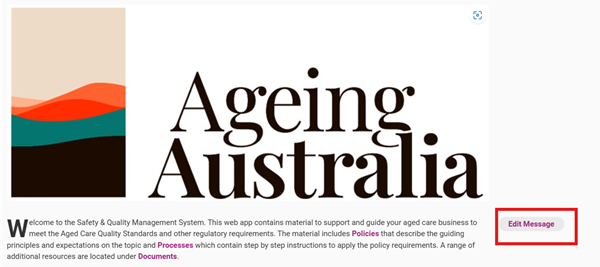
Go to the Home tab and click Edit Message.
Step 2
Update the welcome message and click Save to commit the changes.

Add news
Tip
If you have selected to display your release notes as a news item, you can use this editing interface to make changes to your release notes.
Step 1
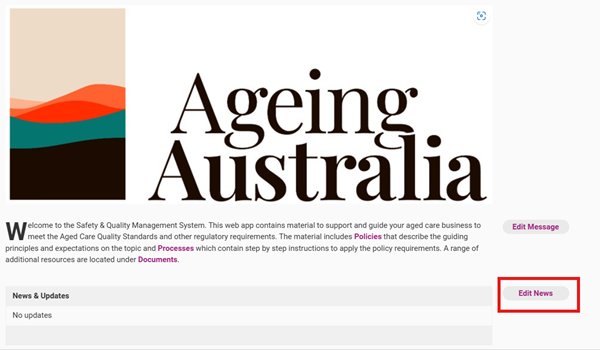
Go to the Home tab and click Edit News.
Step 2
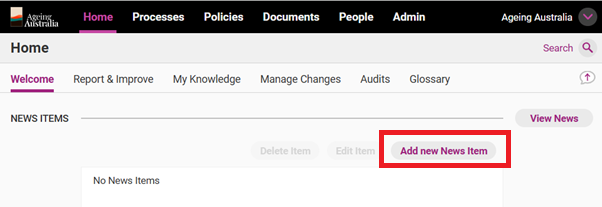
Click Add new News Item.
Step 3
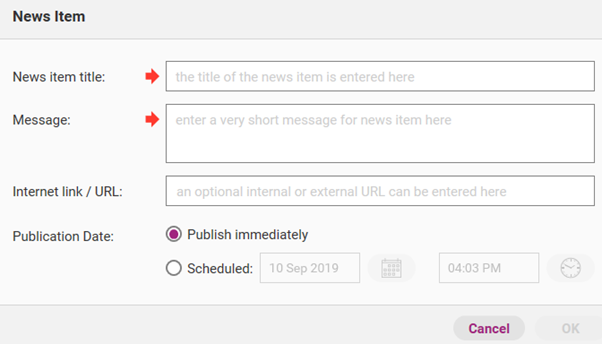
Complete all the relevant fields.
Field | Description |
|---|---|
News item title | Will be shown as the title. |
Message | Short description shown after the title. |
Internet link/URL | Web address (optional) of the page to which the users will be redirected if they click on the news item. |
Publication date | Choose ‘Publish immediately’ or set the time when you would like the post to appear. |
Step 4
Click OK to commit the changes.
Edit news
Step 1
Go to Home and Click Edit News.

Step 2
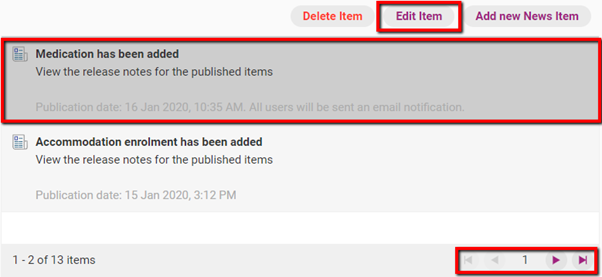
Use the navigation arrows to find the news item you want to edit and click Edit Item.
Step 3
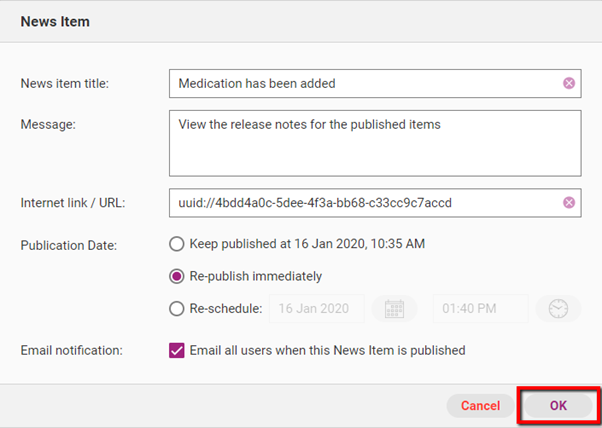
Make the necessary edits and click OK to commit changes.
Field | Description |
|---|---|
News item title | The name of the news item. |
Message | The content of the message. |
Internet link/URL | The URL of the news item. |
Publication Date | When the news item will be published. You have the following options:
|
Email notification | The option to send an email to all activated users of the web app. The email will be sent at 5:30am AEST/AEDT the following day. |