General
Set up and configuration
- Assign required reading
- Manage app settings and notifications
- Home page image and document logo
- Manage categories
- Welcome text and news
- Hide items (archive content)
- Required reading reports
- Updating role name video
- Updating links to Strengthened Standards training video
- Onboarding kit
- Send email notifications
Manage users
Troubleshooting
Registers
Manage content
- Delete document
- Edit, review and approve process
- Edit, review and approve policy
- Create and publish new policy
- Create and publish new process
- Previous item version information
- Edit roles
- Edit release notes
- Hide items (archive content)
- Introduction to release management
- Manage document
- Manage regulations
- Publish multiple changes (in one release)
- Publish single item (manage changes)
- Download and print content
- Delete role
- Delete policy
- Delete process
- Delete or archive regulation
- Embed video
- Manage comments
- Send email notifications
- Show Remaining Articles (2) Collapse Articles
Audits
Training Resources
- Content updates training
- Process editing - editing the process sequence
- Upcoming training sessions
- Required reading training video
- Updating role name video
- Updating links to Strengthened Standards training video
- Scheduling updated audits video
- Work instructions training video
- Comments training video
Business units
Reports
Required Reading
Work Instructions
Mobile Phone App
Comments
Custom audits
Hide items (archive content)
The hidden items feature acts as an archive for any items that need to be hidden from view. It is a reversible alternative to deleting content from the QMS.
When items are hidden it means they are:
- not shown in lists
- not shown as a related item on any other items
- not accessible by URL (will show item not found message)
- not shown in any downloadable report (other than hidden item report).
User access level | Powers related to Hide items |
|---|---|
Administrator / Model Administrator | Can view and reinstate hidden items |
Tip
This feature applies to the following item types:
- policies
- processes
- documents
- roles
- positions
- regulations
- risks and controls (if applicable)
- work instruction
The process is very similar for each item type. This user guide will show how to hide policies, processes and documents as these are the most commonly hidden items.
Hide a policy
Step 1
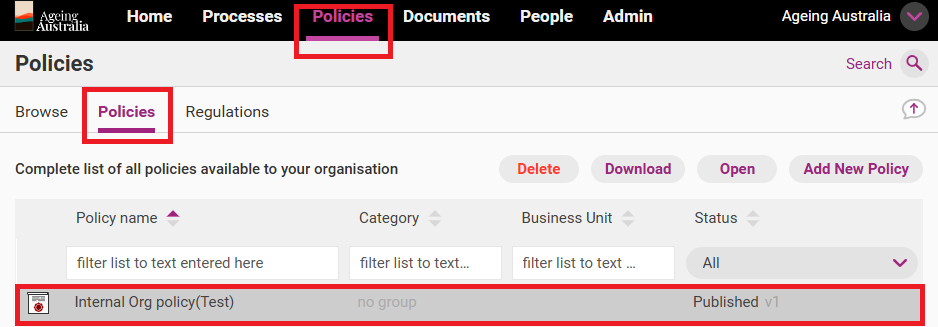
Access the policy you want to hide in list view and double click to open.
Tip
If the policy already has a Draft version, open this version and resume editing.
Step 2
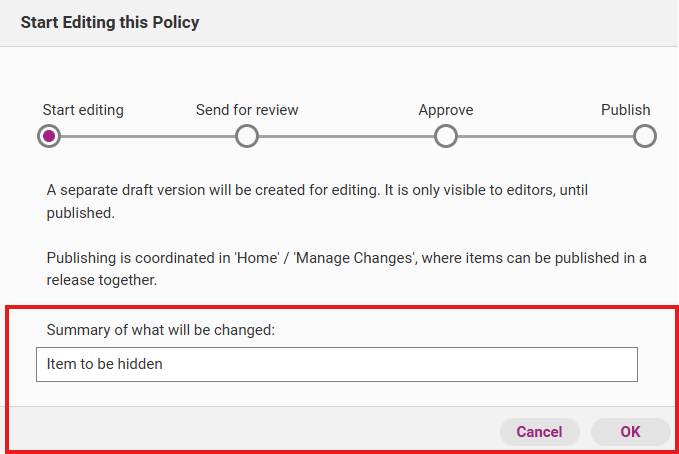
Click Start Editing.

Step 3
Write a summary of what will be changed and click OK. This activates the Release Management workflow.
Step 4
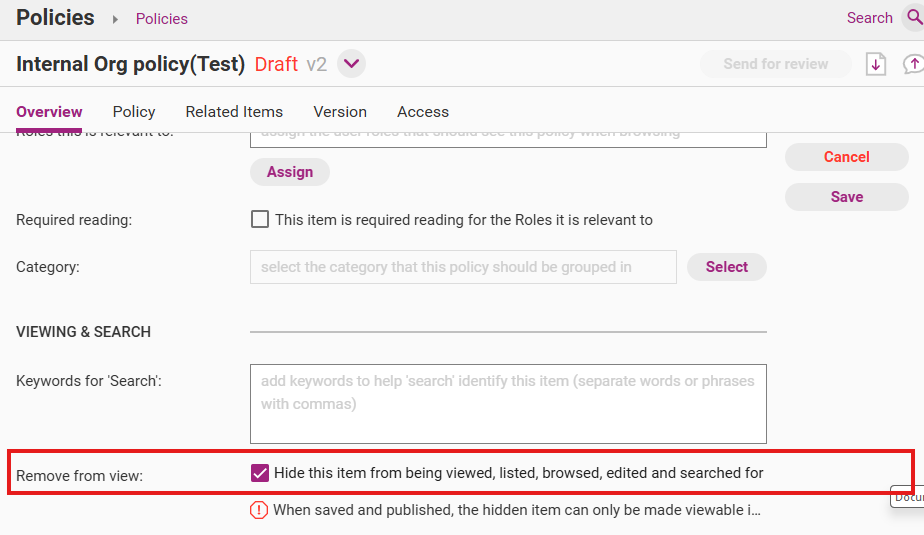
Within the Overview section of the policy, Click Edit.

Step 5
Scroll to the bottom of the page to find the tick box: Hide this item from being viewed, listed, browsed, edited and searched for. Tick the box.
Step 6
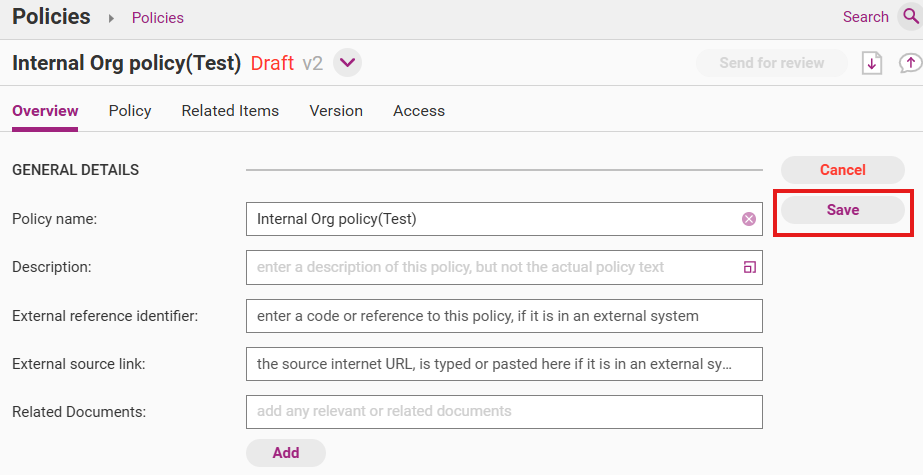
Click Save.
Step 7
Click Send for Review and publish the item by following the Release Management Workflow.

Important
The item will only be hidden when it has been fully published. Please see Publish Single Item (Manage Changes).
Hide a process
Step 1
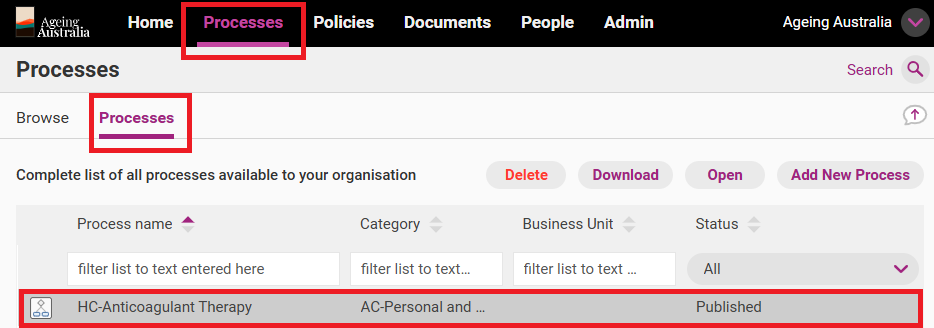
Access the process you want to hide in list view and double click to open.
Tip
If the process already has a Draft version, open this version and resume editing.
Step 2
Click Start Editing.

Step 3
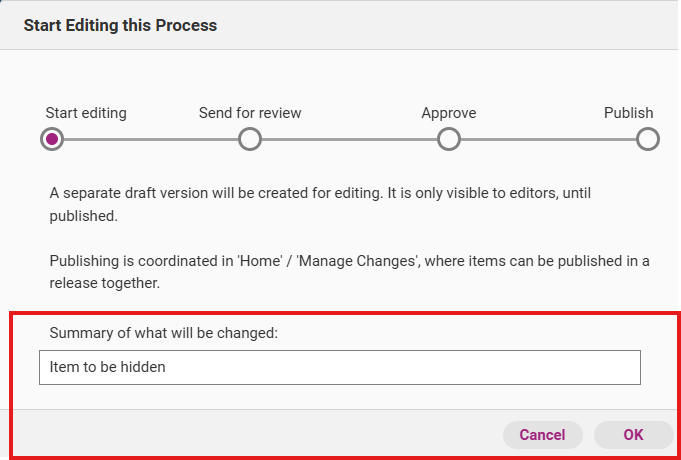
Write a summary of what will be changed and click OK. This activates the Release Management workflow.
Step 4
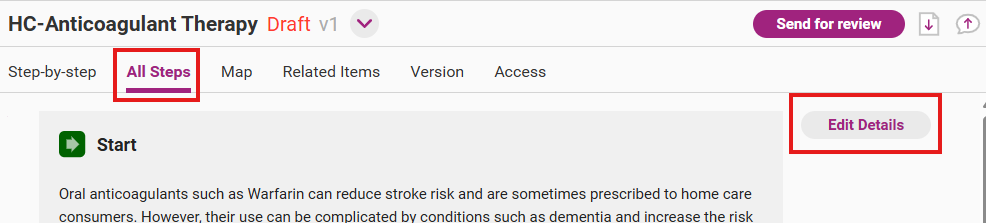
Open the edit details page from the draft version of the process by clicking on Edit Details.
Depending on the view you have open for the process, this can be found in the following ways
- All Steps view – found next to the start of the process.
- Step-by-step view – found next to the start of the process.
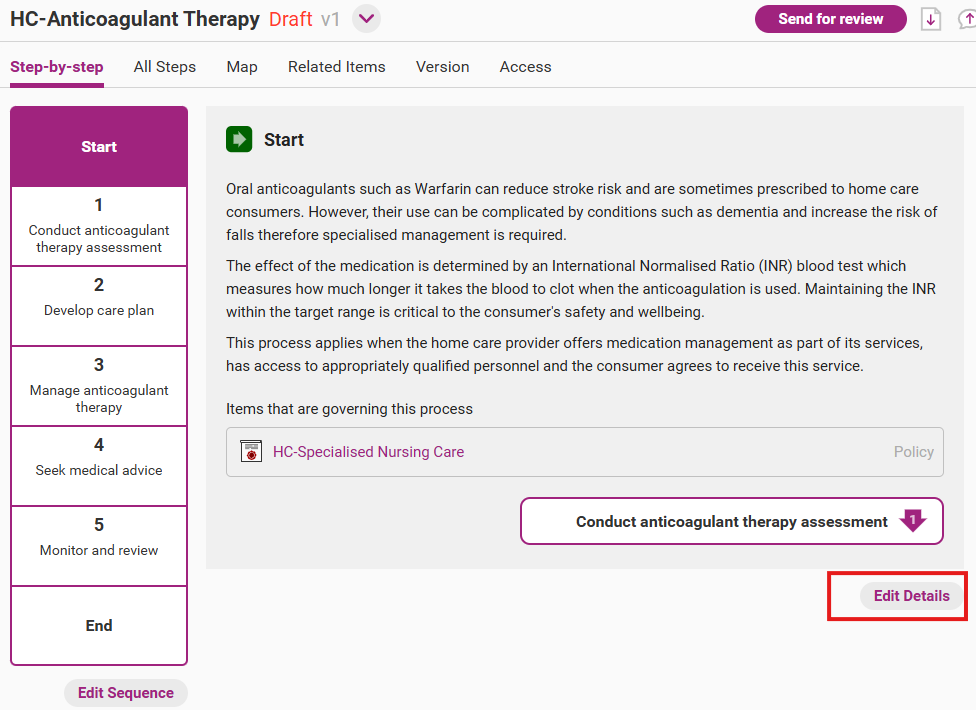
- Map view – found at the top of the process above the map.

Step 5
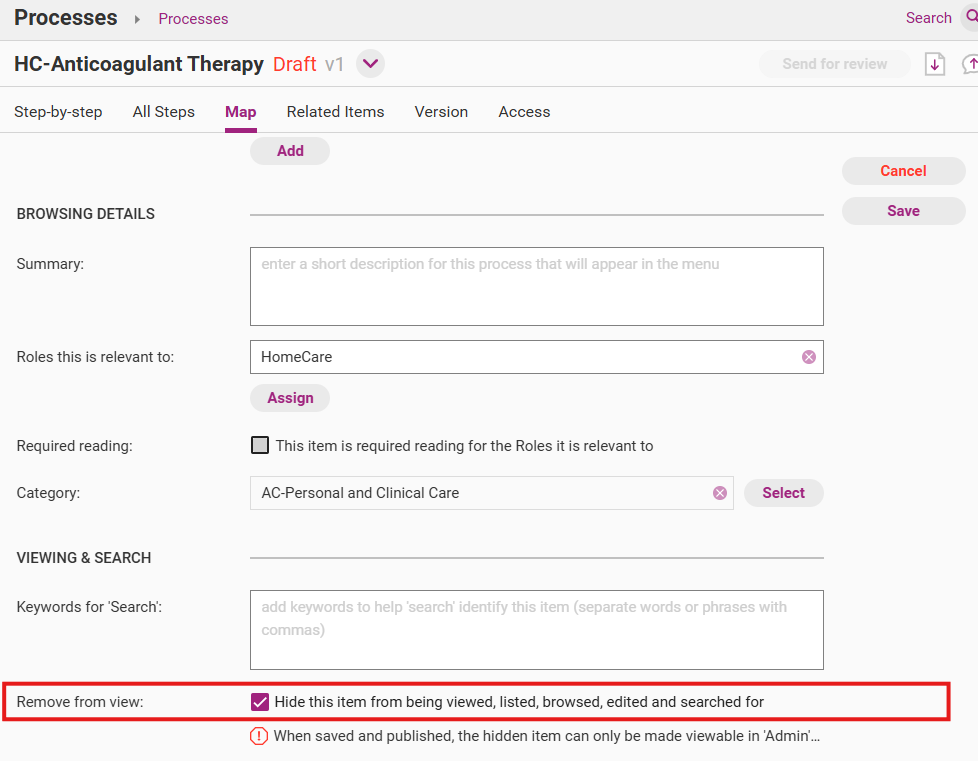
Scroll to the bottom of the page to find the tick box: Hide this item from being viewed, listed, browsed, edited and searched for. Tick the box.
Step 6
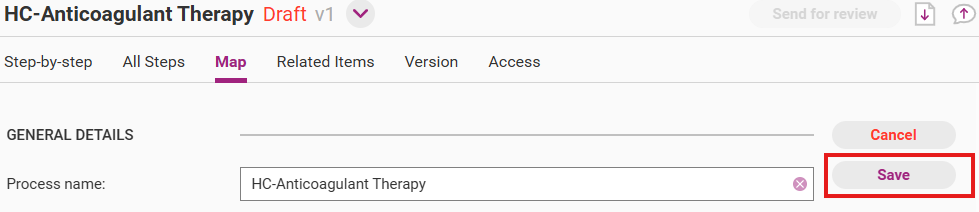
Click Save.
Step 7
Click Send for Review and publish the item by following the Release Management Workflow.

Important
The item will only be hidden when it has been fully published. Please see Publish Single Item (Manage Changes).
Hide a document
Step 1
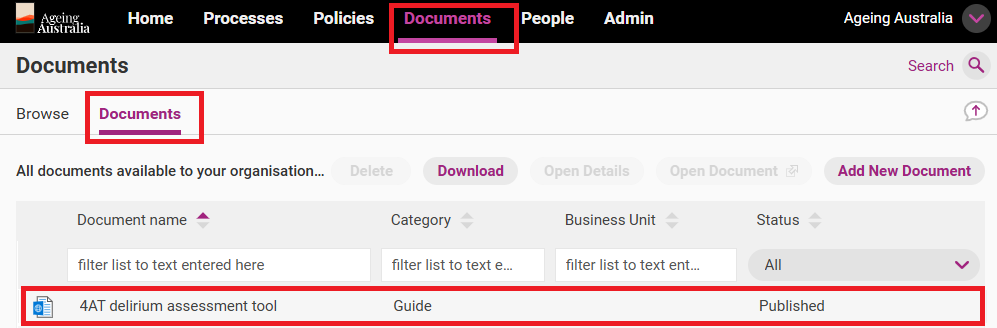
Access the document you want to hide in list view and double click to open.
Tip
If the document already has a Draft version, open this version and resume editing.
Step 2
Click Start Editing.

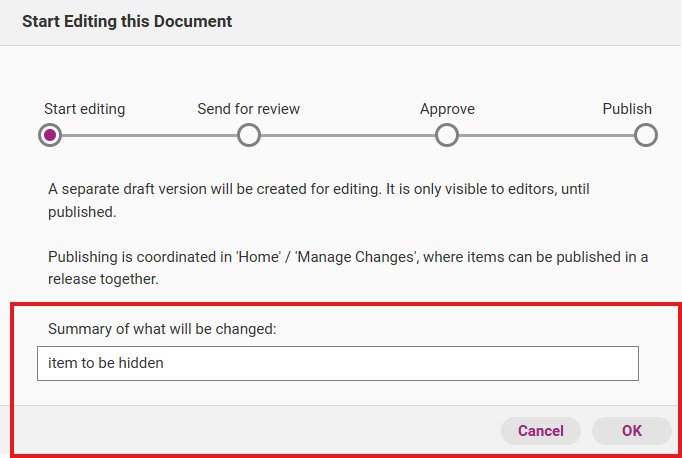
Step 3
Write a summary of what will be changed and click OK. This activates the Release Management workflow.
Step 4
Within the Details section of the policy, Click Edit.

Step 5
Scroll to the bottom of the page to find the tick box: Hide this item from being viewed, listed, browsed, edited and searched for. Tick the box.
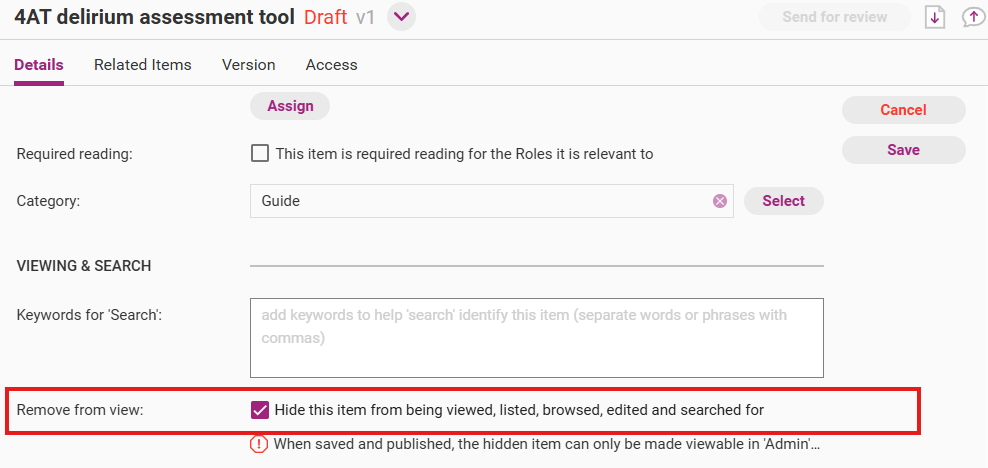
Step 6
Click Save.

Step 7
Click Send for Review and publish the item by following the Release Management Workflow.

Important
The item will only be hidden when it has been fully published. Please see Publish Single Item (Manage Changes).
Hide a work instruction
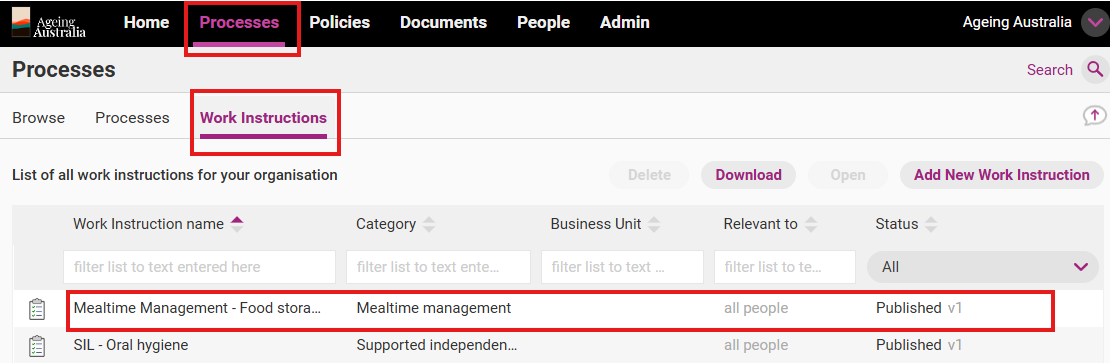
Step 1
Access the work instruction you want to hide in list view and double click to open.
Tip
If the work instruction already has a Draft version, open this version and resume editing.
Step 2
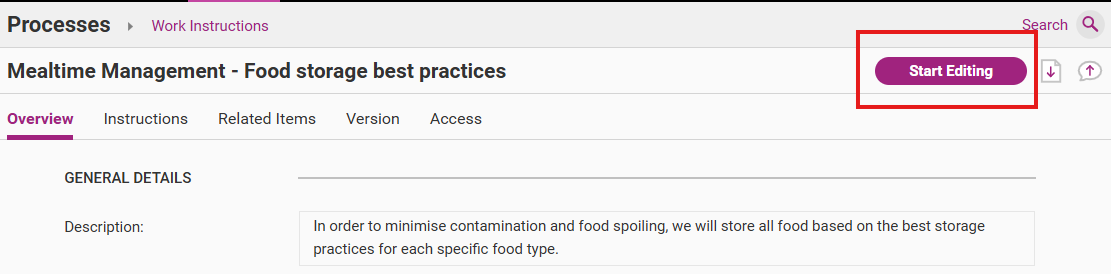
Click Start Editing.
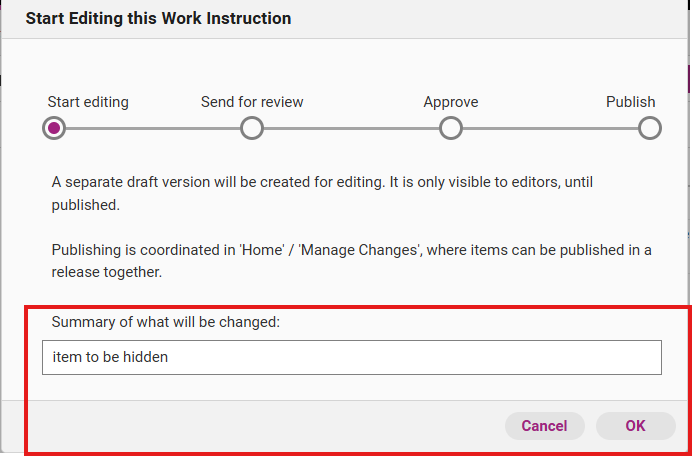
Step 3
Write a summary of what will be changed and click OK. This activates the Release Management workflow.
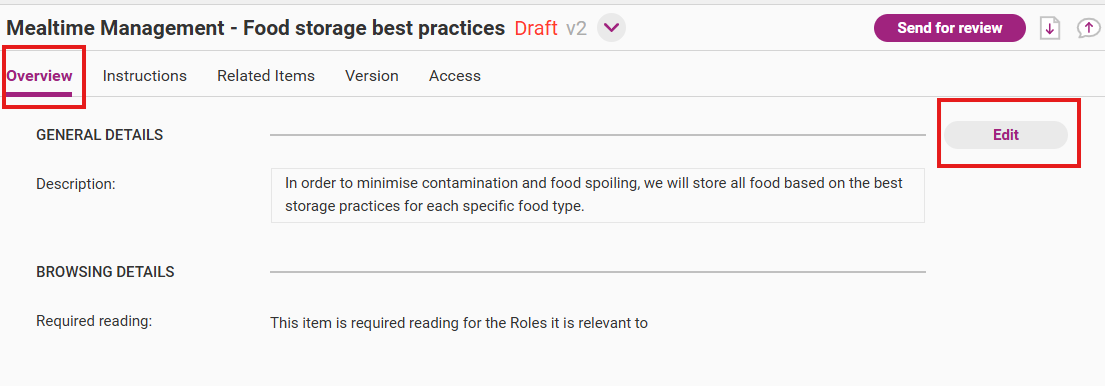
Step 4
- Within the Overview section of the work instruction, Click Edit.
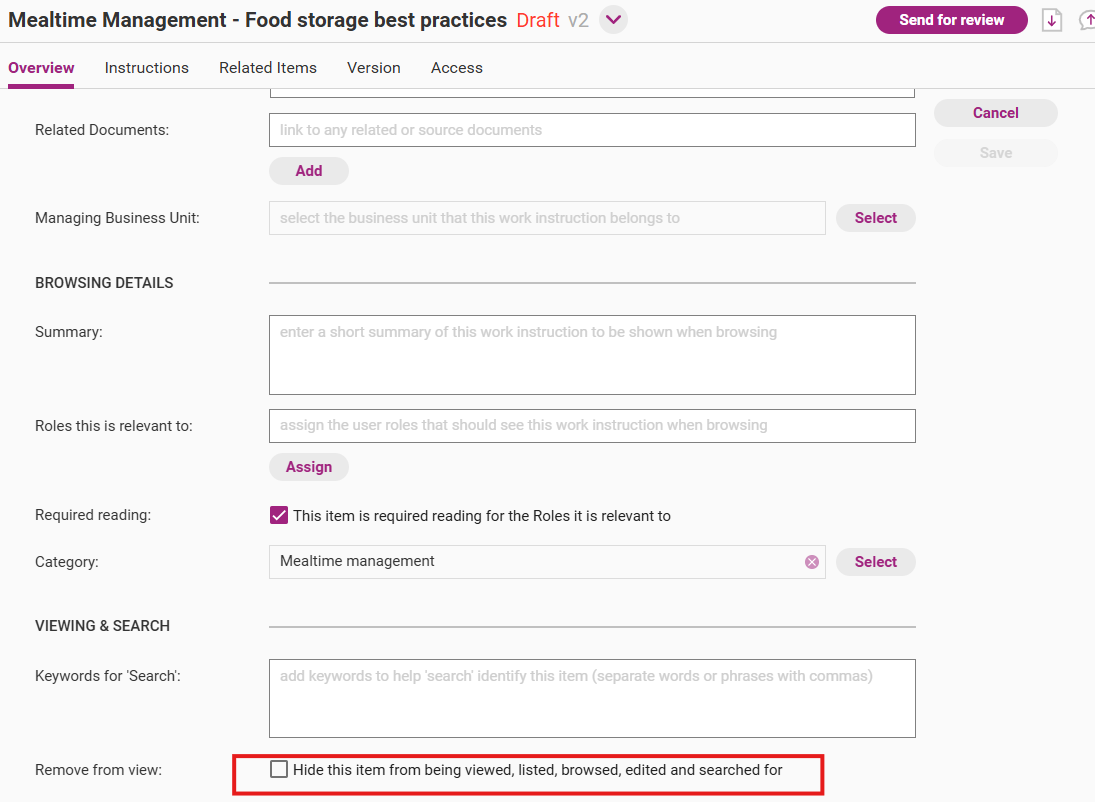
Step 5
Scroll to the bottom of the page to find the tick box: Hide this item from being viewed, listed, browsed, edited and searched for. Tick the box.
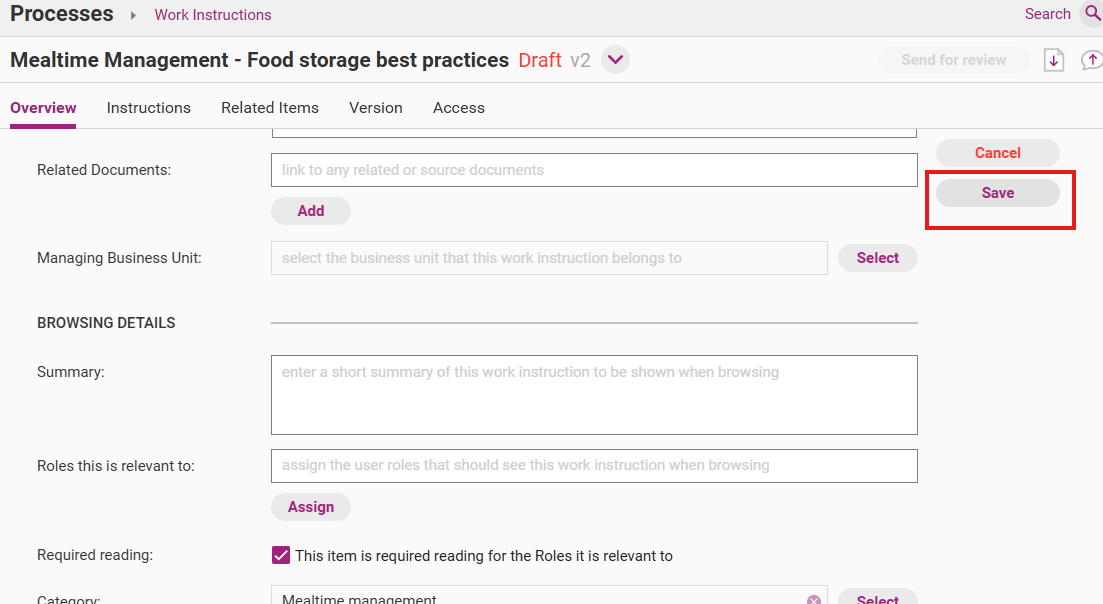
Step 6
Click Save.
Step 7
Click Send for Review and publish the item by following the Release Management Workflow.

Important
The item will only be hidden when it has been fully published. Please see Publish Single Item (Manage Changes).
Unhide an item
QMS Administrators and Model Administrators can reinstate previously hidden items so they are visible again to all users. To do this, the process of hiding an item is done in reverse.
Step 1
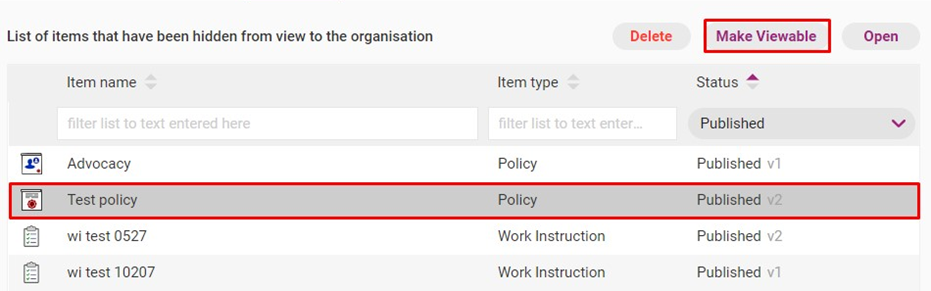
Access Admin > Hidden Items.

Step 2
Click once on the item you want to make visible and click Make Viewable.
Step 3
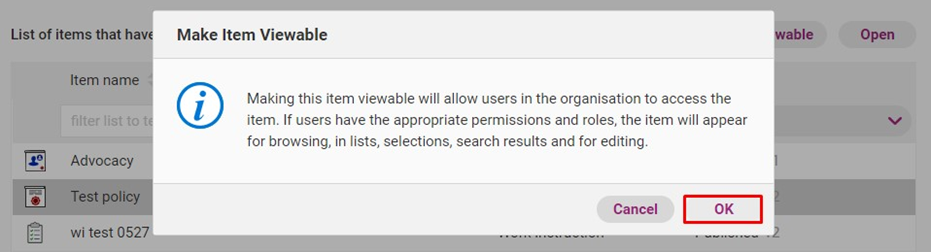
Click OK.
Step 4
You will receive a confirmation when this has been completed. Click OK.
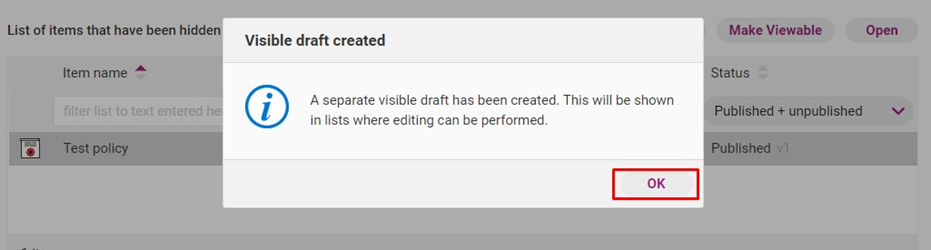
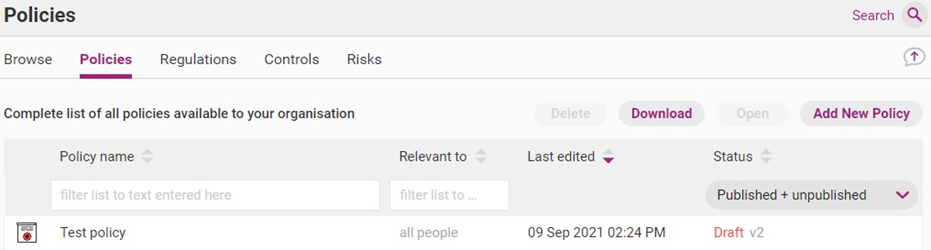
This creates a separate Draft which can be edited and published.
Important
The item will not be viewable and searchable by all users until it is approved and published.
Hidden Item Report
A report of Hidden Items can be downloaded into a spreadsheet. The report contains information about Hidden Items including the item type, name, editing information as well as when it was hidden, who it was hidden by and the change summary.
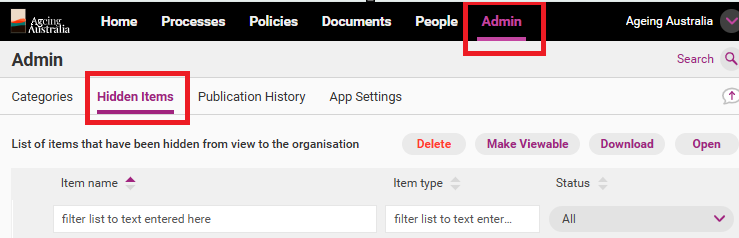
Step 1
Open Hidden Items under Admin tab.
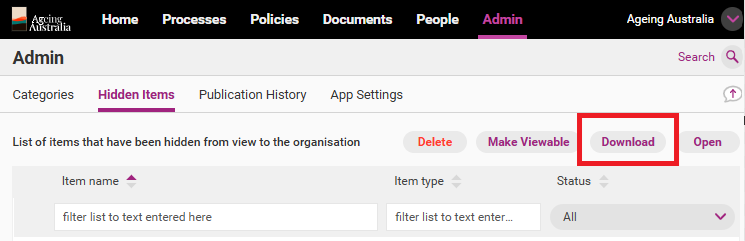
Step 2
Click Download to launch the download pop up window.
Step 3
Determine which option you want the report to contain next to Create document from and press Download.
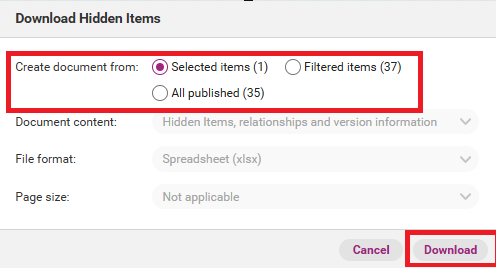
Tip
You can filter the Hidden Item list and/or select specific items prior to downloading to change the content of your report.
Step 4
Once the download is complete, click Open to open the report.