
General
Set up and configuration
- Assign required reading
- Manage app settings and notifications
- Home page image and document logo
- Manage categories
- Welcome text and news
- Hide items (archive content)
- Required reading reports
- Updating role name video
- Updating links to Strengthened Standards training video
- Onboarding kit
- Send email notifications
Manage users
Troubleshooting
Registers
Manage content
- Delete document
- Edit, review and approve process
- Edit, review and approve policy
- Create and publish new policy
- Create and publish new process
- Previous item version information
- Edit roles
- Edit release notes
- Hide items (archive content)
- Introduction to release management
- Manage document
- Manage regulations
- Publish multiple changes (in one release)
- Publish single item (manage changes)
- Download and print content
- Delete role
- Delete policy
- Delete process
- Delete or archive regulation
- Embed video
- Manage comments
- Send email notifications
- Show Remaining Articles (2) Collapse Articles
Audits
Training Resources
- Content updates training
- Process editing - editing the process sequence
- Upcoming training sessions
- Required reading training video
- Updating role name video
- Updating links to Strengthened Standards training video
- Scheduling updated audits video
- Work instructions training video
- Comments training video
Business units
Reports
Required Reading
Work Instructions
Mobile Phone App
Comments
Custom audits
New business unit set up
To set business, a user must have one of the following permissions in the Centro system:
- Model Administration
- Administration
Refer to Manage Users to change User access levels.
Business Units can be activated to:
- segment content for individual users
- make incidents, complaints and feedback visible only to users in applicable Business Units.
For implementation examples please see our BU Examples Guide.
This guide applies to QMS customers who do not currently have any Business Units (BUs) created or implemented. If you already have Business Units implemented, please see our BU Editing Guide.
Create Business Units
Step 1
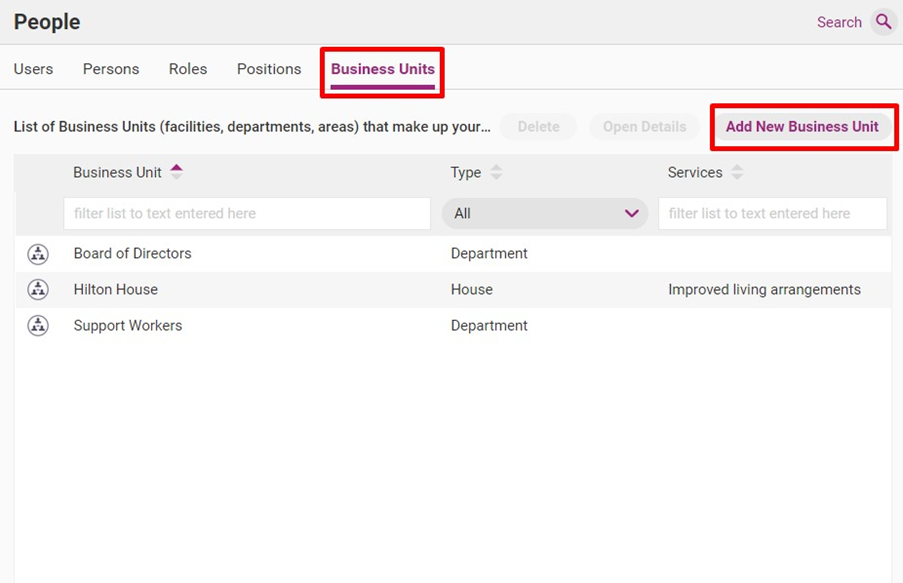
Access the People tab, click on the Business Units subtab and click Add New Business Unit.
Step 2
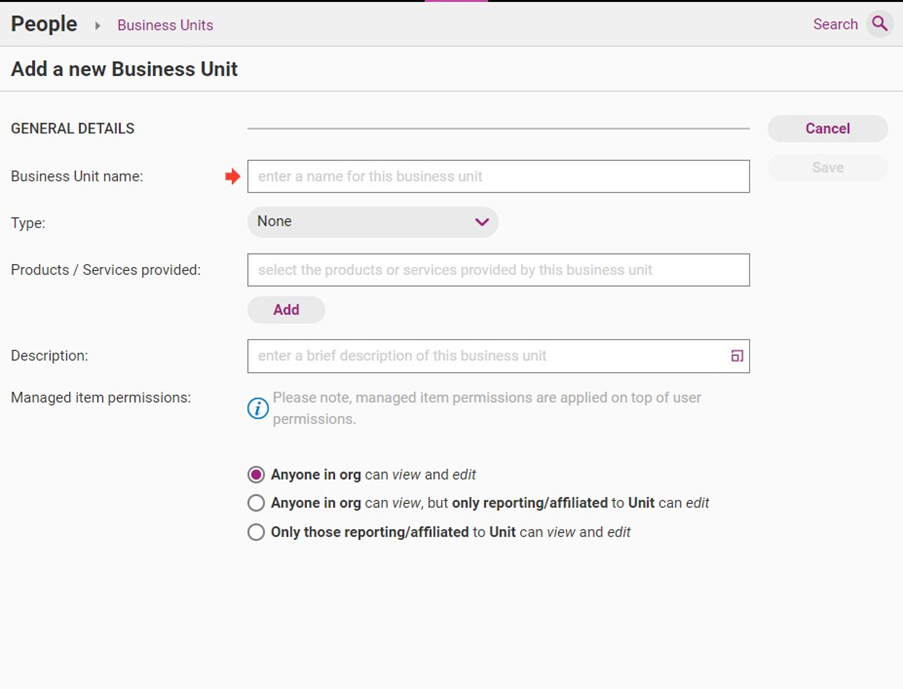
Enter details of the Business Unit, refer to the guidelines below.
Field | Description |
|---|---|
Business Unit name | The name of your Business Unit |
Type | The type of Business Unit (i.e., House, Facility or Department). A Business Unit can be created for a specific House (eg. Smith Street House), Facility (eg. Smith Family Services) or Department (Support Workers). |
Products/services provided | A list of the services or products that the Business Unit provides. |
Description | An overview of key information about the Business Unit. |
Managed item permissions | The viewing and editing permissions of the people linked to this Business Unit, options include:
|
Step 3
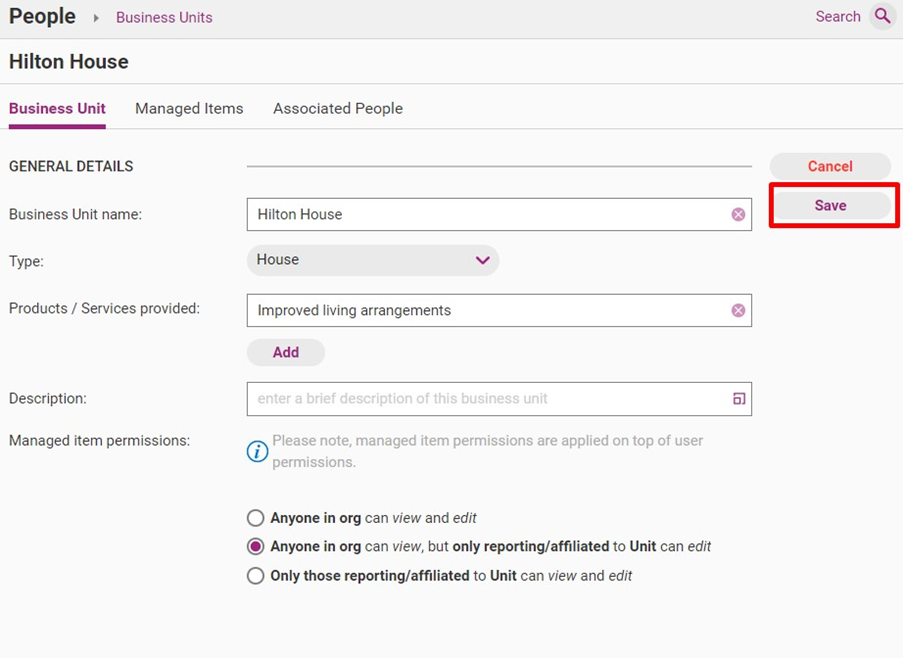
Click Save
Tip
Once created, Business Units can be assigned to relevant content in the web app, including:
- Policies
- Processes
- Documents
- Work Instructions
- Regulations
- Register items (incidents, complaints, improvements feedback)
Initiate editing of relevant items to assign the Business Units to those items.
Link users to Business Units
Step 1
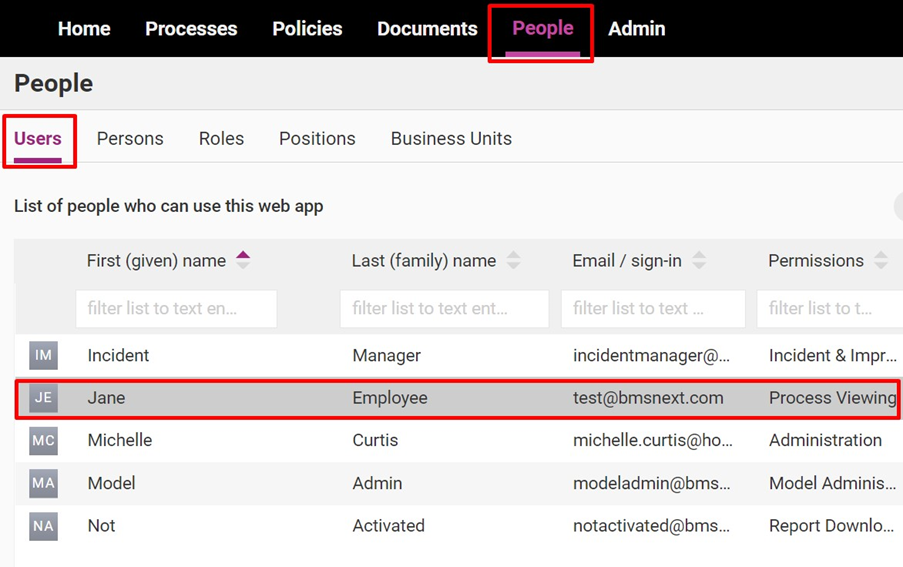
Go to People > Users and double click on the relevant user.
Step 2
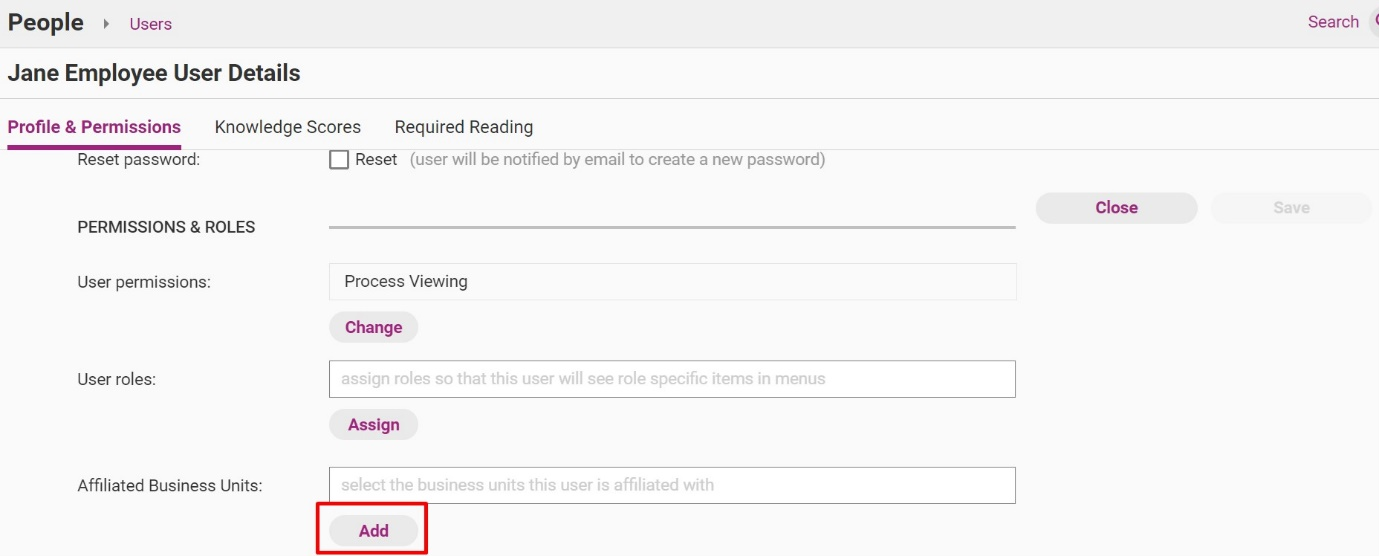
Scroll down to Affiliated Business Units and click Add.
Step 3
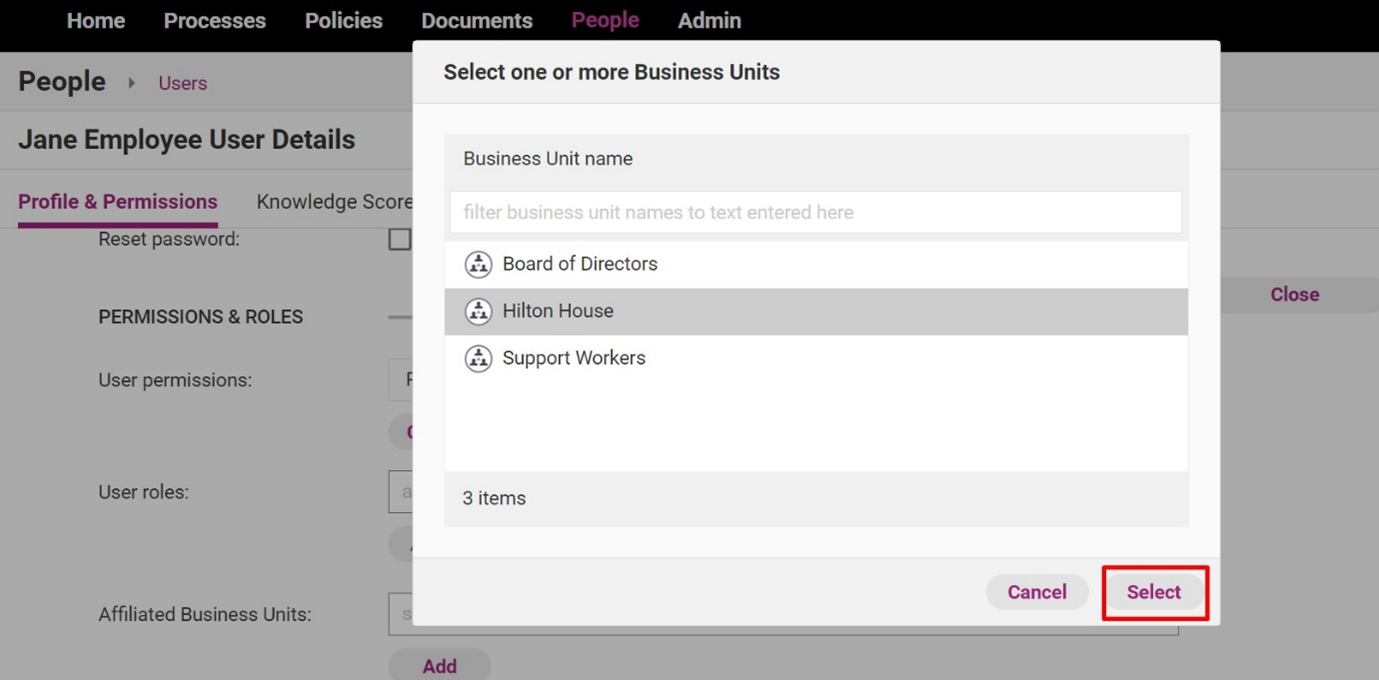
Select the Business Unit that applies to the user.
Step 4
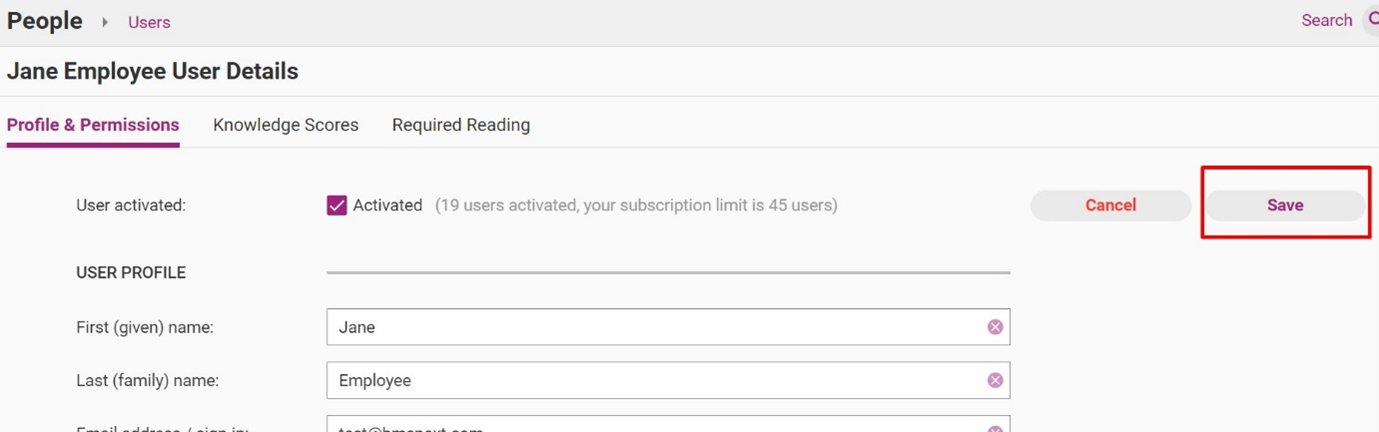
Click Save
Tip
- New customers still yet to onboard your employees, please reach out to [email protected] and our team can assist in performing a Bulk Upload which includes Business Units under the User tab. This will also send out a ‘Welcome’ email.
- Regardless of the Business Unit settings turned on, the user will still need to have ‘Edit’ permission to be able to edit content in the web portal (see Manage Users for more information)
- Multiple Business Units can be assigned to a single user.
For more information on managing users in the Centro web app, please see our Manage Users Guide.
Link content to Business Units
Tip
This article uses a policy as an example, but you can attach Business Units to a variety of content including:
- Policies
- Processes
- Documents
- Work Instructions
- Regulations
- Register items (incidents, complaints, feedback)
Please see the instructional guide related to the item type you would like to edit for more detailed editing guidelines.
Step 1
Find the relevant item in your Centro web app and start editing. If you require assistance with this step, please see our content editing guides for further information.
Step 2
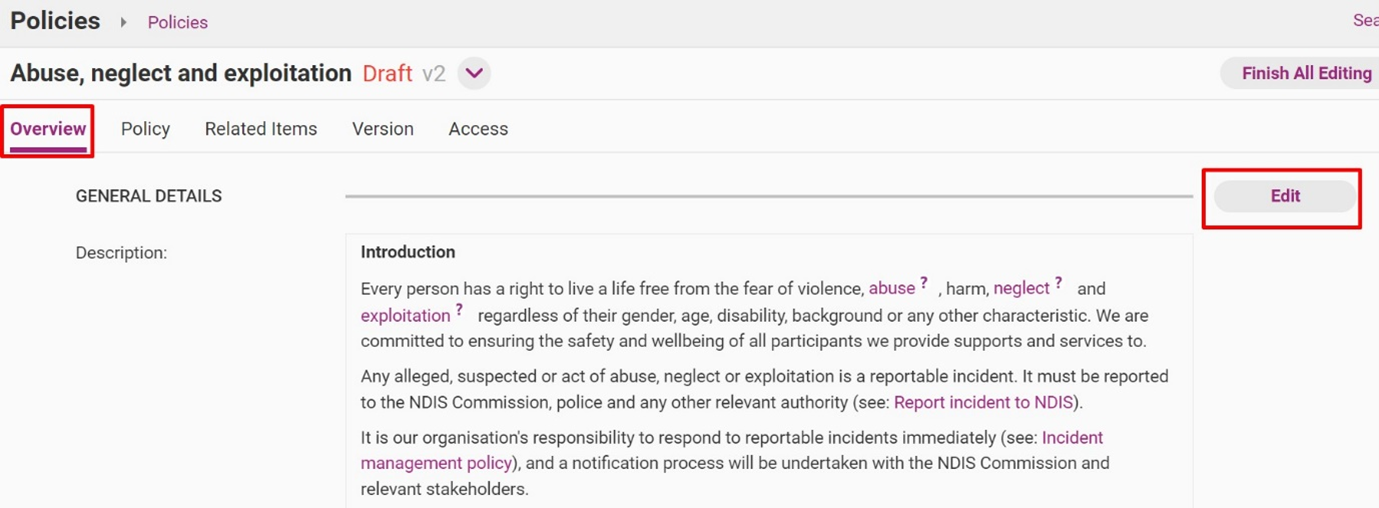
Click Edit and Overview Tab.
Step 3
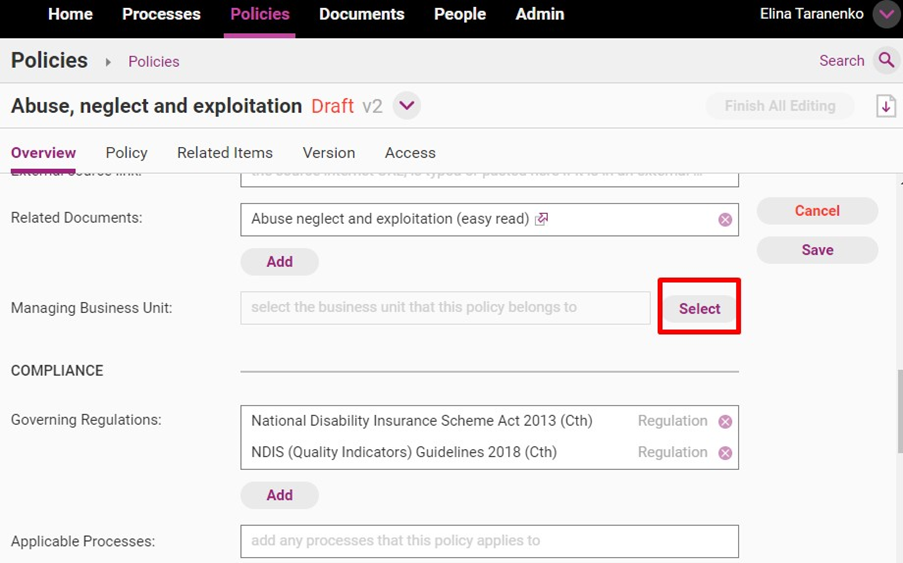
Scroll to Managing Business Unit and click Select.
Step 4
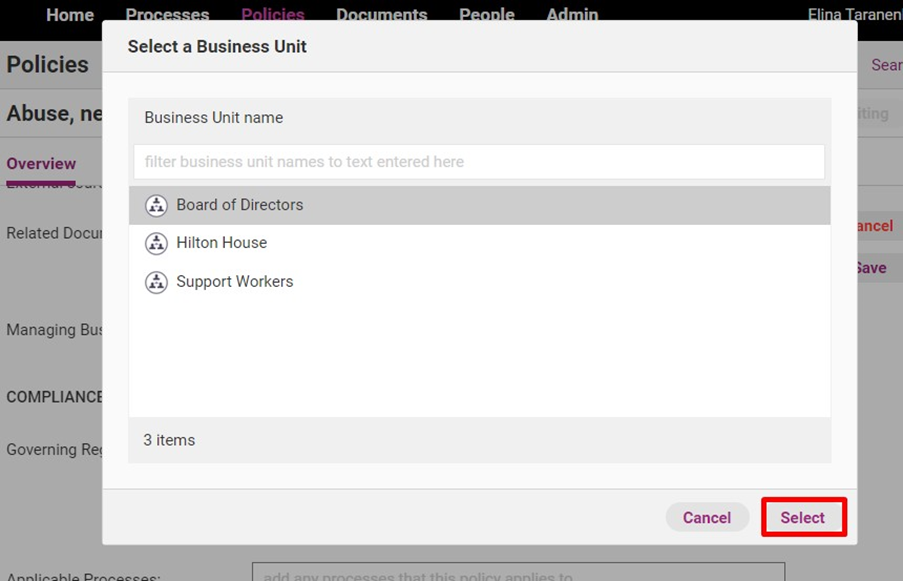
Click on all the BU for the content item and click Select.
Step 5
Approve and publish the item (for more information see Publish Single Item)
Tip
Once a Business Unit is assigned to an item, this may change which users can view and edit the content, based on the Business Units they have been assigned.
For reference, each Business Unit can have one of the following permissions:
- Anyone in org can view and edit – this means that any user in the system can edit and view web app content that has been assigned to this BU.
- Anyone in org can view but only reporting/affiliated to unit can edit – this means that any user in the system can view web app content assigned to this BU, but only users linked to this BU can edit.
Final review of Business Unit setup
Step 1
Once you complete setting up Business Units, it is recommended that you go back into the People tab, click on the Business Units subtab and review all content and associated people that have been assigned to the relevant Business Units.
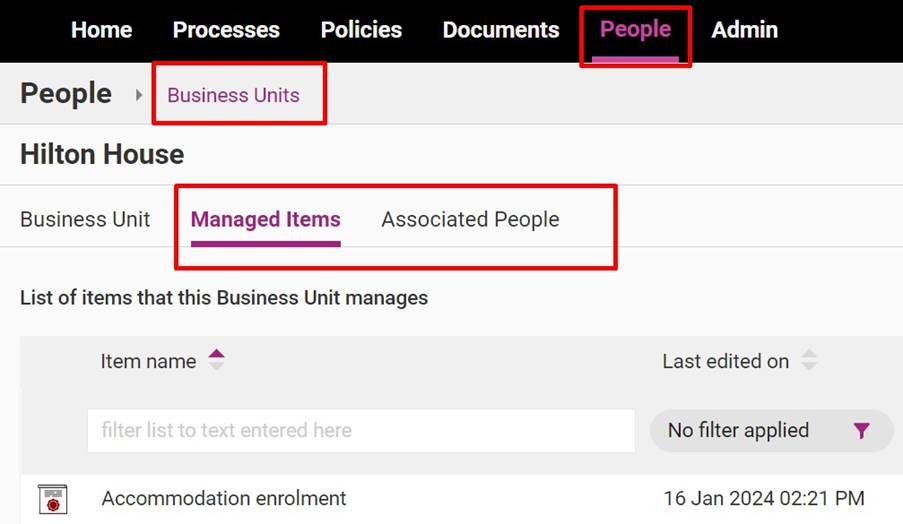
Managed Items
This tab provides a summary of each content item that has been assigned to the Business Unit, including last edited and next review dates. If you have selected the wrong content items to be assigned to this Business Unit, select ‘OPEN’ and follow step 3 in this guide to edit the item.
Associated People
This tab provides a summary of each team member that has been assigned to the selected Business Unit. This includes the level of access that has been granted based on the Business Unit settings and Position is setup.
Tip
If you have required reading, setting up Business Units may impact what different users can see.
It is recommended that the Administrator review any content that is completely locked down within a Business Unit and check if any of these content items overlap with content assigned to a Role.