
General
Set up and configuration
- Assign required reading
- Manage app settings and notifications
- Home page image and document logo
- Manage categories
- Welcome text and news
- Hide items (archive content)
- Required reading reports
- Updating role name video
- Updating links to Strengthened Standards training video
- Onboarding kit
- Send email notifications
Manage users
Troubleshooting
Registers
Manage content
- Delete document
- Edit, review and approve process
- Edit, review and approve policy
- Create and publish new policy
- Create and publish new process
- Previous item version information
- Edit roles
- Edit release notes
- Hide items (archive content)
- Introduction to release management
- Manage document
- Manage regulations
- Publish multiple changes (in one release)
- Publish single item (manage changes)
- Download and print content
- Delete role
- Delete policy
- Delete process
- Delete or archive regulation
- Embed video
- Manage comments
- Send email notifications
- Show Remaining Articles (2) Collapse Articles
Audits
Training Resources
- Content updates training
- Process editing - editing the process sequence
- Upcoming training sessions
- Required reading training video
- Updating role name video
- Updating links to Strengthened Standards training video
- Scheduling updated audits video
- Work instructions training video
- Comments training video
Business units
Reports
Required Reading
Work Instructions
Mobile Phone App
Comments
Custom audits
Complete required reading
User access level | Powers related to Required Reading |
|---|---|
Administrator / Model Administrator | Can set required reading to users. Refer to the Assign Required Reading page for more information. |
This guide provides guidelines for:
- completing required reading in the QMS web app
- confirming that you have read and understood your assigned reading.
Tip
If you have received an email notification about required reading, please click the link in the email to access your required reading list.
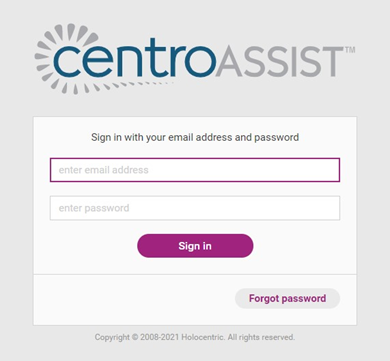
Step 1
Log in to your account.
Step 2
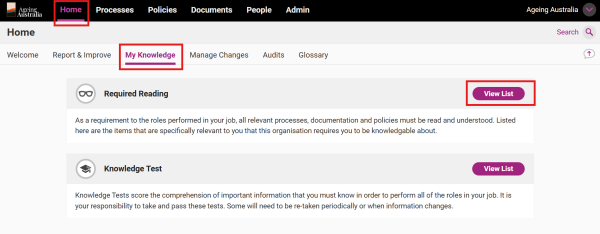
You can find the full list of Items assigned as Required Reading, including outstanding reading under the My Knowledge tab.
Access Home > My Knowledge and click View List next to Required Reading.
Step 3
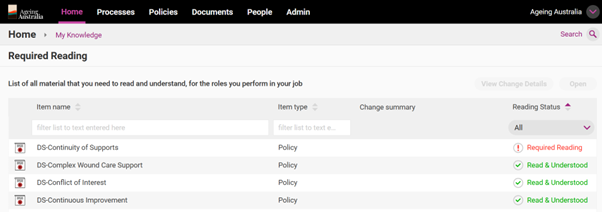
Items which are still required to be read will be shown by the red text ‘Required Reading’ under Reading Status.
Items which have already been read will be shown by the green text ‘Read and Understood’ under Reading Status.
Step 4
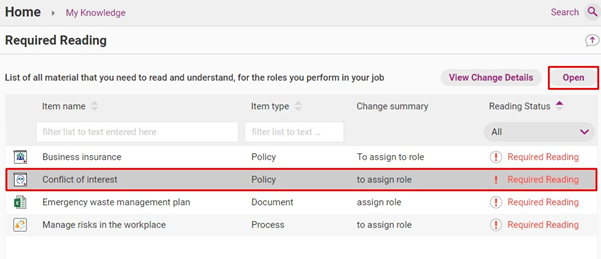
Click once on the item and click Open. You can also double click on the item to open.
Step 5
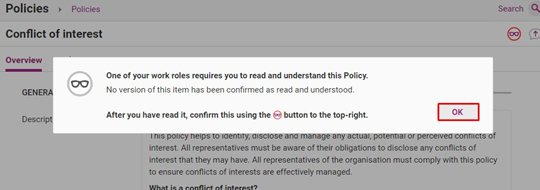
A prompt will appear explaining that the item has been assigned as Required Reading for you based on your Role. Click OK.
Step 6
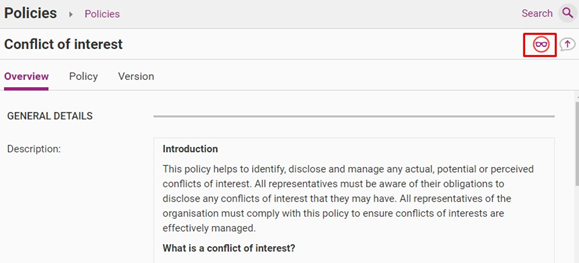
After you have read the item in full, click the glasses icon which can be found near the top right-hand side of the page.
Step 7
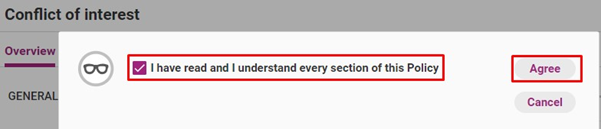
Click the box to confirm you have read and understood the item, then click Agree.
Tip
Check back frequently to ensure you do not have any outstanding required reading items.
Tip
Note: If you navigate to Items in another way (e.g. using Search) you may also get an alert if that Item is assigned as Required Reading for your Role.