
General
Set up and configuration
- Assign required reading
- Manage app settings and notifications
- Home page image and document logo
- Manage categories
- Welcome text and news
- Hide items (archive content)
- Required reading reports
- Updating role name video
- Updating links to Strengthened Standards training video
- Onboarding kit
- Send email notifications
Manage users
Troubleshooting
Registers
Manage content
- Delete document
- Edit, review and approve process
- Edit, review and approve policy
- Create and publish new policy
- Create and publish new process
- Previous item version information
- Edit roles
- Edit release notes
- Hide items (archive content)
- Introduction to release management
- Manage document
- Manage regulations
- Publish multiple changes (in one release)
- Publish single item (manage changes)
- Download and print content
- Delete role
- Delete policy
- Delete process
- Delete or archive regulation
- Embed video
- Manage comments
- Send email notifications
- Show Remaining Articles (2) Collapse Articles
Audits
Training Resources
- Content updates training
- Process editing - editing the process sequence
- Upcoming training sessions
- Required reading training video
- Updating role name video
- Updating links to Strengthened Standards training video
- Scheduling updated audits video
- Work instructions training video
- Comments training video
Business units
Reports
Required Reading
Work Instructions
Mobile Phone App
Comments
Custom audits
Search the web app
To find content quickly and efficiently, all users can search the QMS web app using the search functions.
Global Search bar
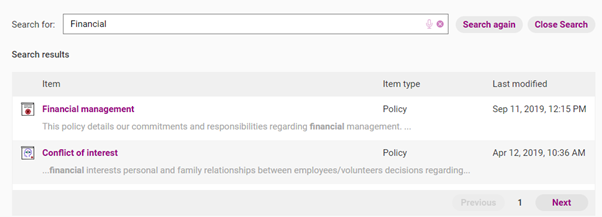
Use the Global Search function to search all the content stored in your QMS.

When you type a search term, from the Homepage, you will be able to see all the items that have the term in the title and in the contents (for policies and processes).
The results will be organised by relevance.
Tip
You can search phrases to get more accurate results.
If you aren’t getting any results, check your spelling is correct and/or reduce the search term.
Specific area searches
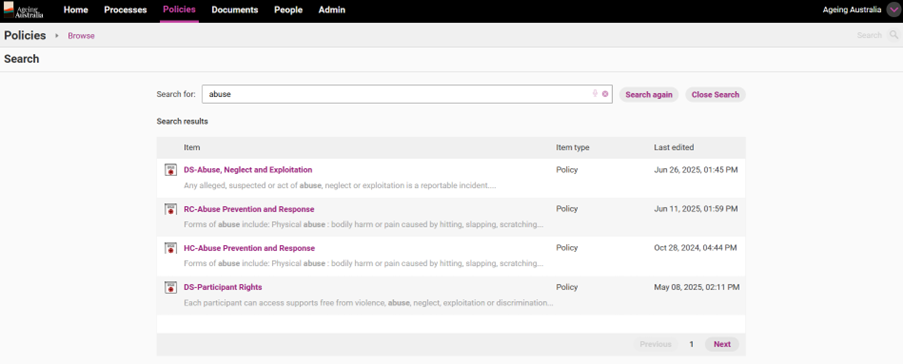
If you know that the Item you are searching for is a Policy, Process or Document, you can search through those sections only by using the Search bar within those sections.
For instance, to search only through Policies:
1. Click on the Policies tab
2. Enter search term in the Search bar at the top right-hand corner of the screen

3. The search will now show only items in that area of the QMS (e.g. in this case Policies and Regulations)
Specific searches and filters
You can also filter and search different types of content (policies, processes and documents) by clicking on the relevant tab and accessing list view.
List view can be accessed by clicking the subtab with the same name as the main tab.

In this view, you have the option to search for content using the search bar.

By using the arrows above each column, you can sort the list by:
- item name (in alphabetical order)
- category
- business unit
- roles (to which items apply); and
- date last modified.
