
Ageing Australia Quality Management System Support Portal
General
Set up and configuration
- Assign required reading
- Manage app settings and notifications
- Home page image and document logo
- Manage categories
- Welcome text and news
- Hide items (archive content)
- Required reading reports
- Updating role name video
- Updating links to Strengthened Standards training video
- Onboarding kit
- Send email notifications
Manage users
Troubleshooting
Registers
Manage content
- Delete document
- Edit, review and approve process
- Edit, review and approve policy
- Create and publish new policy
- Create and publish new process
- Previous item version information
- Edit roles
- Edit release notes
- Hide items (archive content)
- Introduction to release management
- Manage document
- Manage regulations
- Publish multiple changes (in one release)
- Publish single item (manage changes)
- Download and print content
- Delete role
- Delete policy
- Delete process
- Delete or archive regulation
- Embed video
- Manage comments
- Send email notifications
- Show Remaining Articles (2) Collapse Articles
Audits
Training Resources
- Content updates training
- Process editing - editing the process sequence
- Upcoming training sessions
- Required reading training video
- Updating role name video
- Updating links to Strengthened Standards training video
- Scheduling updated audits video
- Work instructions training video
- Comments training video
Business units
Reports
Required Reading
Work Instructions
Mobile Phone App
Comments
Custom audits
< All Topics
Print
Complete required reading (QMS Mobile App)
Updated
Step 1
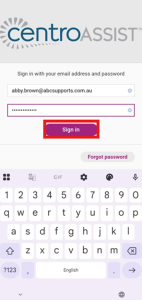
Login to the QMS Mobile app. Refer to the article Login (QMS Mobile App).
Step 2
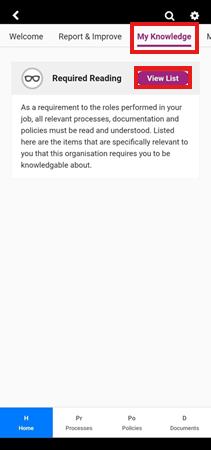
Navigate to My Knowledge and tap View List next to Required Reading. This will show all the content that you need to read and understand.
Step 3
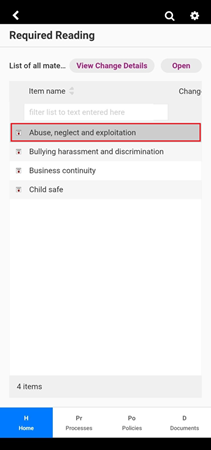
Tap on an item on the list to read it.
Step 4
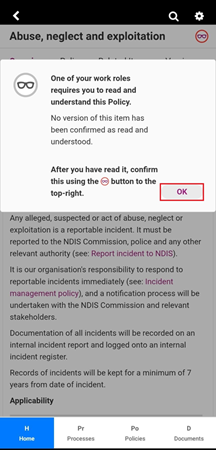
The Required Reading prompt will appear. Tap OK to confirm.
Step 5
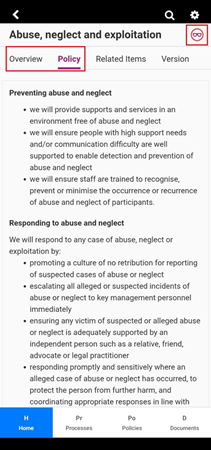
Read the content Overview and the main body. Once you have read and understood the item, tap on the glasses Icon.
Step 6
Tick the box to confirm that you have read and understood and Tap Agree. Repeat steps 2 - 5 for all required reading items.
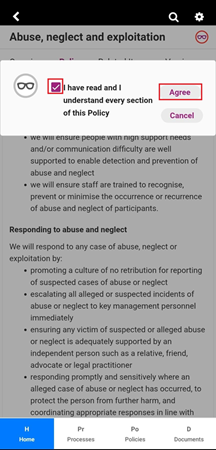
Table of Contents